Sauce Connect Proxy 5 Quickstart Guide
Sauce Connect Proxy is required to run a test on an app or website located behind a firewall. Get up and running with a basic Sauce Connect Proxy tunnel in minutes using the steps below.
The Sauce Connect Proxy version 5 major release introduces CLI changes. Please refer to Sauce Connect Proxy 5 CLI Reference for details.
An sc legacy command is introduced to help users transition from version 4.x.x to 5.0.x.
What You'll Need
- A Sauce Labs account (Log in or sign up for a free trial license).
- If you haven't already, make sure you can access the website or mobile app that you'll be testing from the Sauce Connect Proxy host.
- Check to see if you have any proxies that are required to access the public Internet.
Installing Sauce Connect Proxy
See the installation instructions
Starting Sauce Connect Proxy
- Make sure that the directory containing the
scbinary (sc.exefor Windows) is in the$PATH. Otherwise, you will have to specify the path to the binary in the command line,/path/to/sc - Log in to Sauce Labs.
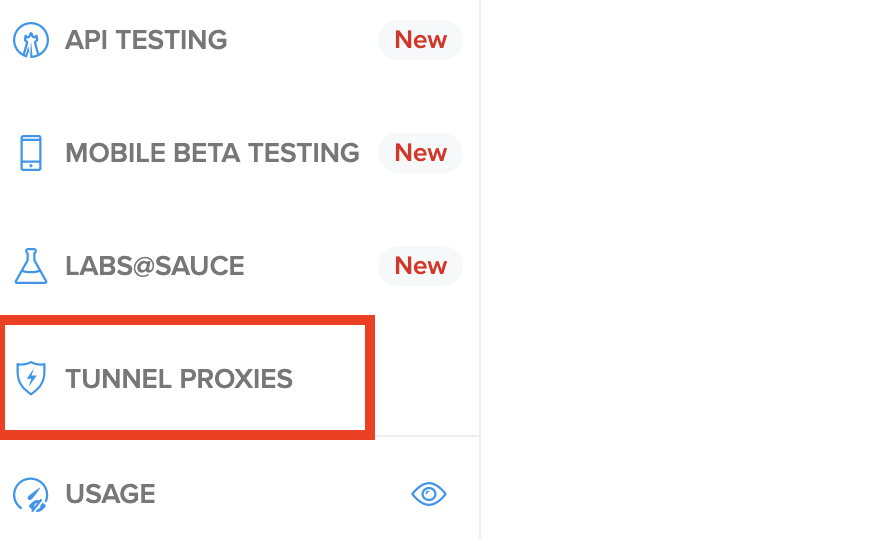
- Go to the Tunnel Proxies page.
- Under step 2, Authenticate & connect, copy the code snippet.
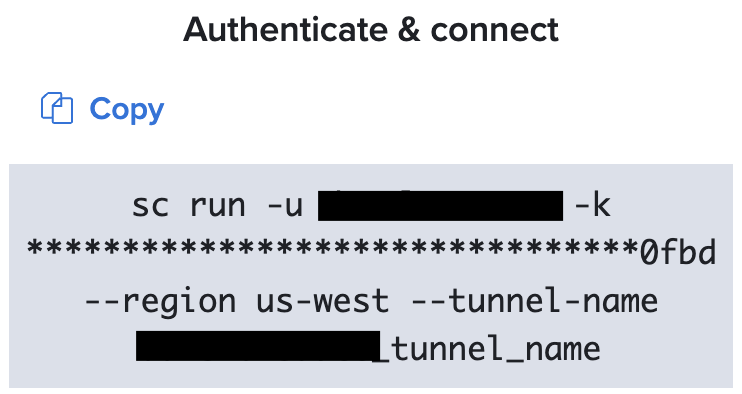
What is this?
This snippet contains your authentication credentials (username and access key), selects a Sauce Labs Data Center, and applies a name to your tunnel. Optionally, you can rename your tunnel by replacing the value after the--tunnel-nameflag. - Paste the snippet into your terminal and run it. This will launch the tunnel.
- Follow the steps in the setup instructions to start Sauce Connect Proxy 5 using the username and the access key obtained in the previous step.
Verify Connection
To confirm your tunnel is up, look for the confirmation message in your terminal:
Sauce Connect is up, you may start your tests
Alternatively, you can check your list of active tunnels on the Tunnel Proxies page: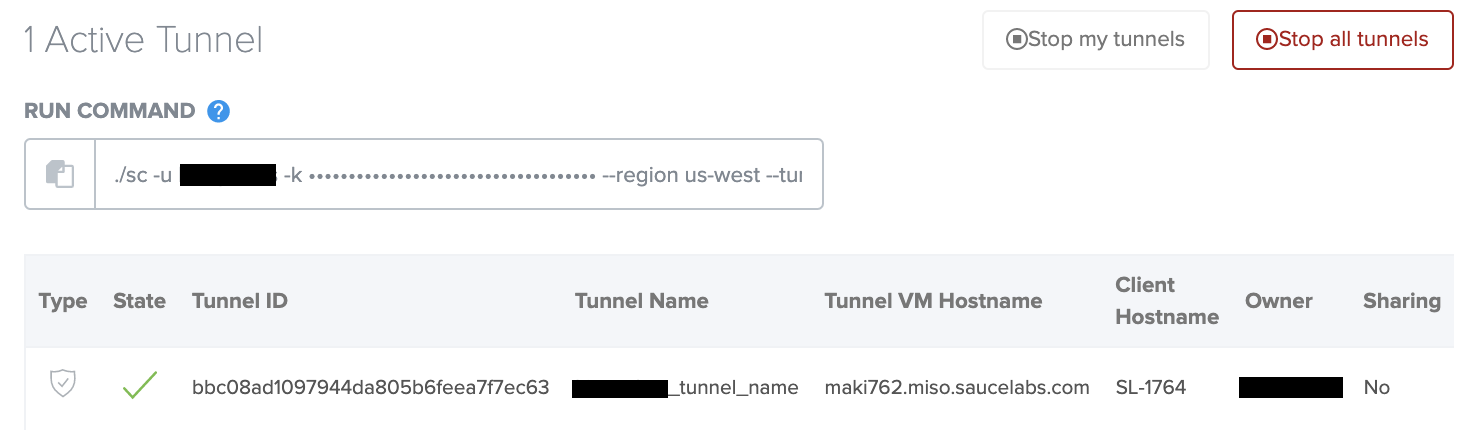
Run Test
With your tunnel up and running, try doing a Live local test.
- Cross-Browser
- Mobile Browser
- Mobile App
- From your terminal or IDE, launch a local instance of your website as you normally would.
- From Sauce Labs, click Live > Cross Browser > Desktop.
- In the URL field, enter your website's local URL (e.g.,
http://localhost:3000). - From the Sauce Connect Proxy dropdown, select your tunnel name.
- Select your desired browser configuration.
- Click Start Test to launch your live test in Sauce Labs.
- From your terminal or IDE, launch a local instance of your site as you normally would.
- From Sauce Labs, click Live > Cross Browser > Mobile Virtual or Mobile Real.
- Enter the local URL for your local website under test (e.g.,
http://localhost:3000) - From the Sauce Connect Proxy dropdown, select your tunnel name.
- Select your desired Mobile Virtual or Mobile Real device configuration.
- Click Start Test to launch your live test in Sauce Labs.
- From Sauce Labs, click Live > Mobile App.
- Click Upload App to upload your iOS or Android mobile app file to Sauce Labs.
- Find your app in the apps list, hover your mouse over it, and click Choose Device.
- To test your app on a real device, click Mobile Real. To test it on an emulator or simulator, click Mobile Virtual.
- Select your desired device configuration, including your tunnel name in the Sauce Connect Proxy dropdown.
- Click Start Test to launch your live test in Sauce Labs.
Stop Tunnel
When you've finished testing, you can stop your tunnel from the terminal where Sauce Connect is running by entering Ctrl+C. If there are jobs that use Sauce Connect Proxy connection, it will wait for them to finish.
2024/01/23 15:19:33.152509 [control] [INFO] Sauce Connect is up, you may start your tests
^C
2024/01/23 15:29:12.617959 [control] [INFO] waiting for 1 active job(s) to finish, timeout: 3h0m0s
2024/01/23 15:29:27.622295 [control] [INFO] waiting for 1 active job(s) to finish, timeout: 2h59m45s
2024/01/23 15:29:42.600553 [control] [INFO] waiting for 1 active job(s) to finish, timeout: 2h59m30s
2024/01/23 15:30:00.924115 [control] [INFO] tunnel was shutdown gracefully
Alternatively, you can go to the Tunnel Proxies page and click one of the Stop Tunnels buttons.