Mobile App Storage
Mobile App Storage is a centralized repository for storing and managing mobile application builds used with Sauce Labs. Once uploaded, applications can be reused for both live and automated testing on both real and virtual devices without requiring additional uploads.
Uploaded applications can also be shared with team members and other teams within your organization and are retained for up to 60 days. Mobile App Storage supports application packages up to 4 GB.
If you do not have an application available, you can use one of the Sauce Labs demo applications to familiarize yourself with the live testing workflow:
Prerequisites
Before starting a live mobile app testing session, ensure the following requirements are met:
- You must have a valid Sauce Labs account. (Log in or sign up for a free trial license)
- A valid Sauce Labs Username and Access key for authentication.
Upload a debuggable and non-obfuscated version of your application to use features such as Biometrics, Image Injection, and Mobile App Diagnostics.
Supported File Types
Mobile App Storage supports Android application packages (.apk and .aab) and iOS application packages (.ipa and .zip). For iOS Simulator testing, .zip files must contain a valid .app bundle.
When you upload an Android App Bundle (.aab), Sauce Labs extracts the APK required for installation on the test device. Before the application is installed, the extracted APK is signed using a Sauce Labs signing certificate. If your test includes both the main application and a testApp, Sauce Labs signs both applications to ensure they use matching signatures. This signing process is required even when instrumentation is disabled. If the applications are not signed with matching certificates, the installation will fail. For more information about Android App Bundles, see Android App Bundles.
Additional Supported Files
In addition to mobile application packages, Mobile App Storage can store other files that are used during automated testing workflows, such as scripts, packages, and supporting binaries.
Supported file types include:
.js.py.tar.zip.sh.bat
Only valid .zip archives that can be extracted using standard unzip tools are supported. Executable (.exe) files are not supported.
Uploading Apps
You can upload your mobile application to Mobile App Storage using either the Sauce Labs UI or the File Storage API. Once uploaded, the application becomes available for live testing and automated testing.
Upload Apps via UI
Use the Sauce Labs UI to manually upload an application to Mobile App Storage.
Step 1: In your Sauce Labs account, navigate to App Management from the left navigation menu. The Mobile App Storage page opens, where you can upload and manage your application builds.
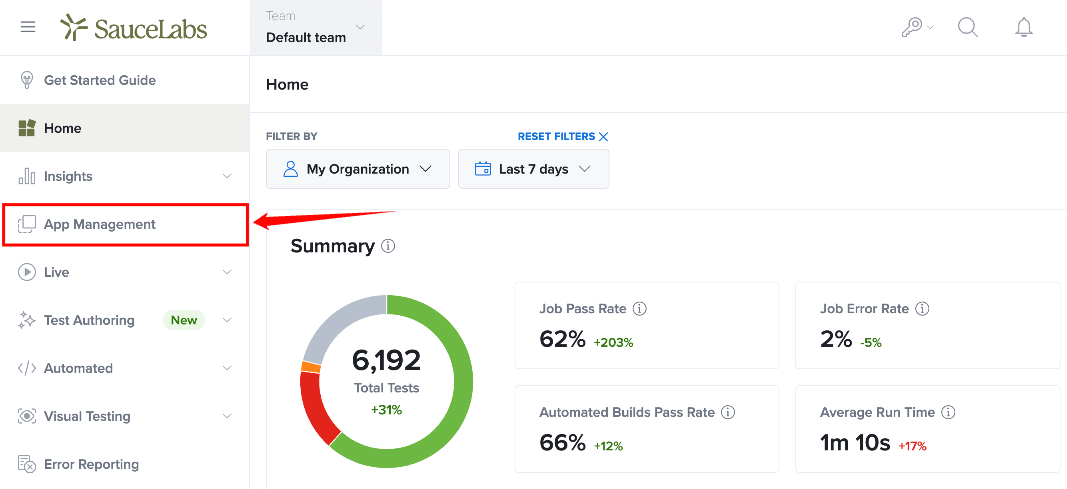
Step 2: On the App Management page, upload your application using one of the following methods:
-
Drag and drop your application file into the upload area.
-
Click the upload area, browse to the application file on your local machine, and then select it.
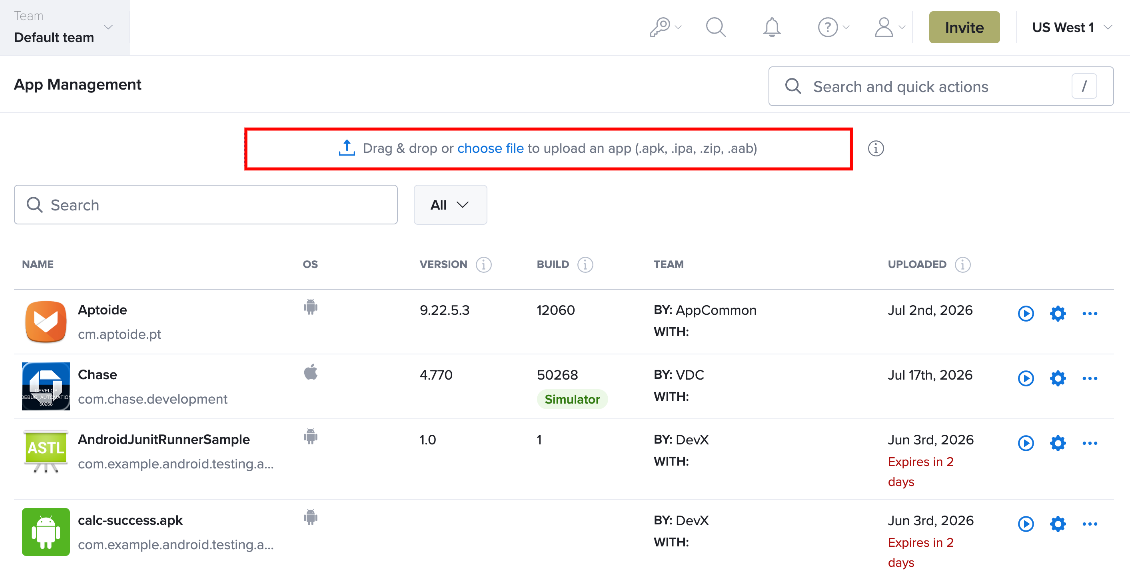
Step 3: Wait for the upload to complete. After the upload finishes, the application is added to Mobile App Storage and appears on the App Management page.
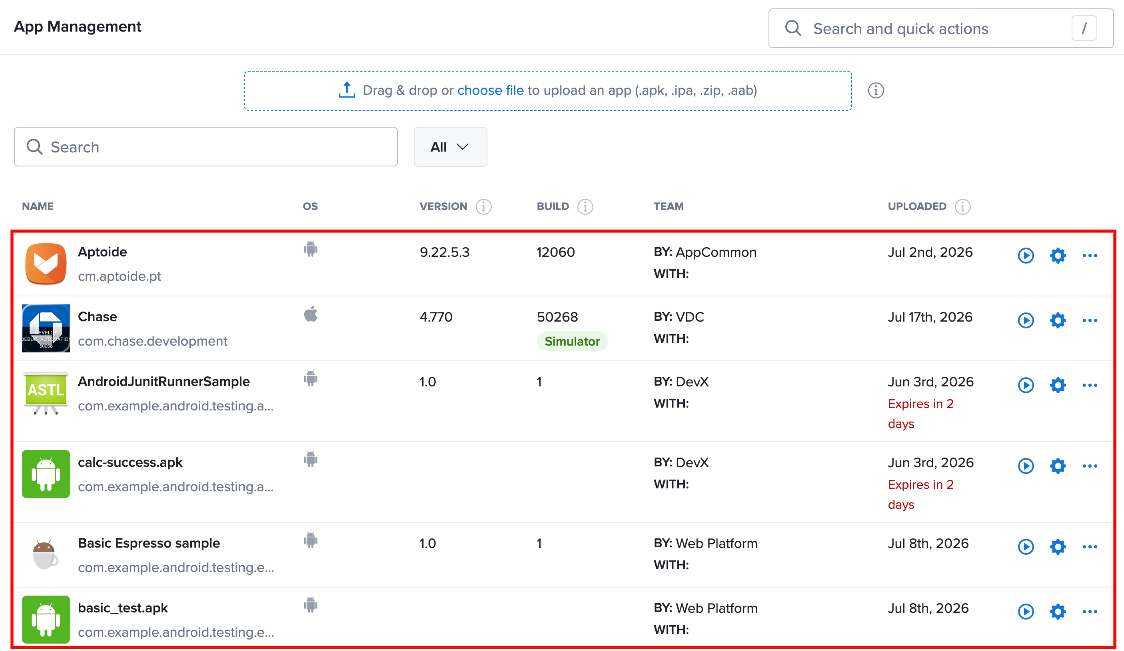
Verify that the application is listed in App Management. You can now use the uploaded application for live testing and automated testing, configure app settings, or manage additional app builds.
If you do not have an application available for testing, upload one of the Sauce Labs Demo Apps to explore the testing workflow and familiarize yourself with Mobile App Storage.
Upload Apps via REST API
You can upload applications programmatically using the File Storage API. This method supports CI/CD pipelines and automated workflows.
Before uploading an application, make sure you are using the File Storage API endpoint for your Sauce Labs data center (US West, US East, or Europe).
Before You Begin
When using the sample cURL commands, note the following:
-
Replace
<path/to/your/file>with the complete path to your application, including the filename and extension. -
Replace
<filename.ext>with the application filename, including its extension. If the filename is omitted, the upload succeeds, but the application cannot be referenced during testing. -
Make sure the
SAUCE_USERNAMEandSAUCE_ACCESS_KEYenvironment variables are configured with your Sauce Labs credentials.
Replace the endpoint URL with the appropriate File Storage API endpoint if your account is hosted in the US East or Europe data center.
- US West
- US East
- Europe
curl -u "$SAUCE_USERNAME:$SAUCE_ACCESS_KEY" --location \
--request POST 'https://api.us-west-1.saucelabs.com/v1/storage/upload' \
--form 'payload=@"<path/to/your/file>"' \
--form 'name="<filename.ext>"'
curl -u "$SAUCE_USERNAME:$SAUCE_ACCESS_KEY" --location \
--request POST 'https://api.us-east-4.saucelabs.com/v1/storage/upload' \
--form 'payload=@"<path/to/your/file>"' \
--form 'name="<filename.ext>"'
curl -u "$SAUCE_USERNAME:$SAUCE_ACCESS_KEY" --location \
--request POST 'https://api.eu-central-1.saucelabs.com/v1/storage/upload' \
--form 'payload=@"<path/to/your/file>"' \
--form 'name="<filename.ext>"'
App Build Tags
App build tags help organize and identify application builds stored in Mobile App Storage. You can assign up to 10 tags to an app build during upload or after the upload using the File Storage API.
Tags can be used to categorize builds by release, environment, feature, testing phase, or any other naming convention used by your team. You can then use these tags to locate and manage specific app builds.
- US West
- US East
- Europe
curl -u "$SAUCE_USERNAME:$SAUCE_ACCESS_KEY" --location \
--request POST 'https://api.us-west-1.saucelabs.com/v1/storage/upload' \
--form 'payload=@"<path/to/your/file>"' \
--form 'name="<filename.ext>"' \
--form 'tags="Europe,Asia,US"'
curl -u "$SAUCE_USERNAME:$SAUCE_ACCESS_KEY" --location \
--request POST 'https://api.us-east-4.saucelabs.com/v1/storage/upload' \
--form 'payload=@"<path/to/your/file>"' \
--form 'name="<filename.ext>"' \
--form 'tags="Europe,Asia,US"'
curl -u "$SAUCE_USERNAME:$SAUCE_ACCESS_KEY" --location \
--request POST 'https://api.eu-central-1.saucelabs.com/v1/storage/upload' \
--form 'payload=@"<path/to/your/file>"' \
--form 'name="<filename.ext>"' \
--form 'tags="Europe,Asia,US"'
Rate Limits
To maintain service stability and ensure consistent upload performance, Mobile App Storage enforces rate limits on application uploads. These limits control the number of upload requests that can be processed in a given time period and the maximum number of concurrent uploads allowed for each account type.
The following upload limits apply:
| Account Type | Upload Limit | Parallel Upload Limit |
|---|---|---|
| Trial Users | 5 uploads per 15-minute window | 2 concurrent uploads |
| Non-Trial Users | 100 uploads per 15-minute window | 15 concurrent uploads |
If the upload limit is exceeded, additional upload requests are temporarily rejected until the current rate limit window resets. To avoid upload failures, wait for the time window to expire before submitting additional upload requests.
Access Restrictions
Access to applications stored in Mobile App Storage is managed at the team level. By default, uploaded applications are available only to members of the team that uploaded them.
Team Access
All uploaded applications are shared with members of the active team. Team members can view and use applications uploaded by other members of the same team.
Organization administrators have access to applications across all teams in the organization and can manage app groups shared between teams.
For more information about managing users and team access, see Managing User Information.
Share an App Group with Another Team
Organization administrators can share an app group with one or more teams in the same organization. Shared app groups allow team members to use the application for testing without requiring another upload.
When an app group is shared:
-
The shared app group appears under the Shared With Me tab on the App Management page for the receiving team.
-
Team members can use the shared application for testing just like applications uploaded by their own team.
-
Only organization administrators can modify or remove app sharing.
-
Teams receiving a shared app group cannot delete it.
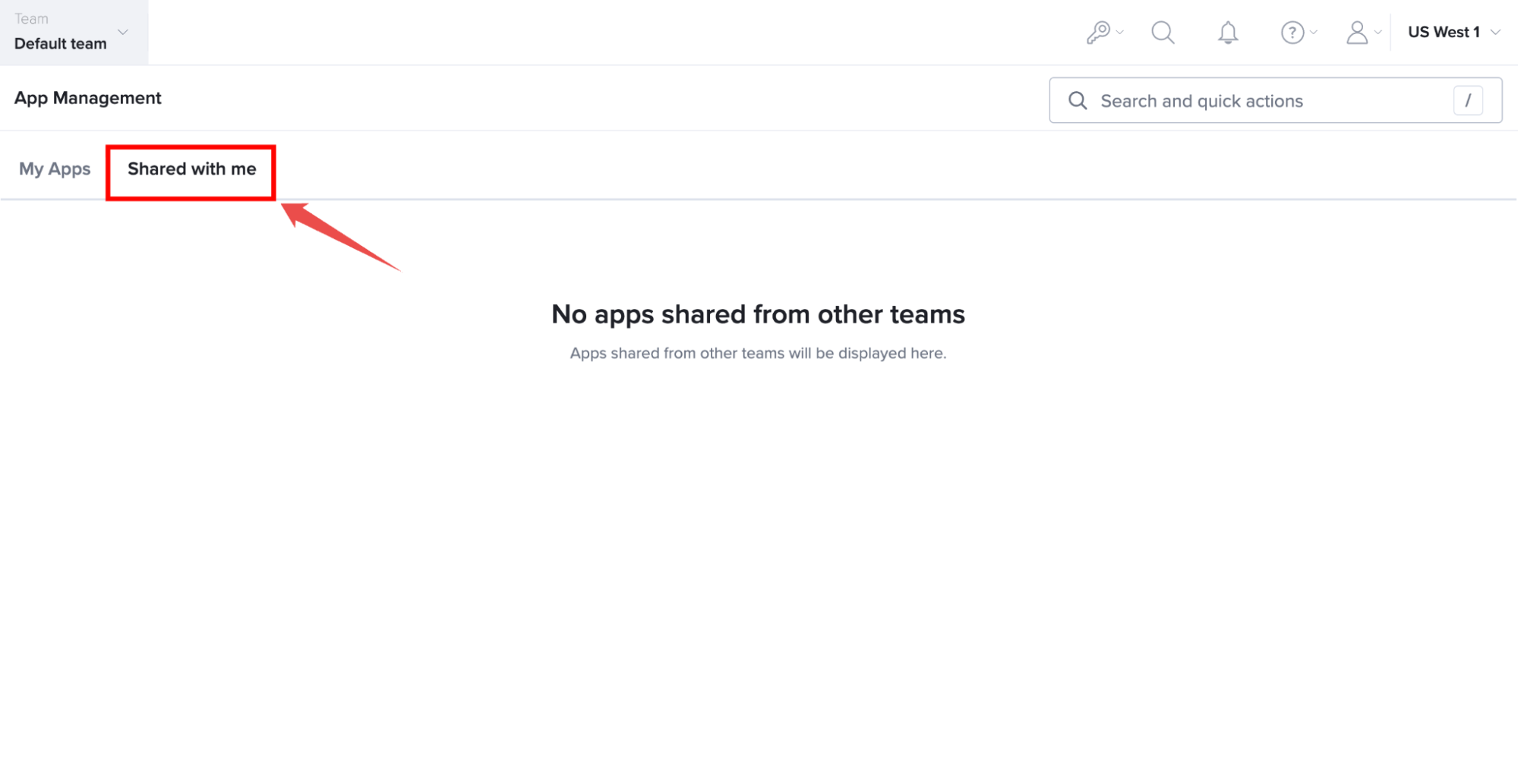
Share an App Group
Step 1: Sign in to your Sauce Labs account, then click App Management from the left navigation menu to open the page that lists all available app groups.
Step 2: Locate the app group that you want to share with another team.
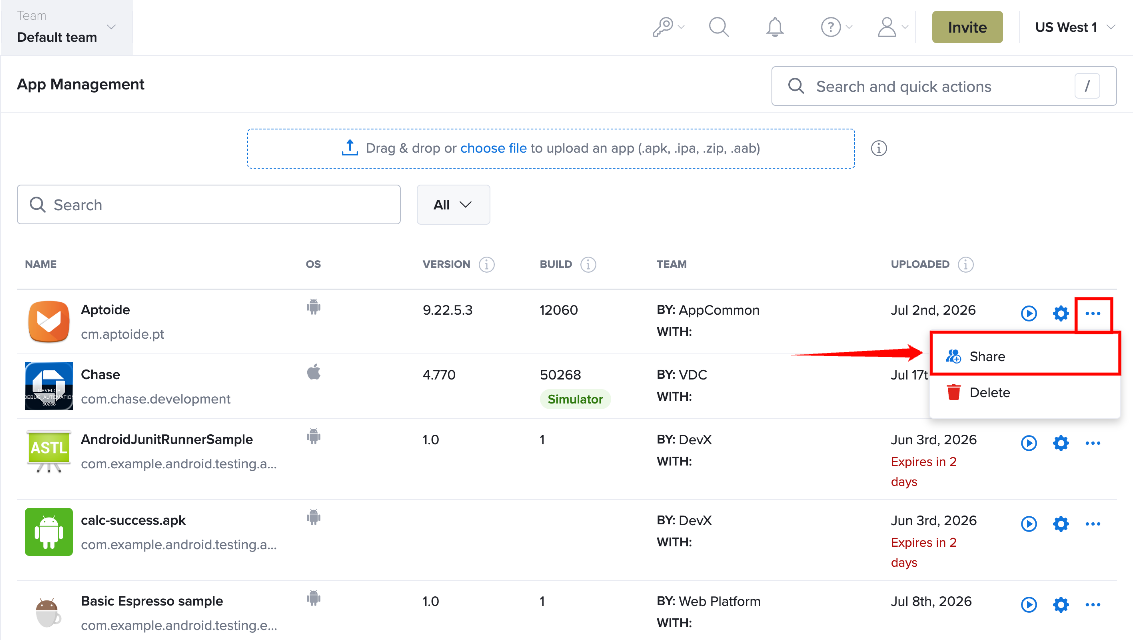
Step 3: In the app group row, click More Actions (⋮), and then select Share. The Share dialog opens.
Step 4: In the Share dialog, open the Teams dropdown list and select one or more teams that should have access to the app group.
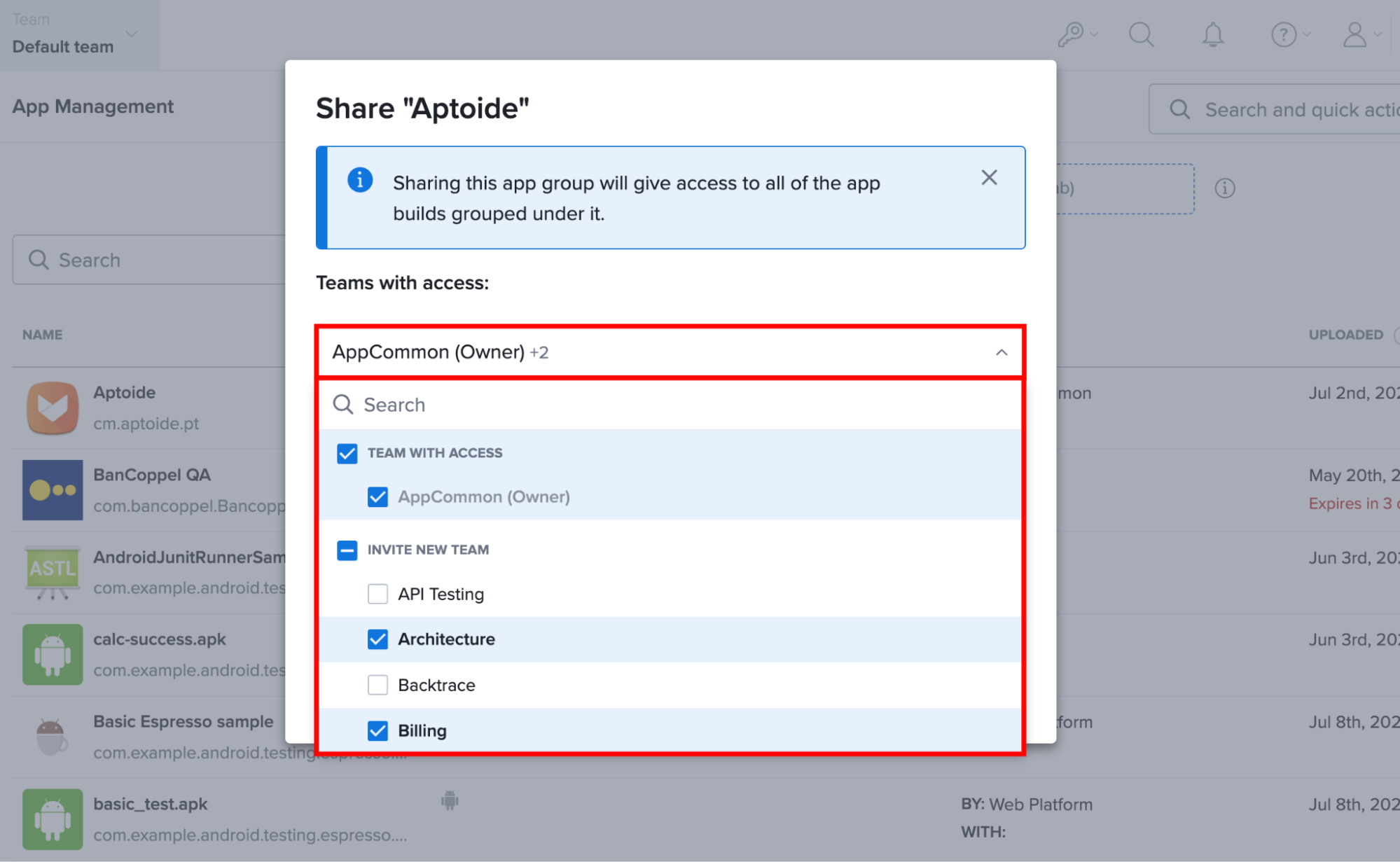
Review the selected teams before continuing. Any new selection replaces the existing list of teams that the app group is shared with.
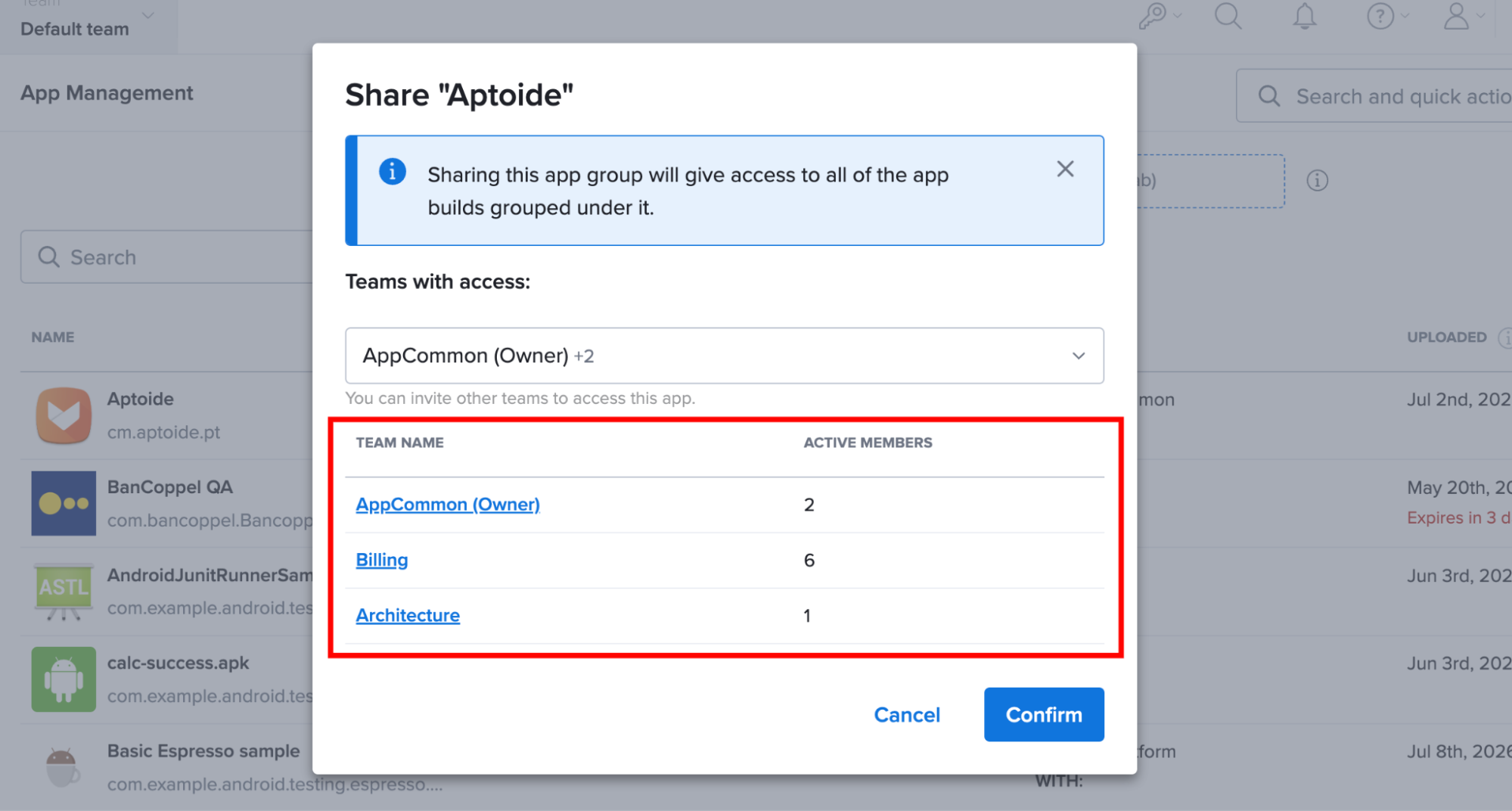
Step 6: Click Confirm to save your changes. The selected teams can now access the shared app group from the Shared With Me tab on the App Management page.
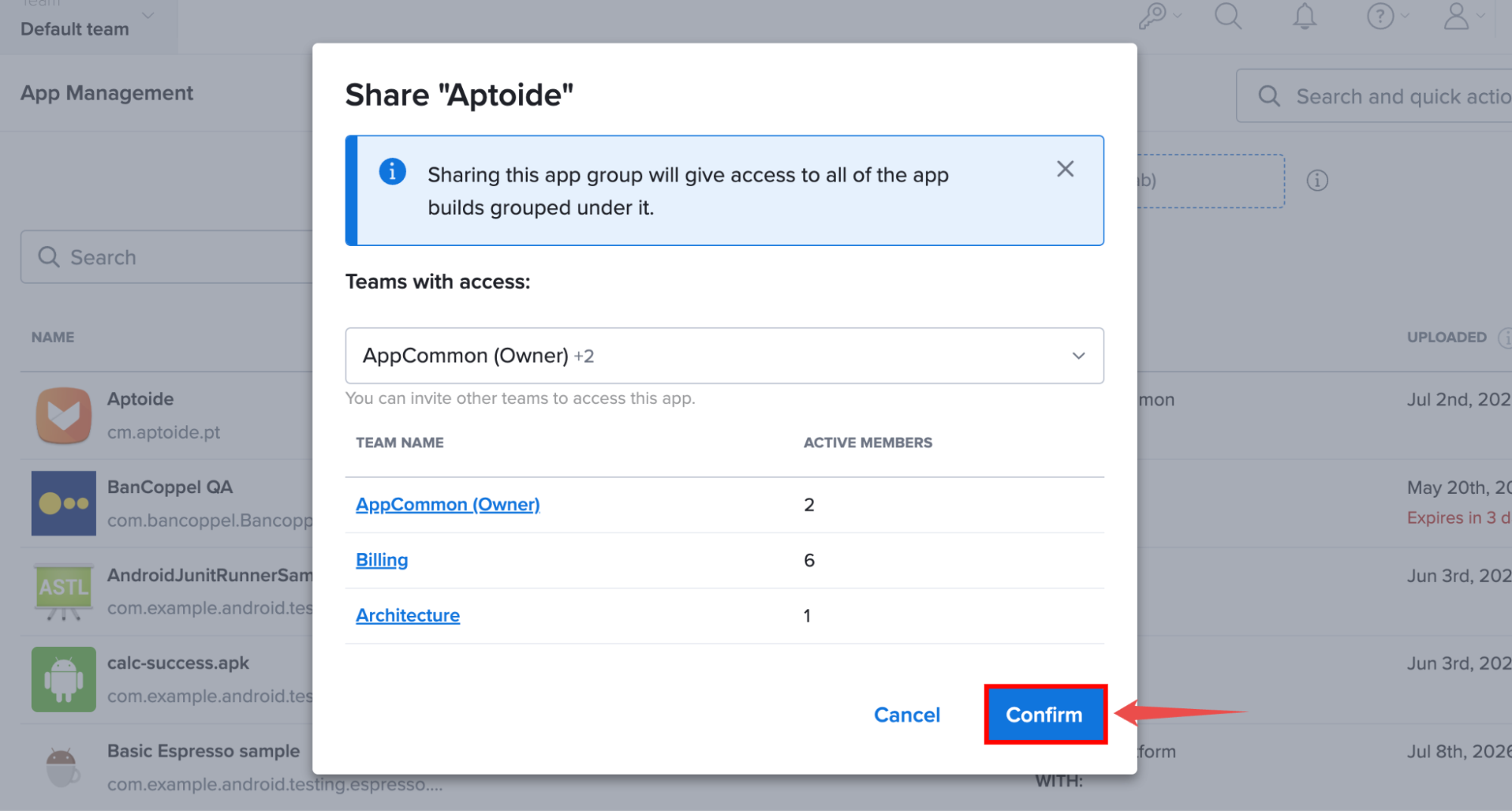
After the changes are saved, the selected teams can access the shared app group from the Shared With Me tab on the App Management page.
App Management
After uploading an application to Mobile App Storage, you can manage its builds, configure default settings, distribute application builds, and access additional management options from the App Management page.
Locate the app group that you want to manage, then hover over it and click Settings & App Versions to open the application management page.
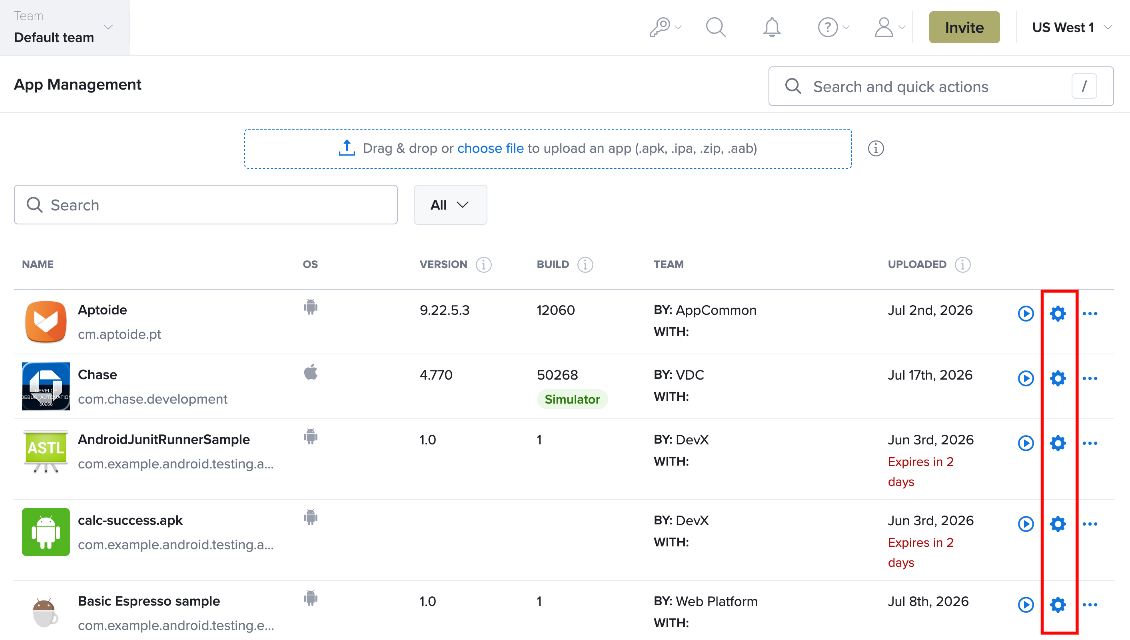
The version number shown is the most recently uploaded file, not necessarily the latest version of the app. Deleting an app in Sauce Labs will delete the whole app group (i.e., the group of builds belonging to the same app package).
App Builds
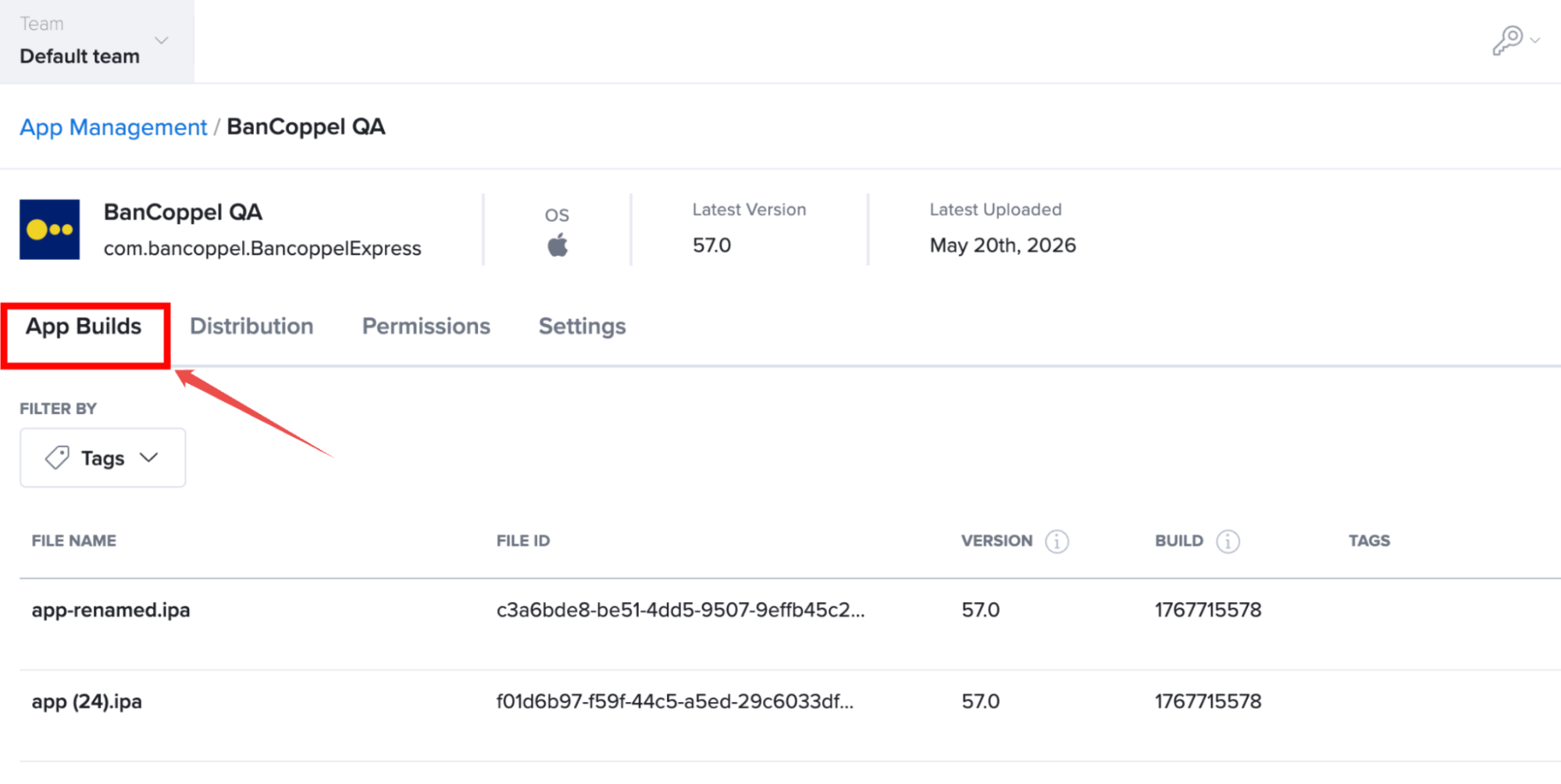
The App Builds tab displays all builds that belong to the selected app group. From the App Builds tab, you can view uploaded application builds, access build details, start a test, download a build, or copy the application's File ID or filename for use in automated tests.
To copy a File ID or filename, hover over the value and click the Copy icon.
Only Organization Admins and Team Admins can delete an app build.
Distribution
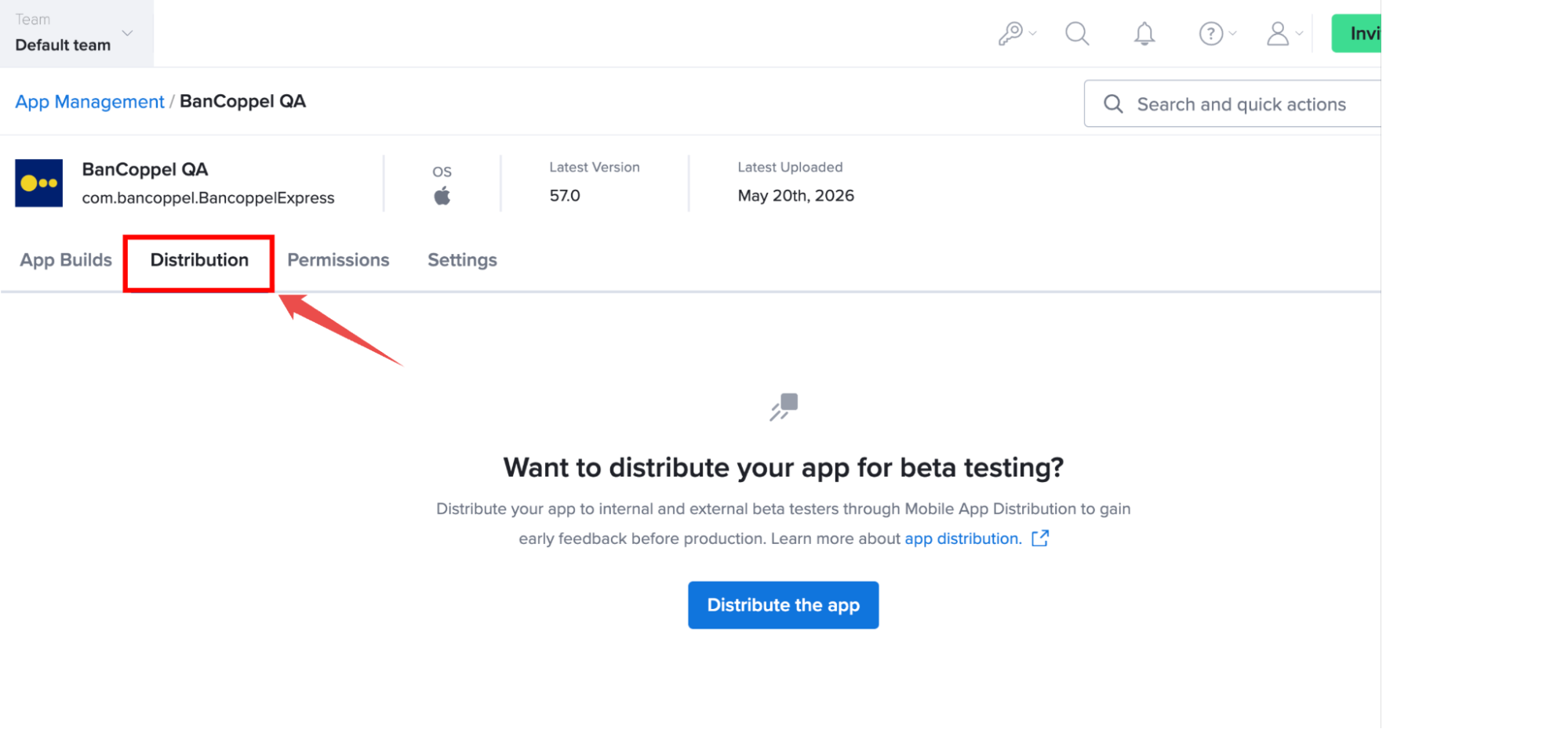
The Distribution tab allows you to distribute application builds to internal and external beta testers using Sauce Labs Mobile App Distribution. This enables testers to install and evaluate application builds before they are released to production, helping teams validate functionality and gather feedback during the testing phase.
For more information, see Mobile App Distribution.
Permissions
Coming soon
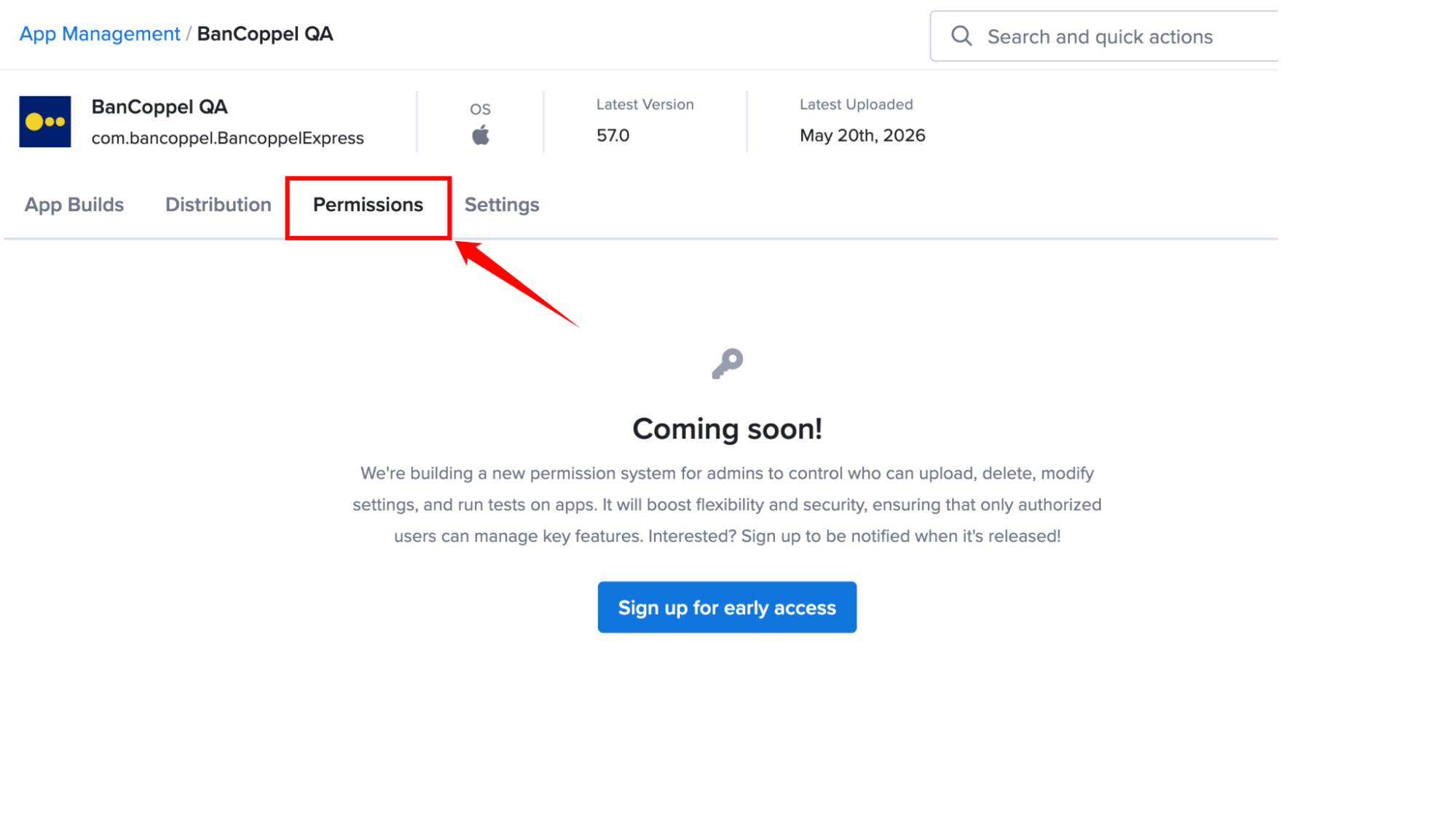
Sauce Labs is developing a new permission model for Mobile App Storage that will provide administrators with greater control over application management. The new permission system will allow administrators to define which users can upload application builds, delete applications and app builds, modify application settings, and run tests using uploaded applications.
Settings
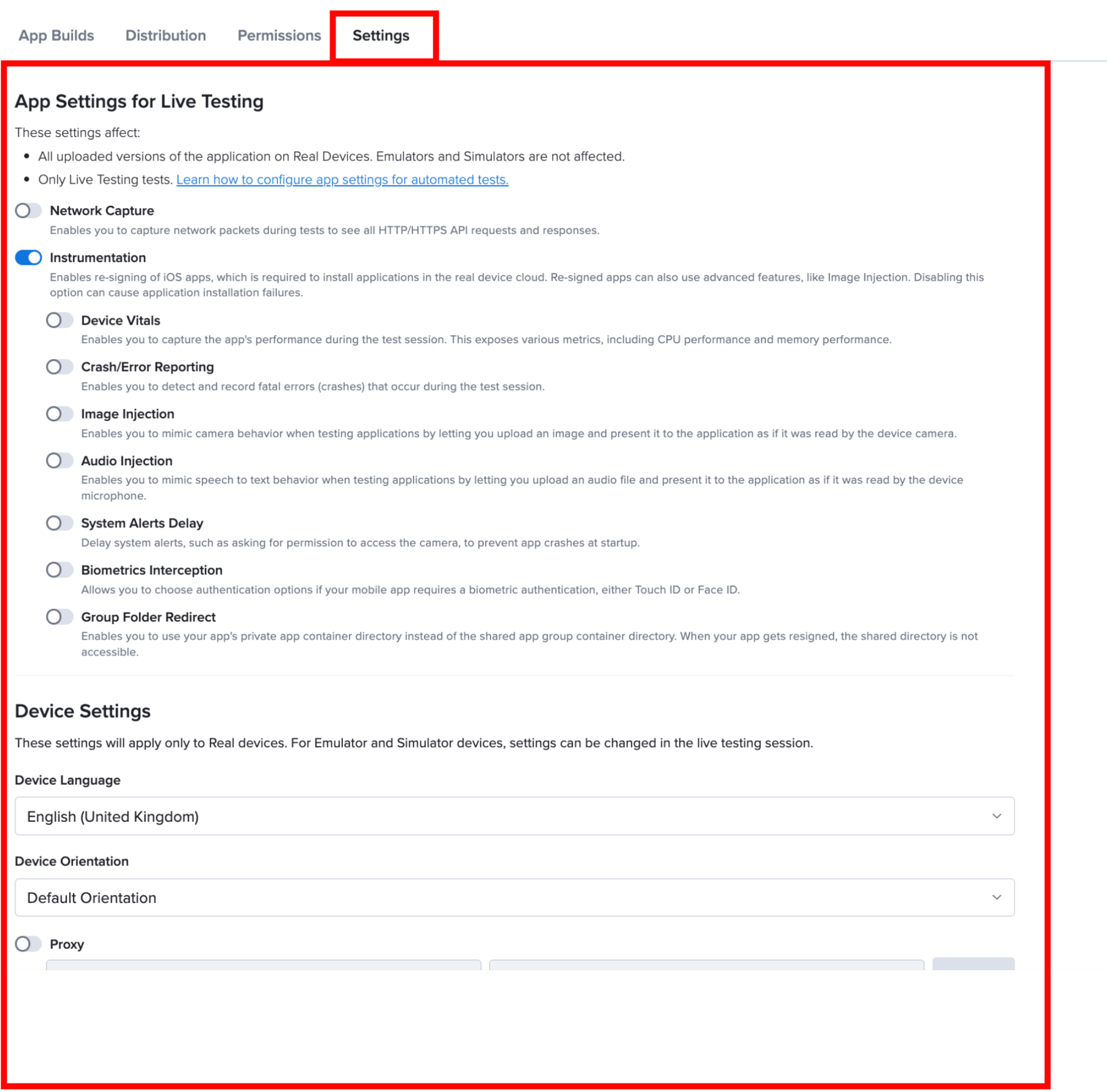
The Settings tab allows you to configure the default device and application settings for an app group. These settings are automatically applied whenever the application is used for live testing or automated testing on real devices, eliminating the need to configure the same settings for each test session.
Only Organization Admins and Team Admins can modify these settings.
For more information about managing your device and app settings, see Real Device Settings.
Using App Storage with Automated Test Builds
After successfully uploading your file to app storage, you need to reference the unique app Identifier (file_id) in your test code to retrieve and use your app for automated tests.
For example, let's assume you've updated a new version of your app using the /upload endpoint. The JSON response would be something like:
{
   "item":{
      "id":"379c301a-199c-4b40-ad45-4a95e5f30a3a",
      "owner":{
         "id":"286c0fbb0cb644c4a012d505b8a0a1ac",
         "org_id":"c064890612424e34a12fca98ce4f32c6"
      },
      "name":"Android.SauceLabs.Mobile.Sample.app.2.3.0.apk",
      "upload_timestamp":1593450387,
      "etag":"0cf189b1c4c17a56656ada5e2d75cd51",
      "kind":"android",
      "group_id":2807,
      "metadata":{
         "identifier":"com.swaglabsmobileapp",
         "name":"Swag Labs Mobile App",
         "version":"2.3.0",
         "icon":"<long-serial-number>",
         "version_code":13,
         "min_sdk":16,
         "target_sdk":28
      },
      ...
      }
   }
}
Then the file_id would be "id":"379c301a-199c-4b40-ad45-4a95e5f30a3a". If you're unsure of the id of an existing app, you can use the Storage API to look up the file id of an app in the storage or check out the App Builds in the UI.
File Name instead of File ID
You can also use the app name field from the storage API in the app capability. This approach is particularly useful if you upload your build to app storage via a CI pipeline, and you either don't know the id, or you do not wish to perform JSON parsing to retrieve the id. The filename field also includes any supported file that can be uploaded to app storage.
Example of uploading an Android .apk file:
- Java
- JS
- Python
- Ruby
- C#
caps.setCapability("app", "storage:filename=<file-name>.apk");
caps['app'] = 'storage:filename=<file-name>.apk';
caps['app'] = "storage:filename=<file-name>.apk"
caps['app'] = 'storage:filename=<file-name>.apk'
caps.SetCapability("app","storage:filename=<file-name>.apk");
Limitations
- File names are NOT unique, therefore they will always default to the latest version.
- Currently, you cannot specify the version of the app using this feature.
buildcapability is not supported in VDC at this time.
Example Code
These examples assume file_id = c8511dd6-38ec-4f58-b8b9-4ec8c23ad882
- Java
- JS
- Python
- Ruby
- C#
caps.setCapability("app", "sauce-storage:some-app.apk");
caps.setCapability("app", "storage:c8511dd6-38ec-4f58-b8b9-4ec8c23ad882");
caps['app'] = 'sauce-storage:my_app.apk';
caps['app'] = 'storage:c8511dd6-38ec-4f58-b8b9-4ec8c23ad882';
caps['app'] = "sauce-storage:my_app.apk"
caps['app'] = "storage:c8511dd6-38ec-4f58-b8b9-4ec8c23ad882"
caps['app'] = 'sauce-storage:my_app.apk'
caps['app'] = 'storage:c8511dd6-38ec-4f58-b8b9-4ec8c23ad882'
caps.SetCapability("app","sauce-storage:my_app.apk");
caps.SetCapability("app","storage:c8511dd6-38ec-4f58-b8b9-4ec8c23ad882");
Using Dependent Apps for a Test
Real Devices OnlyIf your real device testing requires your app under test to have access to other apps and you, therefore, need to install those dependent apps and reference them in your tests, you can do so using the otherApps capability.
Dependent apps inherit the configuration of the main app under test for Device Language, Device Orientation, and Proxy, regardless of what settings may have been applied to the app at the time of upload, because the settings are specific to the device under test. For example, if the dependent app is intended to run in landscape orientation, but the main app is set to portrait, the dependent app will run in portrait for the test, which may have unintended consequences.
Appium Capability
For Appium
tests, you can specify up to seven apps that have already been uploaded to App
Storage using one of the previously described methods by setting the otherApps
desired capability and referencing the app's storage ID or filename.
caps.setCapability("otherApps", "storage:filename=<file-name>")
caps.setCapability("otherApps", "storage:<fileId>")
- Android dependent apps will not be instrumented or modified.
- iOS dependent apps will always be resigned/modified (even when resigning is disabled for the main app) because apps can't be installed on iOS devices without resigning them. If a dependent app cannot be resigned (such as a 3rd party app), the test will not work as intended.
Espresso/XCUITest Configuration
For Espresso or XCUITest testing, you can specify up to seven dependent apps to either upload from your local machine or that are already in App Storage. In your saucectl configuration file, specify a local filepath (relative location is {project-root}/apps/app1.apk) or an expanded environment variable representing the path, and saucectl will upload the app to App Storage for use with the test. Otherwise, specify an app in App Storage using the reference storage:<fileId> or storage:filename=<filename>.
espresso:
otherApps:
- ./apps/pre-installed-app1.apk
- $PRE_INSTALLED_APP2
- storage:c78ec45e-ea3e-ac6a-b094-00364171addb
- storage:filename=pre-installed-app3.apk
Installing Apps from a Remote Location
Real Devices Only
If your app is downloadable from a remote location (for example, AWS S3 bucket, a GitHub repository), you can provide a URL as the value for the app capability in your test, which will install the app onto the real devices prior to test execution.
Appium cannot log in to secure locations, so apps installed via remote download must be accessible, so are then removed from the real device immediately following test completion, providing an added layer of security.
To install a remote app on a real device for a test:
- Make sure the app meets the requirements for Android and iOS Mobile App Testing.
- Ensure Sauce Labs has READ access to the app URL.
- In your Appium test script, enter the app file location URL as the
appdesired capability:
caps.setCapability("app", "https://github.com/saucelabs/sample-app-mobile/releases/download/2.3.0/Android.SauceLabs.Mobile.Sample.app.2.3.0.apk?raw=true");
Android:
- The Instrumentation feature will not work if the app is installed from an external location.
iOS:
- The app cannot be installed on public devices due to signing.
- The app can be installed on private devices. However, to make this work you must add the UDID of the private device to the provisioning profile for iOS (see our resigning process to learn more).
- The Instrumentation feature will not work if the app is installed from external location.
Deprecated Sauce-Storage
If you were previously using apps stored in sauce-storage, you can convert your existing test capabilities by replacing sauce-storage:myapp with storage:<file_id>.