Android Native Crash Integration for Unity
The Backtrace Unity SDK captures native Android crashes, application not responding (ANR) events, and low-memory context in Unity applications. Native reports include process and system information that can help diagnose failures outside managed C# code.
Linker-first native-library resolution, process-aware application binary interface (ABI) selection, contained native setup and dynamic-attribute failures, and the diagnostic codes described in this guide require Backtrace Unity SDK 3.17.0 or later. Earlier SDK versions support Android native crash capture but don't provide all of these behaviors.
Requirements
Android native crash capture requires:
- Android API level 21 or later.
- A valid Server Address in the Backtrace Configuration.
- Enable Database enabled in the Backtrace Configuration.
- Capture native crashes enabled in the Backtrace Configuration.
- A writable Backtrace database directory.
Backtrace Unity supports native crash capture for these Android ABIs:
arm64-v8aarmeabi-v7ax86_64
Native crash capture isn't supported for 32-bit x86. Managed Unity exception and message reporting remains available on that ABI.
Matching debug symbols aren't required to capture a native report, but they are required to resolve native addresses into readable function names and source context.
Configure Native Crash Capture
In the Backtrace Configuration asset:
- Enter a valid Server Address.
- Enable Enable Database.
- Configure a writable Backtrace database path.
- Enable Capture native crashes.
- Configure attachments, breadcrumbs, ANR capture, and low-memory reporting as needed.
The SDK initializes Android native crash capture automatically and synchronously when the Backtrace client starts. Configure the database, native crash setting, attachment paths, and breadcrumbs before the Backtrace Client component initializes.
Pass initial custom attributes to BacktraceClient.Initialize(...), or add them later with SetAttribute(...) or SetAttributes(...).
Native crashes that occur before initialization completes can't be captured. Fatal native reports are stored in the Backtrace database and uploaded after the application starts again.
Android Application Package and App Bundle Support
Backtrace Unity supports:
- Traditional Android application package (APK) installations.
- Android App Bundle installations.
- Split-APK installations.
- Extracted native libraries.
- Native libraries loaded directly from an installed APK or ABI configuration split.
Applications don't need to calculate or configure the native crash-handler library path. You also don't need to force native-library extraction solely for Backtrace Unity.
In version 3.17.0 and later, the SDK resolves the loaded native module and installed package metadata without opening or parsing APK contents.
Native-Library Path Resolution
The SDK resolves the native crash-handler library in this order:
| Priority | Source | Behavior |
|---|---|---|
| 1 | Android linker-selected path | Uses the validated path of the loaded libbacktrace-native.so module selected by Android's native linker. |
| 2 | Extracted native library | Uses an existing nativeLibraryDir/libbacktrace-native.so. |
| 3 | Installed ABI split | Selects an installed ABI configuration split from Android application metadata. |
| 4 | Base APK fallback | Constructs the compatibility path from the base APK when the earlier sources are unavailable. |
The linker-selected path is authoritative because Android has already selected and loaded that module for the running process. If installed split metadata is ambiguous, the SDK doesn't select a candidate based on array or filesystem order.
Process ABI Selection
On Android, the device.abi report attribute identifies the ABI of the running application process when that information is available.
The process ABI can differ from the device's preferred ABI. For example, a 32-bit Unity application can run on a 64-bit-capable device.
The SDK uses the process ABI consistently for:
- Native-library fallback resolution.
- ABI split selection.
- The
device.abireport attribute. - Native crash-capture support checks.
Failure Behavior
Android native crash capture is optional. A native initialization failure doesn't stop the Backtrace Unity client from starting.
When native setup can't be completed:
- Native crash capture becomes unavailable.
- Completed or partial native initialization is rolled back when possible.
- Managed Unity exception and message reporting continues.
- The SDK writes a status message or stage-specific diagnostic code to Unity logging or Android Logcat.
Failures during native attribute propagation, ANR processing, native dump operations, rollback, and shutdown are contained so they don't terminate the application. Shutdown stages are attempted independently so one cleanup failure doesn't skip the remaining cleanup.
Native initialization applies to the Android process that initializes the Backtrace client. Restart that process after correcting a configuration or packaging problem before testing native crash capture again.
Dynamic Attributes and Attachments
BacktraceClient.SetAttribute(...) stores the managed attribute before it attempts optional native propagation. Its successful return value means the managed attribute was accepted; it doesn't confirm that native propagation succeeded.
If native propagation fails:
- The managed attribute remains available to managed reports.
- The failure doesn't escape into the Unity application.
- Native capture isn't disabled solely because of that attribute failure.
- Later entries passed to
SetAttributes(...)continue to be processed.
Android native reports omit attributes whose values are empty strings.
Configure native attachment paths before native initialization.
Attachments added later with AddAttachment(...) apply to managed reports only.
ANR and Low-Memory Behavior
When Capture ANR (Application not responding) is enabled, the SDK monitors the Unity application for hangs.
ANR reports use error.type=Hang. The SDK restores the native classification to Crash after the dump attempt, including failure paths. ANR worker failures don't terminate the application.
When Send Out of Memory exceptions to Backtrace is enabled and native capture is active, a Unity low-memory callback adds this context to native state:
memory.warning=truememory.warning.date=<Unix timestamp in seconds>
The callback doesn't immediately create or submit a report. A later native crash can include these attributes, but their presence doesn't prove that low memory caused the crash.
Diagnostic Codes
The following codes are log identifiers, not report attributes. They identify the failed stage and, where relevant, include the exception type. These messages don't include submission URLs, application attributes, attachment paths, handler arguments, or resolved native-library paths.
Not every unavailable native setup path emits a code. Expected preflight conditions, such as a disabled database, an unsupported API level, or an unsupported 32-bit x86 process, can use a Backtrace native integration status message instead.
| Code | Meaning |
|---|---|
BT_UNITY_ANDROID_NATIVE_PREPARE_FAILURE | An unexpected failure occurred while preparing native capture. |
BT_UNITY_ANDROID_NATIVE_ROLLBACK_FAILURE | Cleanup after incomplete native initialization failed. |
BT_UNITY_ANDROID_NATIVE_ATTRIBUTE_FAILURE | An optional Android native attribute update failed. Managed attribute reporting continues. |
BT_UNITY_ANDROID_NATIVE_DUMP_FAILURE | A nonfatal native dump request failed. |
BT_UNITY_ANDROID_ANR_THREAD_FAILURE | The native ANR worker failed. |
BT_UNITY_ANDROID_JNI_DETACH_FAILURE | The ANR worker couldn't detach from the Java virtual machine (JVM). |
BT_UNITY_ANDROID_ANR_STOP_FAILURE | Stopping the ANR worker during shutdown failed. |
BT_UNITY_ANDROID_NATIVE_DISABLE_FAILURE | Disabling native integration during shutdown failed. |
BT_UNITY_ANDROID_ANR_WATCHER_STOP_FAILURE | Stopping the Java ANR watcher failed. |
BT_UNITY_ANDROID_ANR_WATCHER_DISPOSE_FAILURE | Disposing the Java ANR watcher failed. |
BT_UNITY_ANDROID_UNHANDLED_WATCHER_STOP_FAILURE | Stopping the Java exception watcher failed. |
BT_UNITY_ANDROID_UNHANDLED_WATCHER_DISPOSE_FAILURE | Disposing the Java exception watcher failed. |
BT_HANDLER_ENV_UNAVAILABLE | The crash-handler child environment was unavailable. |
BT_HANDLER_PATH_UNAVAILABLE | The native handler path was missing or blank. |
BT_HANDLER_LOAD_FAILURE | The crash-handler child couldn't load the native handler. |
BT_HANDLER_DISPATCH_FAILURE | The crash-handler child couldn't invoke native handling. |
BT_HANDLER_RETURNED_FAILURE | The native crash handler returned a failure result. |
Configure ProGuard
ProGuard obfuscation can prevent the reflection used to invoke Java code from the Unity bridge. Follow the Android ProGuard guide and complete the following steps.
-
Pass the ProGuard symbolication ID to
BacktraceClient:var backtraceClient = GameObject.Find("manager name").GetComponent<BacktraceClient>();var symbolicationId = "f6c3e8d4-8626-4051-94ec-53e6daccce25";backtraceClient.UseProguard(symbolicationId); -
Add these rules to
proguard_rules.pro:-keep class backtraceio.unity.* { *; }-keep class backtraceio.library.**.* { *; }
The symbolication ID must match the identifier used when uploading the ProGuard mapping. ProGuard mapping symbolication and native IL2CPP symbols are separate.
Upload Debug Symbols
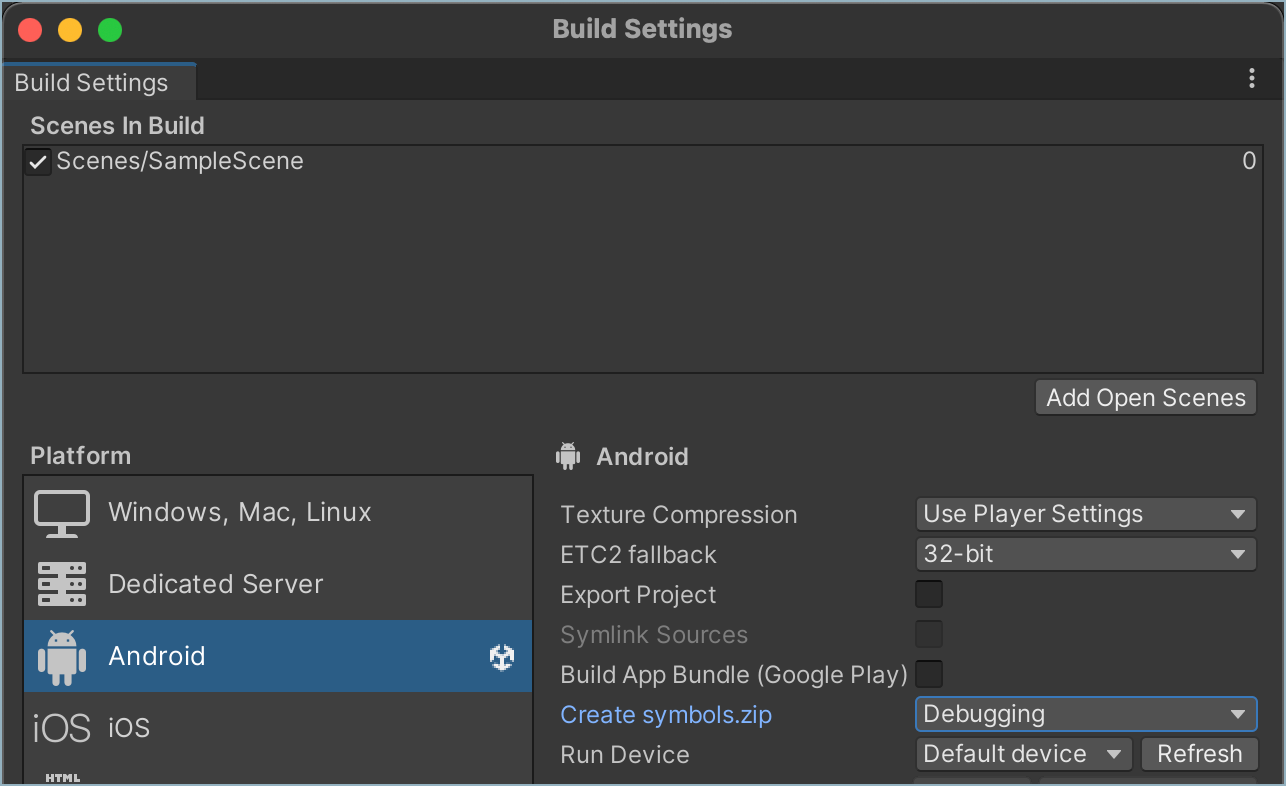
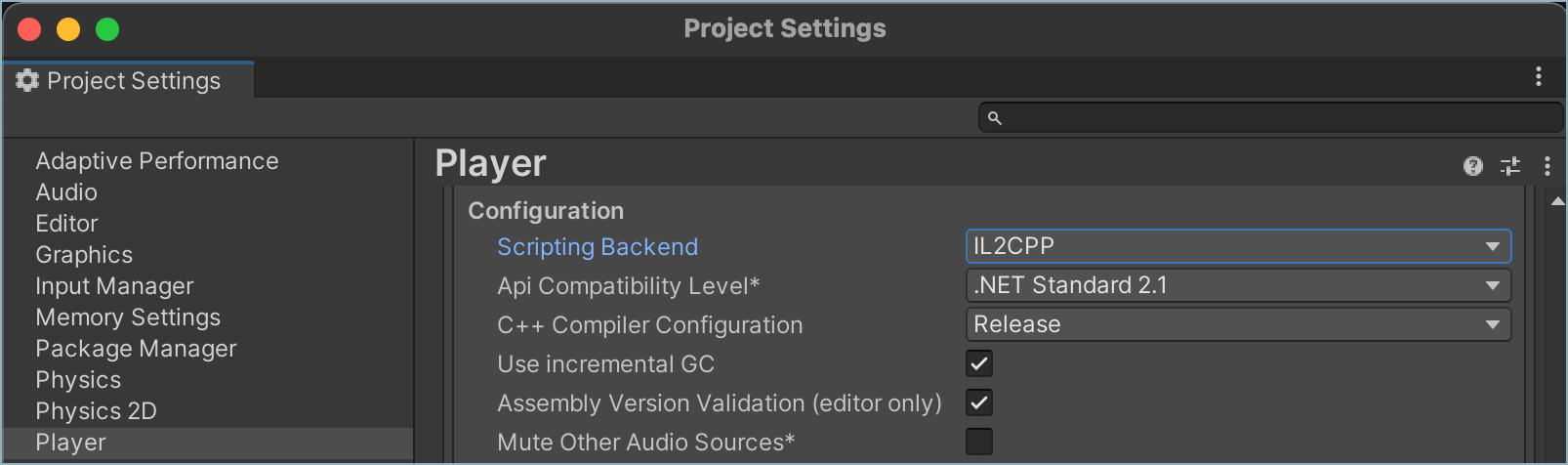
You can configure the Backtrace Unity SDK to upload Android IL2CPP debug symbols automatically. Use the symbols from the exact application build that generated the reports.
-
Add a Symbols upload token to the Backtrace Configuration.
-
In Build Settings, set Create symbols.zip to Debugging.
-
In Player Settings, under Configuration (Other Settings), set Scripting Backend to IL2CPP.
To create a symbol upload token in Backtrace, go to Project Settings, select Symbols > Access tokens, then select +.
For more information, see Symbolication.
Troubleshoot Native Crash Capture
Native Reports Aren't Created
- Confirm that you're using Backtrace Unity SDK 3.17.0 or later for the startup and diagnostic behavior described in this guide.
- Confirm that the application runs on Android API level 21 or later.
- Enable both Enable Database and Capture native crashes.
- Confirm that the server address is valid and the database directory exists or can be created and written.
- Confirm that the running process uses
arm64-v8a,armeabi-v7a, orx86_64. - Search Unity output or Android Logcat for
Backtrace native integration status,BT_UNITY_ANDROID_, orBT_HANDLER_messages. - Restart the application after correcting the configuration or packaging.
Managed Unity exception and message reporting should remain available when optional native setup fails.
App Bundle or Split-APK Capture Doesn't Start
Don't hard-code a crash-handler path or force native-library extraction solely for Backtrace.
Confirm that the installed package includes libbacktrace-native.so for the ABI of the running process, then inspect logs for a path, load, or dispatch diagnostic code.
Native Stacks Aren't Symbolicated
Native capture can succeed even when stack frames show unresolved addresses. Upload the matching IL2CPP symbols from the exact build and verify that the symbol upload token belongs to the intended Backtrace project.
For more information, see Symbolication.