Stride Integration with Backtrace
This guide goes through all the steps necessary to integrate Backtrace with Stride.
The steps in this process are:
- Generate a conversation token
- Set up the integration
Generate a Conversation Token
To set up integration with Stride an app token must be generated for each conversation that messages are going to be sent to.
-
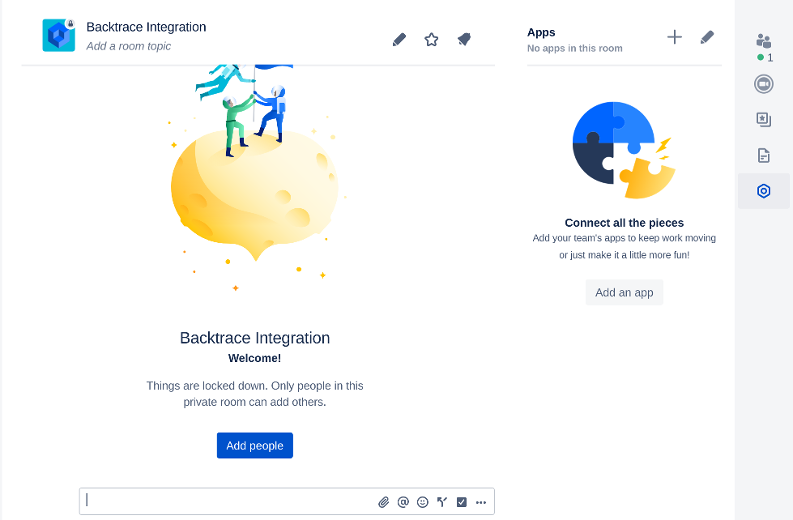
Click on the Apps Icon located on the right hand section of the conversation window, this will open up the Apps window.

-
Click the + icon at the top of the Apps window to add a new App.
-
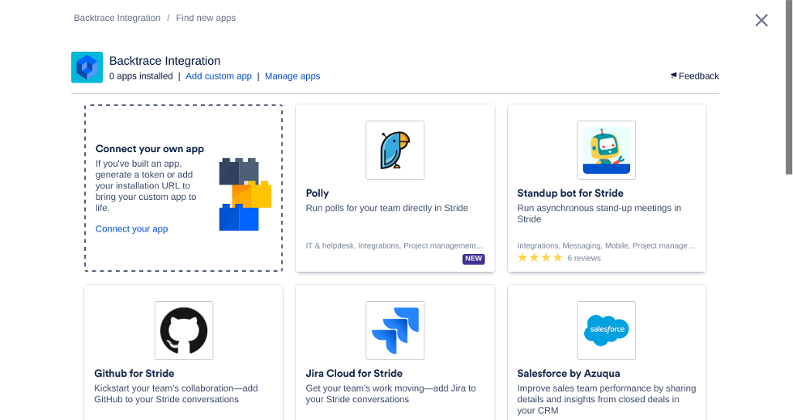
Click the 'Connect your app' link from the first box or click 'Add Custom App' from the top menu bar under the conversation name.
-
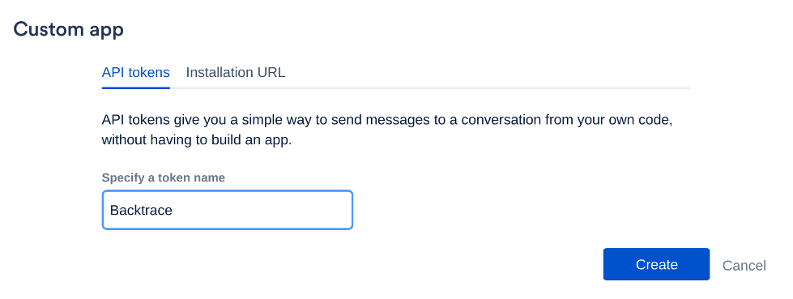
Ensure that 'API tokens' is selected not 'Installation URL', and give the application a name. This name will show up whenever Backtrace posts messages through this API. After giving the App a name click the create button.
-
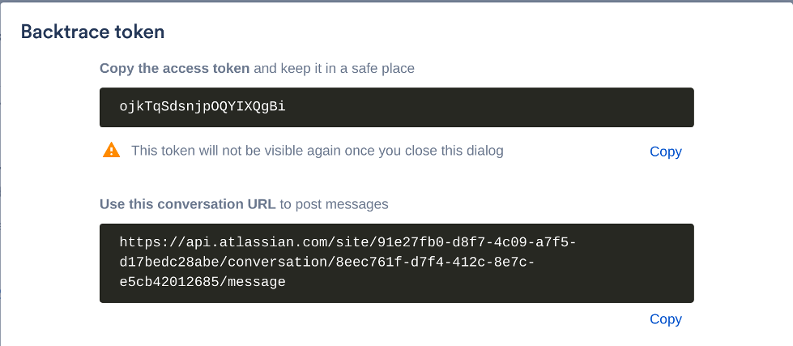
Copy the access token and the conversation URL.
Set Up the Integration
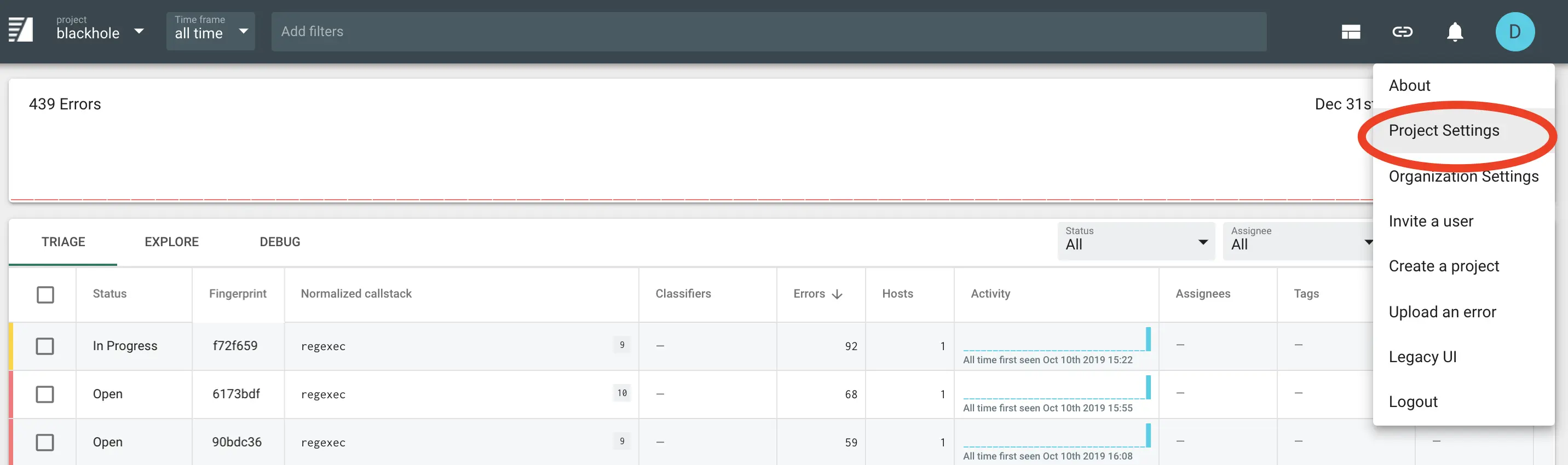
To set up the integration, first go to the Project Settings page for the project you want to add a integration for:
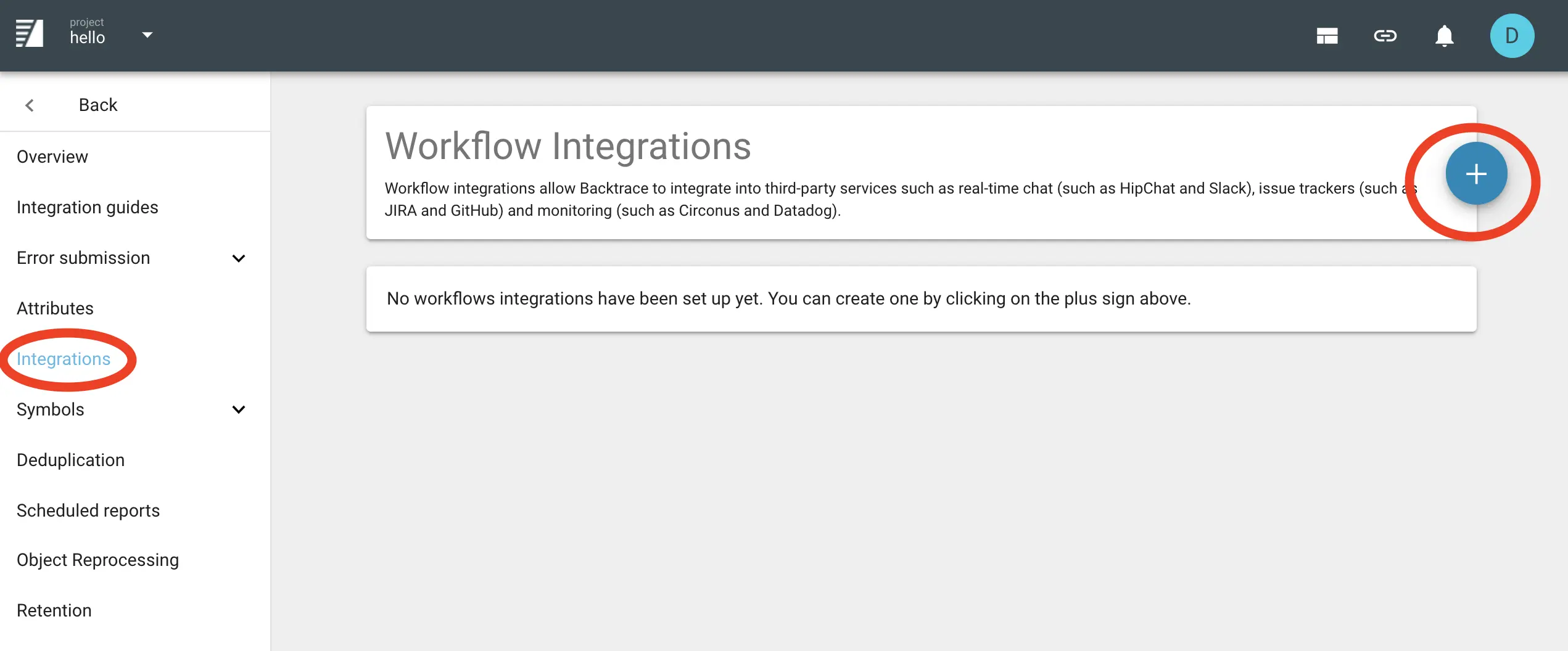
Then click Integrations in the left-hand menu, and the plus sign to create a new integration:
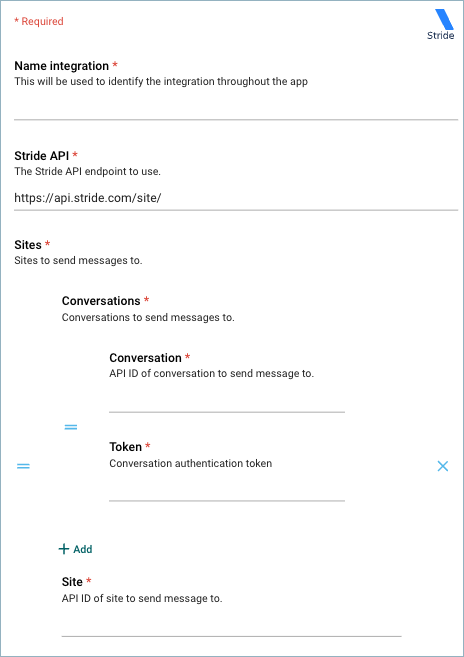
Select Stride and fill in the required settings:
- The API endpoint: This is the part before /sites in the URL from the Generate Conversation Token section
- One or more sites
- One or more conversation per site
- An API ID for each conversation: This is a hex string following the /site in the URL from the Generate App Token section
- A conversation ID for each conversation: This follows the /conversation in the URL from the Generate App Token section.
- A conversation token for each conversation: This is the token generated from the Generate App Token section.
 s
s
Next: After filling in the integration-specific settings, proceed to Common Settings to finish configuring the integration.