Vibium on SauceLabs
Community Supported Desktop Browsers Only
Vibium is an open-source browser automation tool built for coding agents, available as a command-line interface, a Model Context Protocol (MCP) server, and JavaScript and Python client libraries. The SauceLabs integration with Vibium lets you drive Chrome, Edge, and Firefox on SauceLabs Windows, macOS, and Linux virtual machines over WebDriver BiDi, with no SauceLabs specific code. This guide explains how to set up Vibium and use it with your SauceLabs tests.
This framework is built and maintained by its open-source project, not by Sauce Labs. Sauce Labs supports the cloud side: devices, browsers, endpoints, and test artifacts. Report framework issues to the project's issue tracker. Validated with the version noted below; later versions may differ.
SauceLabs validated this guide with Vibium 26.8.21 in September 2026.
Vibium depends on SauceLabs CDP / BiDi support, which is in Beta. The limitations of that feature apply to Vibium as well.
How It Works with SauceLabs
SauceLabs does not host Vibium. You create an ordinary W3C WebDriver session on SauceLabs with the webSocketUrl
capability set to true, SauceLabs returns a WebDriver BiDi WebSocket URL for that session, and Vibium connects to
that URL from your machine, CI job, or coding agent.
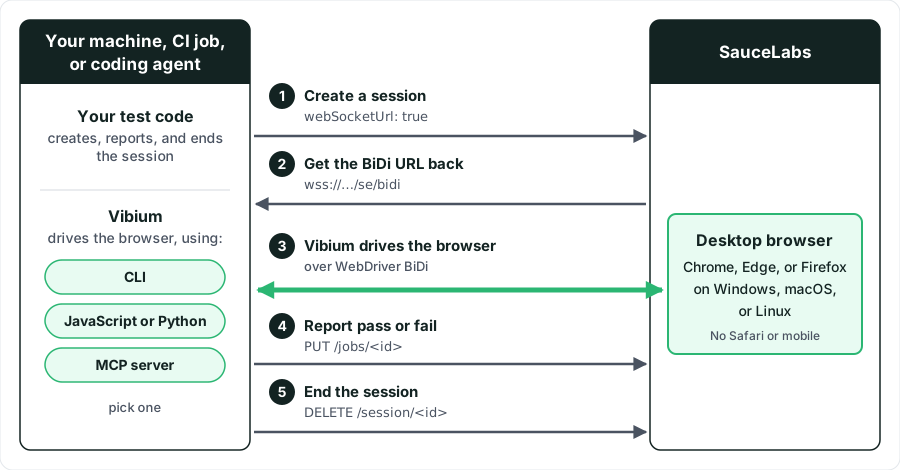
- Create a SauceLabs session with any W3C WebDriver client or a plain HTTP request. Set
webSocketUrl: truenext to your usual browser, platform, andsauce:optionscapabilities. - Read
webSocketUrlfrom the response. It has the formwss://<host>.saucelabs.com/selenium/session/<sessionId>/se/bidi. - Hand that URL to Vibium:
vibium start <url>for the CLI,browser.start(url)in the JavaScript or Python client, or theVIBIUM_CONNECT_URLenvironment variable for the MCP server. Vibium detects the existing session and attaches to it instead of launching a browser. - Drive the browser with Vibium. Navigation, element lookups, screenshots, and JavaScript evaluation all run against the SauceLabs browser.
- When you are done, set the job's pass or fail status through the SauceLabs REST API and end the session with a
WebDriver
DELETE. Vibium detaches from a session it did not create, but it never ends one.
Supported Browsers and Platforms
Verified by SauceLabs in September 2026 with Vibium 26.8.21.
| SauceLabs target | Result |
|---|---|
| Chrome on Windows 11 | ✔️ CLI, JavaScript client, Python client, and MCP server all validated end to end |
| Firefox on Windows 11 | ✔️ JavaScript client validated end to end |
| Microsoft Edge on Windows; Chrome on macOS and Linux | ✔️ SauceLabs returns a BiDi URL; same attach mechanism |
| Safari on macOS | ❌ Session creation fails when webSocketUrl is set; Safari cannot be used with Vibium |
| Chrome and Safari on Android emulators and iOS simulators | ❌ webSocketUrl returns true instead of a URL; nothing to attach to |
| Browsers on Android and iOS real devices | ❌ The returned URL is internal to the SauceLabs network and not reachable |
| Java client | Not validated by SauceLabs |
Limitations
- Desktop browsers only. Safari and all mobile targets are not available, as shown above.
- Extended debugging is not available in the same session as
webSocketUrl. - You own the session lifecycle. Vibium detaches but never deletes the SauceLabs session; always end the session as shown in Report the Result and End the Session.
- No automatic pass or fail. Set it with the Jobs API as shown in Report the Result and End the Session.
- BiDi commands are not listed in the job. The video shows everything Vibium did; the command list shows only WebDriver HTTP calls.
- SauceLabs session limits apply. The
idleTimeoutandmaxDurationvalues of the session govern how long Vibium can stay attached.
What You'll Need
Before you begin, make sure you have:
- A SauceLabs account (Log in or sign up for a free trial license).
- Your SauceLabs Username and Access Key.
- Node.js for the CLI, the MCP server, and the JavaScript client, or Python 3 for the Python client.
- A way to create the SauceLabs session:
curl, Node.jsfetch, Pythonrequests, or any Selenium or WebDriver client you already use.
Authentication
Two credentials are involved:
- Your SauceLabs username and access key. You find them under
User Settings. Any SauceLabs user who can run automated web tests can use
them with Vibium; no additional permissions are needed. You use them only to create the session, set its pass or
fail status, and end it. Vibium itself never sees them. Keep them in the
SAUCE_USERNAMEandSAUCE_ACCESS_KEYenvironment variables or your CI system's secret store. - The session's
webSocketUrl. SauceLabs returns it when you create the session, and you pass it to Vibium. It needs no additional authentication header, so treat it as a credential.
SauceLabs does not require an additional authentication header on the BiDi WebSocket. Anyone who has the
webSocketUrl can drive that browser until the session ends. Do not print it in CI logs, do not commit it to source
control, and remove it from MCP configuration files when the session is over.
Set Up with Vibium
Step 1: Install Vibium
- Node.js
- Python
npm install vibium
npx vibium --version
vibium CLI, the MCP server, and the JavaScript client.pip install vibium requests
requests is used below to create the SauceLabs session; any HTTP client works.Installing Vibium downloads the Vibium binary. Vibium downloads a local browser only the first time you launch one locally, so a CI job that only attaches to SauceLabs never needs a browser download.
Step 2: Link Your SauceLabs Account
Check whether your SauceLabs credentials are already set as environment variables:
echo $SAUCE_USERNAME
echo $SAUCE_ACCESS_KEY
If nothing is returned, set them:
export SAUCE_USERNAME="your Sauce username"
export SAUCE_ACCESS_KEY="your Sauce access key"
Step 3: Create a SauceLabs Session with a BiDi URL
Session Capabilities
Create a normal desktop browser session and add webSocketUrl: true.
Every other sauce:options value you already use, such as build,
tags, tunnelName,
screenResolution, and
maxDuration, applies unchanged. Do not set
extendedDebugging; it cannot be combined with webSocketUrl.
| Option | Description | Required | Example |
|---|---|---|---|
webSocketUrl | Asks SauceLabs to return a WebDriver BiDi URL for the session. | Yes | true |
browserName | Desktop browser to start. Use Chrome, Edge, or Firefox; Safari is not supported. | Yes | chrome |
browserVersion | Browser version. | No | latest |
platformName | Operating system of the SauceLabs virtual machine. | No | Windows 11 |
sauce:options.name | Job name shown in Test Results. | No | Vibium on SauceLabs |
sauce:options.build | Build name that groups related jobs in Test Results. | No | vibium-quickstart |
SAUCE_REGION | Environment variable that the Node.js and Python examples below read to pick the data center. | No | eu-central-1 |
Send the Session Request
Create the session and keep the session ID and webSocketUrl from the response:
- Node.js
- Python
- curl
const region = process.env.SAUCE_REGION ?? 'us-west-1';
const hub = `https://ondemand.${region}.saucelabs.com/wd/hub`;
const auth = 'Basic ' + Buffer.from(
  `${process.env.SAUCE_USERNAME}:${process.env.SAUCE_ACCESS_KEY}`).toString('base64');

const res = await fetch(`${hub}/session`, {
  method: 'POST',
  headers: { Authorization: auth, 'Content-Type': 'application/json' },
  body: JSON.stringify({
    capabilities: {
      alwaysMatch: {
        browserName: 'chrome',
        browserVersion: 'latest',
        platformName: 'Windows 11',
        webSocketUrl: true,
        'sauce:options': { name: 'Vibium on Sauce Labs', build: 'vibium-quickstart' },
      },
    },
  }),
});
const { value } = await res.json();
const sessionId = value.sessionId;
const bidiUrl = value.capabilities.webSocketUrl;
console.log(`Sauce Labs job: https://app.saucelabs.com/tests/${sessionId}`);
import os, requests

region = os.environ.get("SAUCE_REGION", "us-west-1")
hub = f"https://ondemand.{region}.saucelabs.com/wd/hub"
auth = (os.environ["SAUCE_USERNAME"], os.environ["SAUCE_ACCESS_KEY"])

caps = {"capabilities": {"alwaysMatch": {
    "browserName": "chrome",
    "browserVersion": "latest",
    "platformName": "Windows 11",
    "webSocketUrl": True,
    "sauce:options": {"name": "Vibium on Sauce Labs", "build": "vibium-quickstart"},
}}}
value = requests.post(f"{hub}/session", auth=auth, json=caps, timeout=300).json()["value"]
session_id = value["sessionId"]
bidi_url = value["capabilities"]["webSocketUrl"]
print(f"Sauce Labs job: https://app.saucelabs.com/tests/{session_id}")
curl -s -u "$SAUCE_USERNAME:$SAUCE_ACCESS_KEY" \
  -H 'Content-Type: application/json' \
  -d '{"capabilities":{"alwaysMatch":{
        "browserName":"chrome","browserVersion":"latest","platformName":"Windows 11",
        "webSocketUrl":true,
        "sauce:options":{"name":"Vibium on Sauce Labs","build":"vibium-quickstart"}}}}' \
  https://ondemand.us-west-1.saucelabs.com/wd/hub/session
value.sessionId and value.capabilities.webSocketUrl. Keep both; you need the session ID to
report the result and end the session.For the EU Central or US East data centers, replace us-west-1 with eu-central-1 or us-east-4 in both the
ondemand and api host names. See Data Center Endpoints.
Verify the Integration
- Create a session as shown in Step 3, then run the commands in
the CLI tab of Attach Vibium and Drive the Browser up to
npx vibium title. - Open the job link printed when you created the session, or find the job under Automated > Test Results.
- Confirm that
vibium titleprints the page title and that the job's live video shows the Sauce Demo page in the SauceLabs browser.
When you are done, run npx vibium stop and end the session as shown in
Report the Result and End the Session.
Use the Integration
After you set up the integration, you can drive SauceLabs desktop browsers from the Vibium CLI, the JavaScript or Python client, or an AI coding agent through the Vibium MCP server.
Attach Vibium and Drive the Browser
Copy the webSocketUrl from the response exactly as returned. No additional authentication header is needed.
- CLI
- Node.js
- Python
- MCP server
export BIDI_URL="wss://<host>.saucelabs.com/selenium/session/<sessionId>/se/bidi"

npx vibium start "$BIDI_URL"
npx vibium go https://www.saucedemo.com
npx vibium title
npx vibium screenshot -o saucedemo.png
npx vibium stop
vibium stop disconnects Vibium. The SauceLabs session keeps running until you end it. If you drive more than one
SauceLabs browser from the same machine, add --session <name> to every command to keep the daemons apart.import { browser } from 'vibium';
let passed = false;
try {
const bro = await browser.start(bidiUrl); // attaches to the Sauce Labs session
const page = await bro.page();
await page.go('https://www.saucedemo.com');
await (await page.find('#user-name')).type('standard_user');
await (await page.find('#password')).type('secret_sauce');
await (await page.find('#login-button')).click();
const heading = await (await page.find('.title')).text();
passed = heading === 'Products';
await bro.stop(); // detaches; does not end the Sauce Labs session
} finally {
// Step 5: report the result and end the session (see below)
}
from vibium import browser

passed = False
try:
    bro = browser.start(bidi_url)          # attaches to the Sauce Labs session
    page = bro.page()
    page.go("https://www.saucedemo.com")
    page.find("#user-name").type("standard_user")
    page.find("#password").type("secret_sauce")
    page.find("#login-button").click()
    passed = page.find(".title").text() == "Products"
    bro.stop()                             # detaches; does not end the Sauce Labs session
finally:
    pass  # Step 5: report the result and end the session (see below)
VIBIUM_CONNECT_URL in the MCP server's environment and Vibium's browser tools operate on the SauceLabs
browser instead of launching a local one.{
"mcpServers": {
"vibium-sauce": {
"command": "npx",
"args": ["vibium", "mcp"],
"env": {
"VIBIUM_CONNECT_URL": "wss://<host>.saucelabs.com/selenium/session/<sessionId>/se/bidi"
}
}
}
}
VIBIUM_CONNECT_URL="$BIDI_URL" npx vibium mcp
browser_navigate, browser_get_title, browser_find, and browser_screenshot then run on the
SauceLabs browser. The session URL is only valid for the life of that SauceLabs session, so treat the
configuration as temporary.Report the Result and End the Session
Vibium never ends a session it did not create, so you must do both of the following yourself, ideally in a finally
block so they run even when the test fails.
curl -s -u "$SAUCE_USERNAME:$SAUCE_ACCESS_KEY" -X PUT -H 'Content-Type: application/json' \
  -d '{"passed": true}' \
  "https://api.us-west-1.saucelabs.com/rest/v1/$SAUCE_USERNAME/jobs/<sessionId>"

curl -s -u "$SAUCE_USERNAME:$SAUCE_ACCESS_KEY" -X DELETE \
  "https://ondemand.us-west-1.saucelabs.com/wd/hub/session/<sessionId>"
The first call is the Update a Job API. Send {"passed": false} for a failed test.
Without it the job shows as complete with no pass or fail status. The second call is the WebDriver Delete Session
command. Without it the session runs until it hits the SauceLabs idle or maximum duration timeout and continues to
consume concurrency.
View Your Results
Open the job under Automated > Test Results. You get the full video
of the browser, the name and build you set, and the pass or fail status you reported. The Commands tab lists the
WebDriver HTTP calls you made (typically the session creation and deletion); WebDriver BiDi traffic from Vibium is not
itemized there.
Troubleshooting
HTTP 500 when creating a Safari session
webSocketUrl. Use Chrome, Edge, or Firefox.webSocketUrl in the response is true, not a URL
The URL starts with ws://172. and Vibium cannot connect
The SauceLabs job keeps running after vibium stop
DELETE shown in
Report the Result and End the Session.The job shows Complete with no pass or fail
PUT shown in Report the Result and End the Session with
{"passed": true} or {"passed": false}.The session ends during a long pause
idleTimeout. Keep commands flowing or raise the timeout when you create the session.More Information
- Explore Vibium on GitHub, the Vibium CLI reference, and the Vibium client libraries documentation.
- Read CDP / BiDi on SauceLabs for how SauceLabs exposes WebDriver BiDi.
- See Test Configuration Options for every capability you can set on the session.
- Use the Jobs API to set job status and read job details.
- Review Community Frameworks for the support model that applies to this guide.