Variables
Creating a Variable
To create a variable, use the following syntax:
[action] and save it as [variable_name]
Example:
Enter “username” and save it as my_name
Use ${varName} to reference the created variable.
Saving a Variable from a Label or xpath
When saving a variable, only the text from that element or xpath will be saved.
Syntax:
save {xpath:"xpath_value"} as [variable name]
Local Variables
Variables declared with _variablename within the test steps are local variables that are only accessible within the test case.
Local variables cannot be declared on the Variables tab.
safe_click Variable
If the safe_click variable is set to true, stale enter and click actions will be rediscovered after restarting the page.
Other Actions
--ignoreAlert
By default, Sauce Labs Low-Code will check if a browser alert is present before interacting with any element on the screen. If an unhandled alert is present (see Switch to alert... for more information), the test step will fail with an error message stating that the alert is unhandled. To prevent the test step failing, use the ignoreAlert action.
Example
Click on “login” button --ignoreAlert
--dynamicXpath
Xpaths are cached for every test step so that subsequent script generations will be faster. However, if you don’t want to use the cached xpath for a certain step, you can provide a dynamicXpath option.
Example
Click on ${order_id} --dynamicXpath
If an xpath is not valid due to it being dynamic or an application change, it will be auto-healed, which guarantees that the plain English step will not fail due to invalid xpaths.
Force...
Only enabled elements can be interacted with. To interact with a disabled element, use the Force... action.
Example
Force click on “login”
--moveAndClick
Sauce Labs Low-Code uses Selenium click, but if it fails, it switches to Javascript click. However, if you want to specifically use action-chain click, use the moveAndClick action.
Example
Click on “login” --moveAndClick
Supported Keyboard Operations
Hit altHit Down arrow keyHit enterHit escapeHit spacebarHit tabhit up arrow keyScroll upScroll downspinner
If the application under test has spinners or progress bars as a part of the UI design, you can specify the spinner information as a variable on the Variables tab. When this information is provided, the test will wait until the spinner or progress bar disappears before proceeding to the next step.
Variable name: spinner_xpath
Variable value: xpath_of_the_spinner
no_scroll
If you don't require a full screenshot of your test steps, you can set the no_scroll option to true on the Variables tab. Setting this on the Variables tab applies the action to the entire project.
The --noscroll action can also be applied in the step editor.
Example
Click on “California” --noscroll
--nofuzzy
You can turn off the fuzzy option during test case generation and execution by using --nofuzzy.
Example
Enter Username --nofuzzy
The --nofuzzy action forces you to enter the exact label or the step fails. This action can be used with Click, Select, and Enter commands.
Print...
The Print... action can be used to print the value of a variable and will be shown in the Data field in the report. The syntax requires specifying the variable name and/or text in the Data field in the step editor.
get element details
The get element details action returns the object of the element attributes and stores it in json format. The get element details action can contain the element's tag name, attribute, visibility, enabled or not, size, location, and the text of the element.
Example
get element details(enter username) and save as xyz
use_full_screenshot
If you don’t require full screenshots of test steps, you can set the use_full_screenshot option to false on the Variables tab. Setting the option on the Variables tab applies it to the entire project.
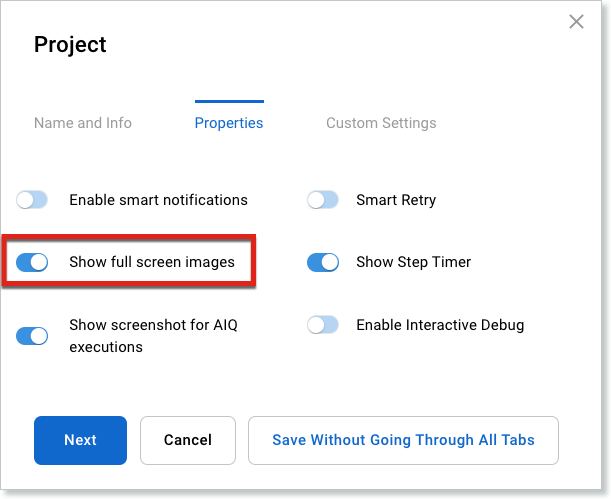
Alternatively, in Project Properties, you can turn off the Show full screen images option. This also applies the change to the entire project.
maintenance
The maintenance option self-corrects xpath and rediscovers the element if the older xpath points to an invalid element.
Multiple xpaths are generated when test cases are recorded or uploaded, and then they are passed on to the tools engine. The tools engine then validates the xpaths and discards those that are pointing to incorrect elements. If all the xpaths are pointing to incorrect elements, then the engine performs a rediscovery and forms a new xpath that may not have the attribute of the old xpath.
By default, this option is enabled, but it can be turned off by setting the maintenance variable to false.
page_scroll
By default, the auto-scroll setting is disabled, but it can be enabled with the page_scroll variable.
Example
Variable: page_scroll
Value: True or On (default: False)
Remote Execution and Script Generation
Script generation and execution can be done on a remote machine using the following variables:
Variable: use_remote_driver
Value: true
Variable: capabilities
Value: { "url":"IP:PORT", "platform":"linux/windows", "browser": "chrome/firefox/ie"}
Where:
IPis the IP address of the remote machine.PORTis the port on which the Selenium Grid is running on the remote machine.platformis the platform the remote machine runs on (Windows or Linux).browseris the browser on which you want to generate or execute the script.
use custom code from file
This variable can be used if a file is added to artifacts.
Test Data Generation
In the test data file, regex can be used to generate synthetic data.
Examples
#{\d\d\d\d\d\d\d\d\d\d} can generate 9446517410
#{[a-z][a-z][a-z][a-z][a-z]} can generate lpwqh
#{[a-z][a-z][a-z][a-z][a-z]\d\d\d\d} can generate sdkwf7809
Script Execution
Sauce Labs Low-Code supports execution of Python, JavaScript, Shellscript, and Java. Simple actions can be performed with user-written scripts, and includes DOM handling and variable manipulation.
Syntax
Exec _js/_py/_bash{script} with ${input_variable_name} returning ${output_variable_name}
Example
If var_1 = "testing", and var_2 = "printing variable: testing":
exec _py{print(‘Modified variable: ' +aiq_1)} with ${var1} returning ${var2}
exec _js{return 'Modified variable: ' + aiq_1} with ${var1} returning ${var2}
exec _bash(echo 'Modified variable: ' + aiq_1) with ${var1}returning ${var2}
- Any reference to an input variable should be
aiq_1,aiq_2, and so on. - Multiple input variables should be comma separated.
- Only one output variable is supported.
- Returning
${}is required with a variable name. This is different than saving a variable. - Since the scripts being executed are separate, any kind of iframe navigation has to be handled within the script.
Saving with Execution
Syntax
save _js{return ${input_variable}} as output_variable
Example
save _js{return ${var}.replace("/", "/g")} as return_js
JavaScript
Set a value for a text box:
exec _js{document.getElementById(‘someID’).value=23}
Verify if a checkbox is selected:
save _js{return document.getElementById("exampleCheck1").checked} as value
Verify if a checkbox is selected if in iframe:
document.getElementsByName(“iframe_name”)[0].contentWindow.getElementById("exampleCheck1").checked save _js{return document.getElementById("iframeResult").contentWindow.document.getElementsByName("ve hicle1")[0].checked} as value3
If multiple iframes are present, repeat the code to the level you need to reach:
document.getElementById(“iframeResult1”).contentWindow.
document.getElementById(“iframeResult1”).contentWindow.document.getElementsByName("vehicle1")[0].checked
Verify number of elements:
save _js{return document.getElementsByClassName("tfa-recent").length} as varName
Get a values attribute:
save _js{return document.getElementsByClassName("tfa-recent").title} as varName
Open a new window:
Exec _js{window.open();}
Find the sum of numbers in a string:
Exec _js{var sum=0;aiq_1.split("|").forEach(function(val){sum=sum+parseInt(val)});return(sum);} with ${num} returning ${sum}
Variable comparison:
exec _js{return 1 * aiq_1 > 1 * aiq_2 } with ${var_1}, ${var_2} returning ${var_5}
PythonScript
Variable comparison:
exec _py{print(int(aiq_1) > int(aiq_2)) } with ${var_1}, ${var_2} returning ${var_6}
Python floating point comparison:
exec _py{print(float(aiq_1) > float(aiq_2)) } with ${var_1}, ${var_2} returning ${var_7}
Luhn Algorithm or Modulus 10 Algorithm
This will return true | false based on the valid number given as input from variables.
Example
Exec _js{var len = aiq_1.length;var sum = 0;for (var i = len-1; i >= 0; i--) {var d = parseInt(aiq_1.charAt(i));if (i % 2 == (len)%2) { d *= 2; };if (d > 9) { d -= 9; };sum += d;};if(sum%10==0){return(true);}else{return(false);} }with ${num} returning ${status}
With further condition check on YYYYMM:
Exec _js{var len = aiq_1.length; var init = aiq_1.substring(0,6);var sum = 0;var regex = new RegExp("^\\d{4}(0[1-9]|1[0-2])$");for (var i = len-1; i >= 0; i--) {var d = parseInt(aiq_1.charAt(i));if (i % 2 == (len)%2) { d *= 2; };if (d > 9) { d -= 9; };sum += d;};if(sum%10==0){if(regex.test(init)){console.log(true);}else{console.log(false);};}else{console.lo g(false);} }with ${num3} returning ${status_fin}
Dropdown Validation
This will verify if specific text is in a dropdown or not.
Validate One Value
Save {xpath: "//select[@id='year']"} as dropdown_values
Save the text in the dropdown as a variable:
_var{"1991"} as dropdown_validation
Save the text that you want to validate as a variable:
Exec _js{return aiq_1.split("\n").includes(aiq_2)} with ${dropdown_values},${dropdown_validation} returning ${dropdown_result}
Run javascript to check if dropdown_validation is in dropdown_values:
Verify variable ${dropdown_result} is “True"
Verify if dropdown_result is true or not.
Validate Multiple Values
Save {xpath: "//select[@id='year']"} as dropdown_values
_var{"2017|2018|2019"} as dropdown_validation
(insert a “|” between multiple text values)
Exec _js{return aiq_2.split("|").filter(x => !aiq_1.split("\n").includes(x)).length == 0; } with ${dropdown_values},${dropdown_validation} returning ${dropdown_result}
Verify variable ${dropdown_result} is true
Return the Number of Text Values that Exist in a Dropdown
Save {xpath: "//select[@id='year']"} as dropdown_values
_var{"2018|2020|2021"} as dropdown_validation
Exec _js{return aiq_2.split("|").filter(x => aiq_1.split("\n").includes(x)).length; } with ${dropdown_values},${dropdown_validation} returning ${dropdown_result} Verify variable ${dropdown_result} is "2"
Shell
Find the Difference between Two Dates
In this example, the input variables are d1 and d2 and the difference in days is returned in diff:
exec _bash{echo $((($(date -d "${aiq_1}" '+%s') - $(date -d "${aiq_2}" '+%s'))/86400))} with ${d1}, ${d2} returning ${diff}
Get System Time
Exec _bash{echo $(date +"%k")} returning ${hr}
Exec _bash{echo $(date +"%M")} returning ${min}
Other options:
%k - Hours in 24-hour format
%l - Hours in 12-hour format
%M - Minutes
%S - Seconds
Excel Functions
_(xl|var){"excel formula"} as [variable_name]
Sum
_xl{${var1}+${var1}} as sum1
_xl{SUM(${var1},${var1})} as sum2
Difference
_xl{${sum}-${var3}}
Multiplication
_xl{17*3} as var_float
Division
_xl{17/3} as var_float
Round
_xl{ROUND(${var_float}, 1)} as var_float_round
Greater Than
_xl{${table_count} < 20} as condition
Text comparison:
_xl{ T( ${var_1} ) > T( ${var_2} ) } as var_3
Numeric comparison:
_xl{ 1 * T( ${var_1} ) > 1 * T( ${var_2} ) } as var_4
Dates
_xl{TEXT(TODAY(), ""mm/dd/yyyy"")} as var_date
_xl{TEXT(TODAY(), ""mmm-ddd"")} as var_date2
_xl{TEXT(TODAY(), ""mmmm dddd"")} as var_date3
Days between Dates
_xl{DAYS(${date1}.${date2})} as date_diff
Currency Symbols as Prefix
The corresponding currency symbol can be concatenated at the beginning of a function.
Other
Excel with Numbers
_xl{""$"" & SUM(""$18"", ""$12"")} as var_sum, _xl{CEILING(${var_float}, 1)} as var_float_ceil
_xl{FLOOR(${var_float})} as var_float_floor, _xl{MAXA(""1"", ""2"", ""3"", ""4"", ""5"")} as var_max
_xl{SMALL([""1"", ""2"", ""3"", ""4"", ""5""], 3)} as var_small
Excel with String
_xl{TRIM("" string with space "")} as var_str_trim
_xl{SUBSTITUTE(""test test"", ""test"", ""testing"")} as var_str_sub
_xl{SPLIT(""111-222-333"", ""-"")} as var_str_split
_xl{REGEXMATCH(""https://test.com?params=testing"", ""https://test.com?"")} as var_str_regex_match
_xl{REGEXREPLACE(""test1 test2 test test"", ""test[0-9]"", ""test_with_number"")} as var_str_regex_replace