Automated Bug Troubleshooting
When an automated test fails, finding the cause can take time. Instead of manually reviewing different test artifacts, Sauce AI helps you debug failed test executions by analyzing the available test data and explaining what went wrong.
Provide the failed Job ID, and Sauce AI examines the test execution to identify possible causes of the failure. This helps you understand failures more quickly, reduce debugging time, and focus on resolving issues instead of manually investigating them.
Prerequisite
Before troubleshooting a failed test with Sauce AI, ensure that:
-
The test run has completed and the test results are available in Sauce Labs.
-
You have access to the failed test or Job ID that you want to analyze.
-
The test data has been processed by Sauce AI. It may take up to 30 minutes after a test finishes for the data to become available in Sauce AI for Insights.
Troubleshoot a Failed Test
To investigate a failed test execution using Sauce AI:
Step 1: Open the Sauce AI agent from top right corner. In the chat panel, enter a question that includes the failed Job ID. For example:
Why did job
dade3074f5da4fc2b2e7c6d4ae7eb0f5fail?
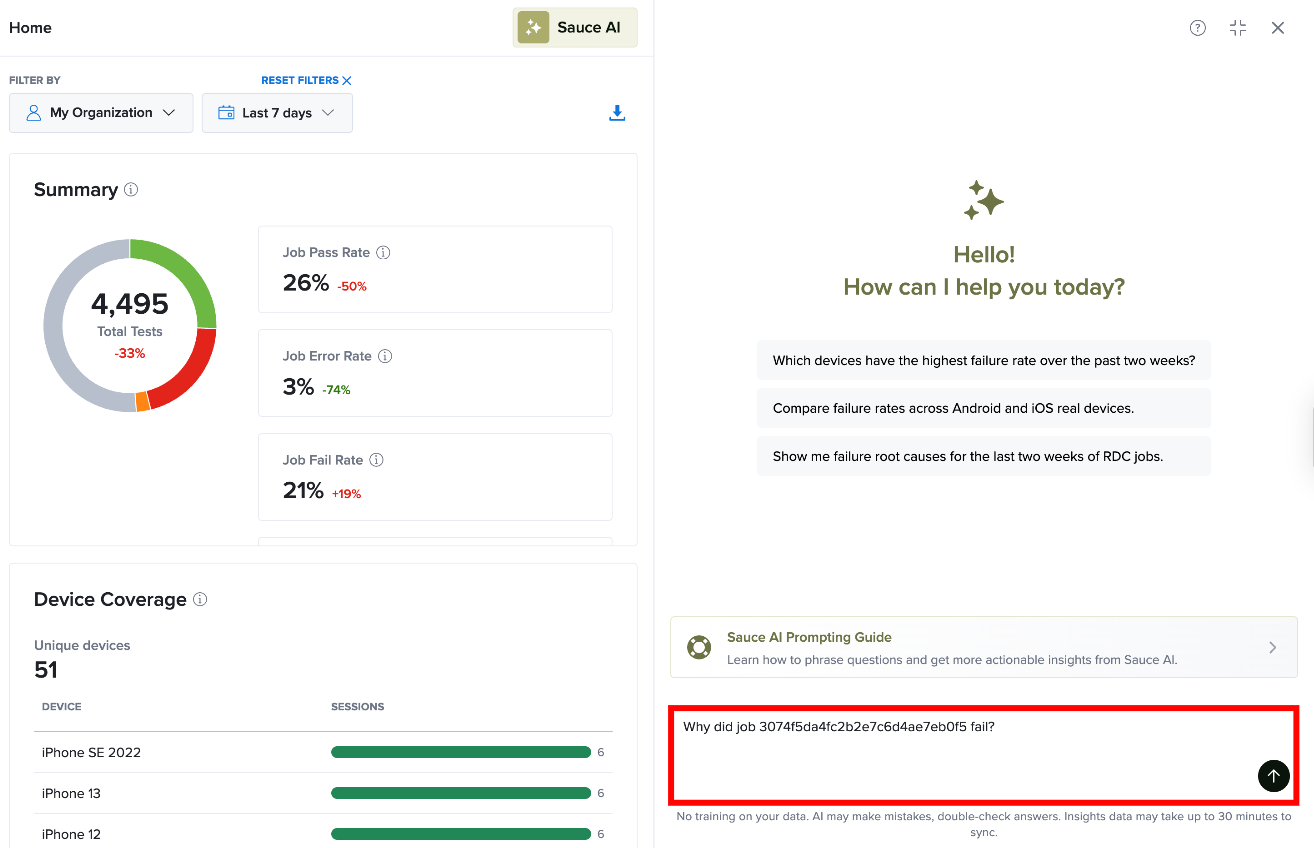
Step 2: Press Enter to submit your request. Sauce AI analyzes the failed test execution and provides a detailed troubleshooting report.
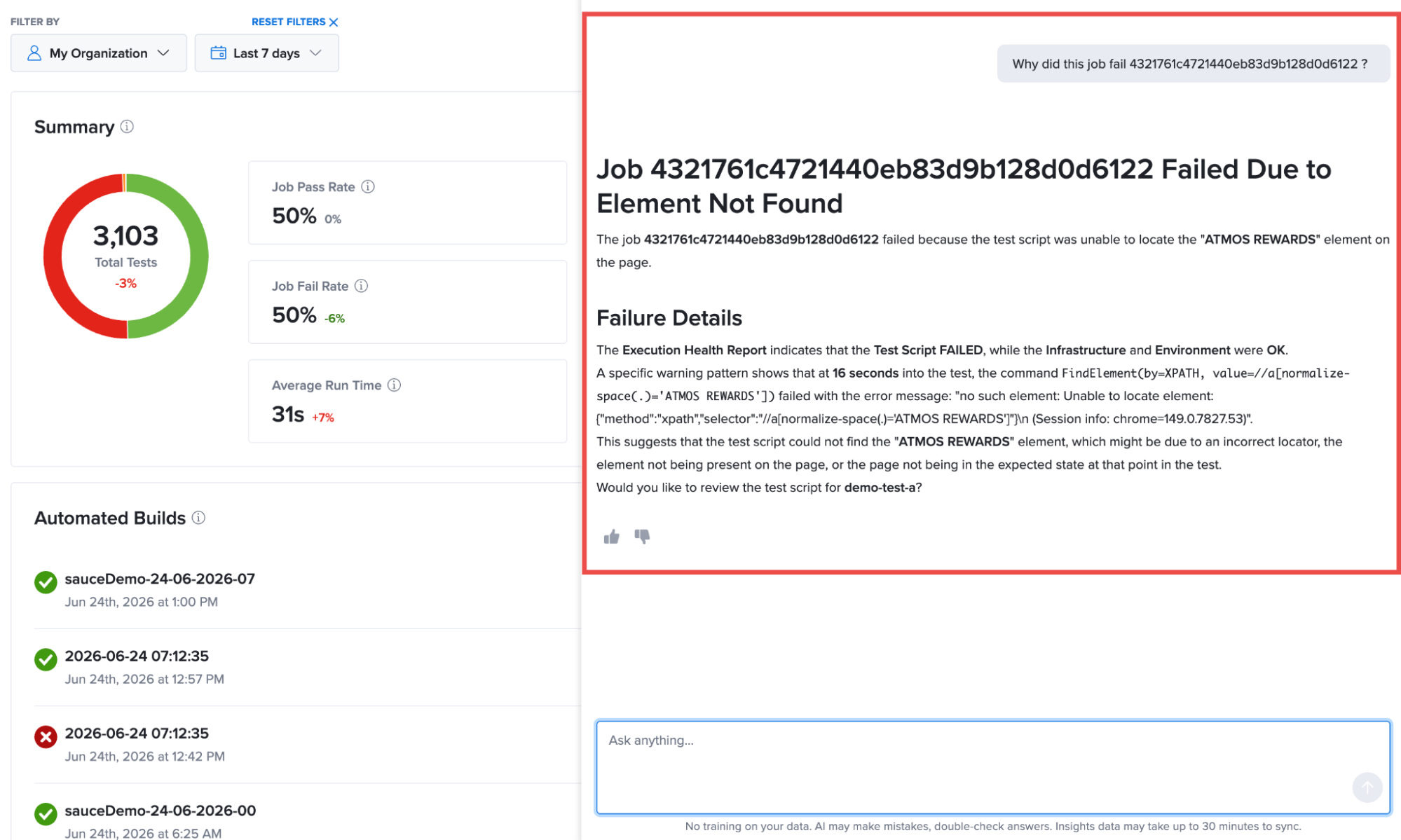
AI-generated failure analysis should be reviewed carefully, as responses may occasionally contain incomplete or inaccurate interpretations of test data.
Review AI Troubleshooting Results
After analyzing the failed test, Sauce AI can provide information such as:
-
Critical Evidence – Identifies the exact point of failure, such as an unexpected modal, missing element, or blocked interaction.
-
Warning Patterns – Highlights non-critical issues or repeated errors that occurred before the failure and may indicate unstable test behavior.
-
Summary of Findings – Provides a clear explanation of the most likely cause of the failure.
-
Recommended Actions – Suggests possible next steps to resolve the issue, such as updating test logic, adding waits, or handling unexpected UI elements.