Find and Fix Missing Symbols
Error Reporting uses symbol files to convert raw memory addresses in crash reports into readable call stacks with function names, source files, and line numbers. Without the required symbols, crash reports cannot be fully symbolicated, making it more difficult to identify the root cause of an issue.
For 64-bit applications, complete call stack resolution requires both the symbol files and the corresponding executable files that contain debug information.
Error Reporting supports several methods for providing symbols and executables, including:
- Manual uploads through the Error Reporting UI
- Automated uploads as part of your build pipeline
- Custom symbol server integration
- Command-line uploads using
curl
This article explains how to identify missing symbols and how to resolve them.
Determine Missing Symbols
When a crash report cannot be fully symbolicated, the first step is to identify which symbol files or executable files are missing. Error Reporting provides several indicators in the Debug View to help you determine exactly which files are required to complete symbolication.
Identify Missing Symbol Files
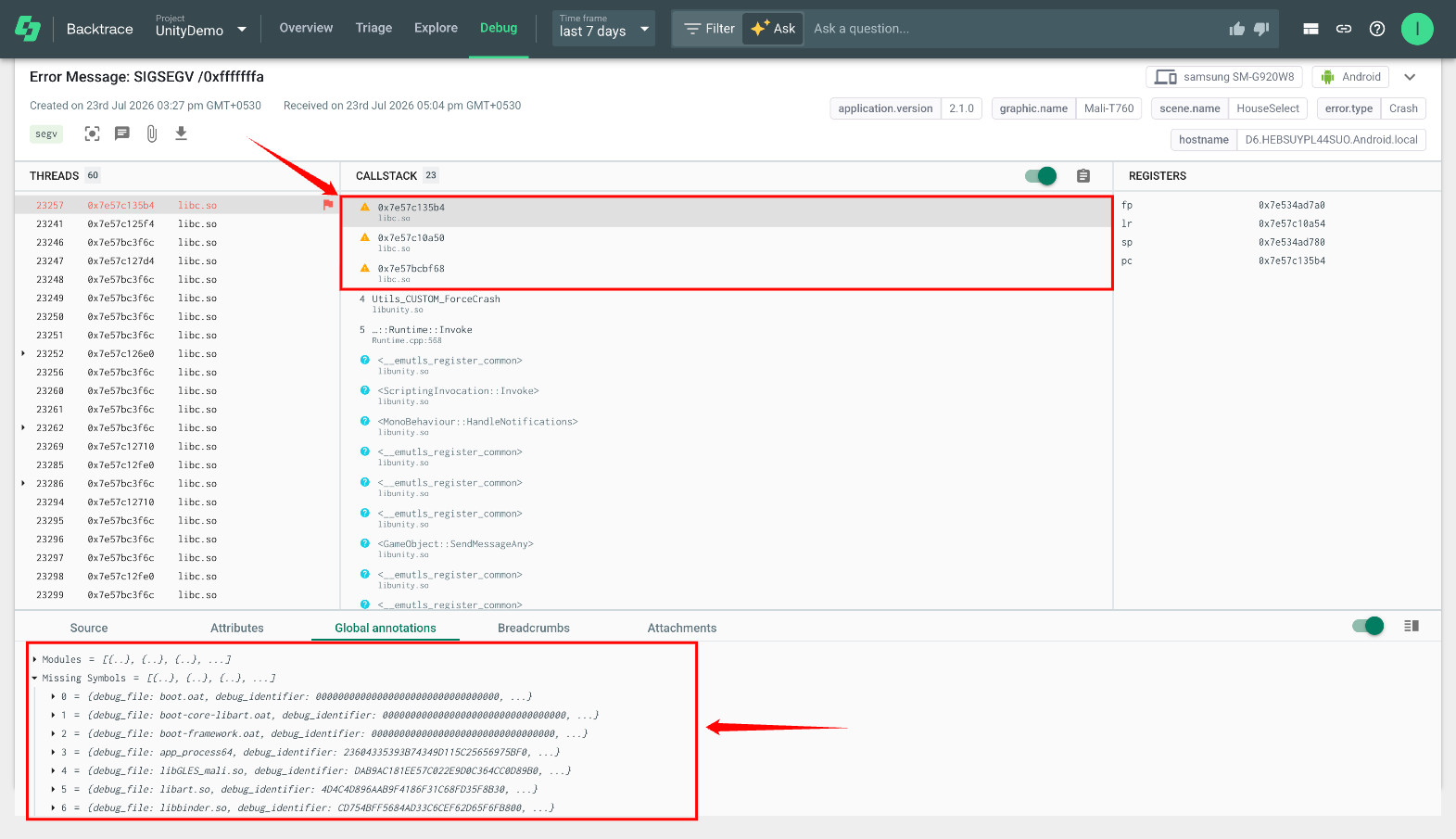
Error Reporting marks crash reports that are missing symbol files by setting the _missing_symbols attribute to 1. This information is available in the Debug View, specifically in the Callstack and Global Annotations sections.
When a standard symbol file is missing:
- Callstack frames display a memory address instead of a resolved function name.
- An orange warning triangle appears next to the affected frame, indicating that the required symbols could not be found.
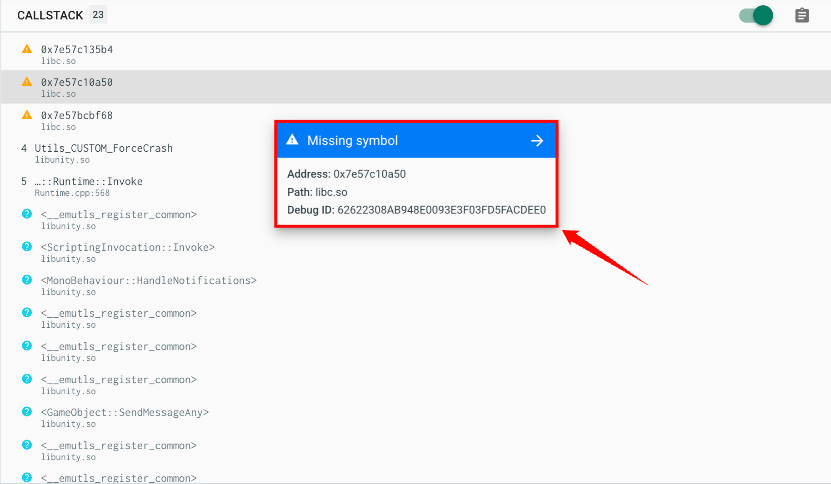
Hover over the affected callstack frame to view additional details about the missing symbols, including:
- Symbol file path
- Debug ID
- Other identifying information
You can also click the Missing Symbols banner (displayed above the call stack) to open a panel containing additional details about every missing symbol referenced by the crash report.
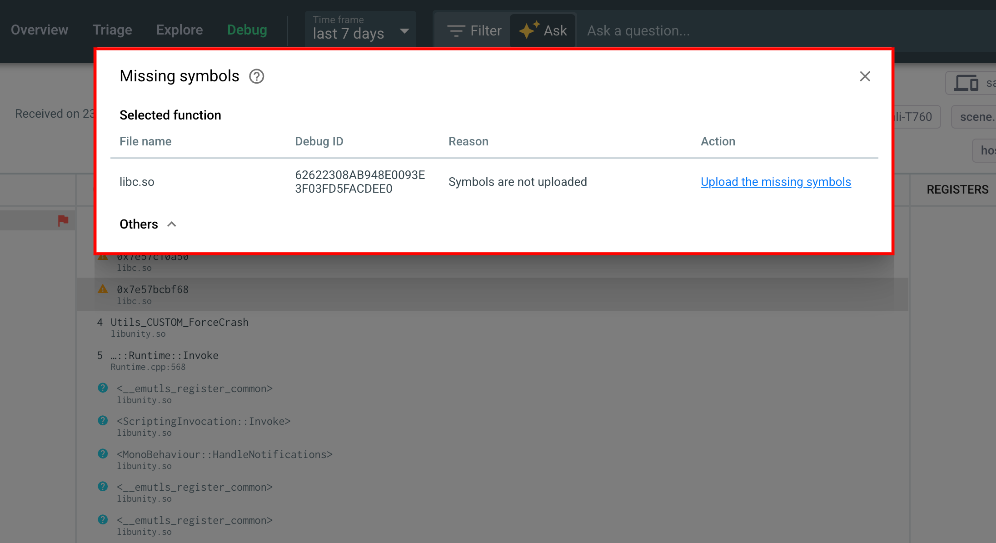
The file path and Debug ID displayed in the Missing Symbols panel are the primary identifiers you will need when locating or uploading the correct symbol files.
Identify Missing Executable Files (CFI)
The debug view similarly indicates when a crash report is missing debug information from executable files, also known as Call Frame Information (CFI). The call stack section will show a guessed function name or a memory address in gray font, and the frame will be enclosed in <>.
When executable files are missing:
- The call stack displays a guessed function name or a memory address in gray text.
- The affected frame is enclosed in angle brackets
<>. - Hovering over the frame displays a Missing CFI message with details about the missing executable.
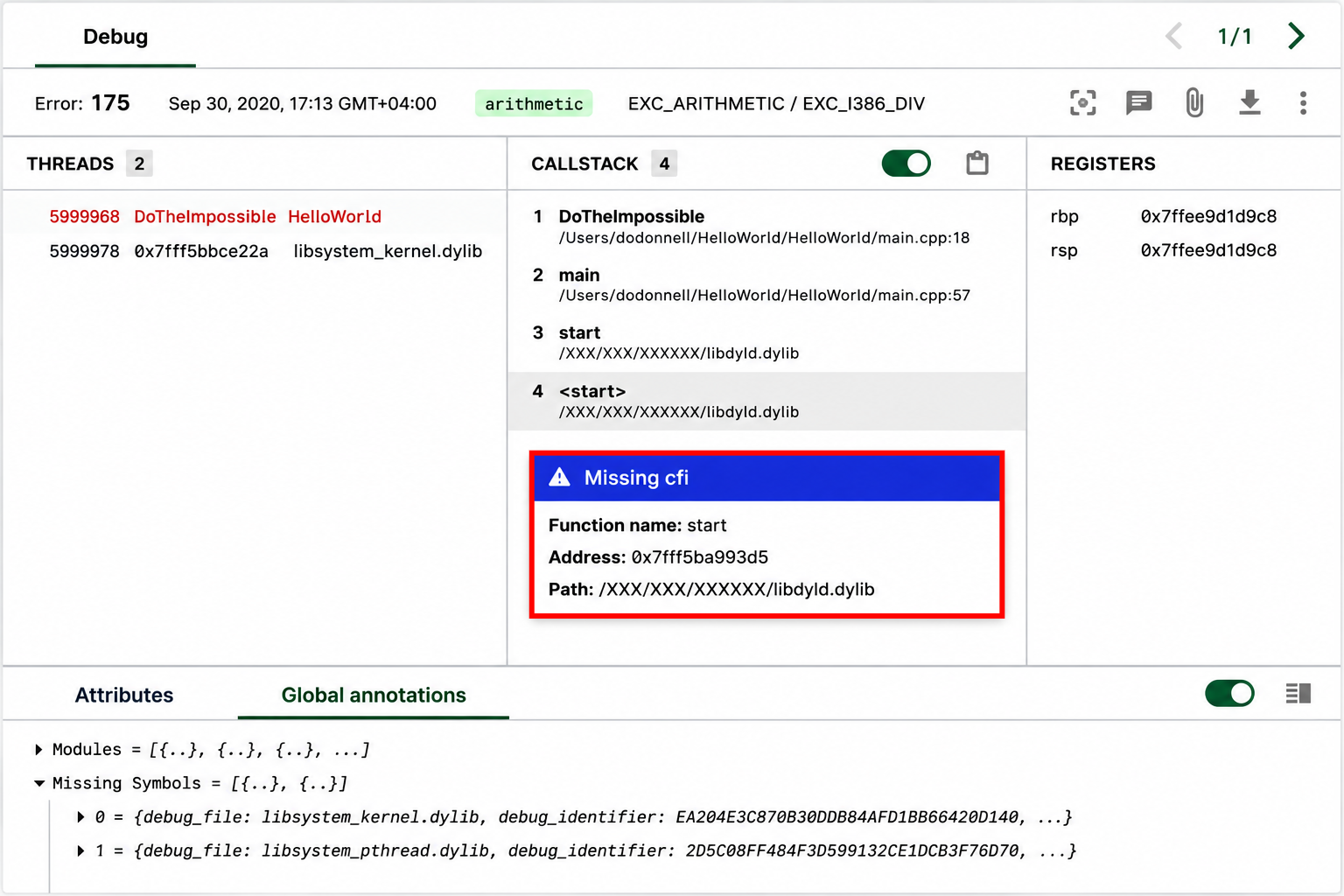
If the hover message does not include both the filename and Debug ID, open the Global Annotations section and review the Modules list. Use whichever value is available (either the filename or the Debug ID) to identify the corresponding symbol entry and determine the missing information.
If you are still unable to identify the required symbols or need additional assistance, contact the Error Reporting Support team by opening a support ticket, using the in-app support widget, or emailing support@backtrace.io.
Supply Missing Symbols
After you have identified the missing symbols for a crash report, the next step is to provide the required symbol files so Error Reporting can fully symbolicate the callstack. After the missing files are available, the affected crash reports must be reprocessed to apply the newly uploaded symbols.
The exact workflow depends on how your organization manages symbol files.
Manual Symbol Upload
If your organization uploads symbols manually, you must first retrieve the missing symbol files identified in the Debug View. These files can typically be obtained from your build artifacts, symbol storage, or build pipeline.
After locating the required symbol files, upload them to Error Reporting using your standard symbol upload process. After the upload is complete, reprocess the affected crash reports so Error Reporting can apply the newly uploaded symbols and fully resolve the call stacks.
Uploading symbol files does not automatically update existing crash reports. Previously processed crash reports must be reprocessed before the new symbols are applied.
Custom Symbol Server Integration
If your project uses a custom symbol server, Error Reporting automatically downloads missing symbols when processing crash reports. If symbols are not being applied, verify that the symbol server is correctly configured.
First, confirm that the required symbol file exists on the symbol server using the expected directory structure:
<url>/<object_name>/<debug_id>/<file>
For example:
https://symbols.example.com/MyApplication/123456789ABCDEF/app.sym
If the symbol is not present in the expected location, Error Reporting cannot download it.
If the symbol exists but is still not applied after reprocessing the crash report, verify the following settings in Project Settings > Symbols > Symbol Servers.
Verify the Whitelist
If the Whitelist option is enabled for your symbol server, Error Reporting downloads only the symbols whose filenames are included in the whitelist.
If a required symbol is not on the whitelist, Error Reporting will not download it, even if the file exists on the symbol server. Add the symbol to the whitelist and reprocess the crash report to allow the symbol to be downloaded and applied.
Check the Skip List
When Error Reporting cannot download a symbol from the symbol server, it adds the symbol's name and Debug ID to the Skip List. This prevents repeated download attempts for symbols that were previously unavailable.
If the missing symbol has since been uploaded to the symbol server, remove its entry from the Skip List and reprocess the crash report. This allows Error Reporting to attempt the download again.
You can remove skip list entries in one of the following ways:
- From the Skip List tab of the symbol server configuration.
- Using the morgue command-line tool.
Review the Symbol Server Logs
If symbols are still not being downloaded, check the Logs tab for the configured symbol server. The logs contain information about symbol download attempts, including successful downloads and any errors that occurred.
Searching the logs using the symbol's Debug ID is the fastest way to locate the relevant entries.
Common HTTP status codes include:
- 200 – Symbol downloaded successfully.
- 404 – Symbol file was not found.
- 401 – Authentication failed.
- 403 – Access to the symbol file was denied.
Reviewing these logs can help identify configuration, authentication, or file availability issues.
Missing Symbols on Non-Faulting Threads
Error Reporting downloads new symbols only for the faulting thread during automatic symbol server processing. If a missing symbol exists only on a non-faulting thread, it is not downloaded automatically.
To resolve this issue, you can:
-
Manually download the symbol from your symbol server, upload it to Error Reporting, and then reprocess the crash report.
-
Alternatively, resubmit the crash report with the affected thread marked as the faulting thread (using a modifier). After Error Reporting downloads the symbol, it can be applied to all threads when the crash is reprocessed or when similar crashes are received in the future.
Process Missing Symbols on a Non-Faulting Thread
By default, Error Reporting processes symbols only for the faulting thread to reduce storage usage and improve processing performance. As a result, symbols that are required only for non-faulting threads are not processed automatically.
If you need symbol information for a non-faulting thread during debugging, Error Reporting provides an optional feature that allows you to download and process those missing symbols.
Before you can use this feature, ensure that the following requirements are met:
-
You have Administrator permissions.
-
The
_BACKTRACE_PROMPT_MISSING_SYMBOLSconfiguration option is set totruein thecoronerd.conffile. -
The crash report contains missing symbols on one or more non-faulting threads. Error Reporting checks this automatically when you open the report in the Debugger.
If all of these requirements are met, a Download Missing Symbols button appears in the upper-right corner of the Debugger.
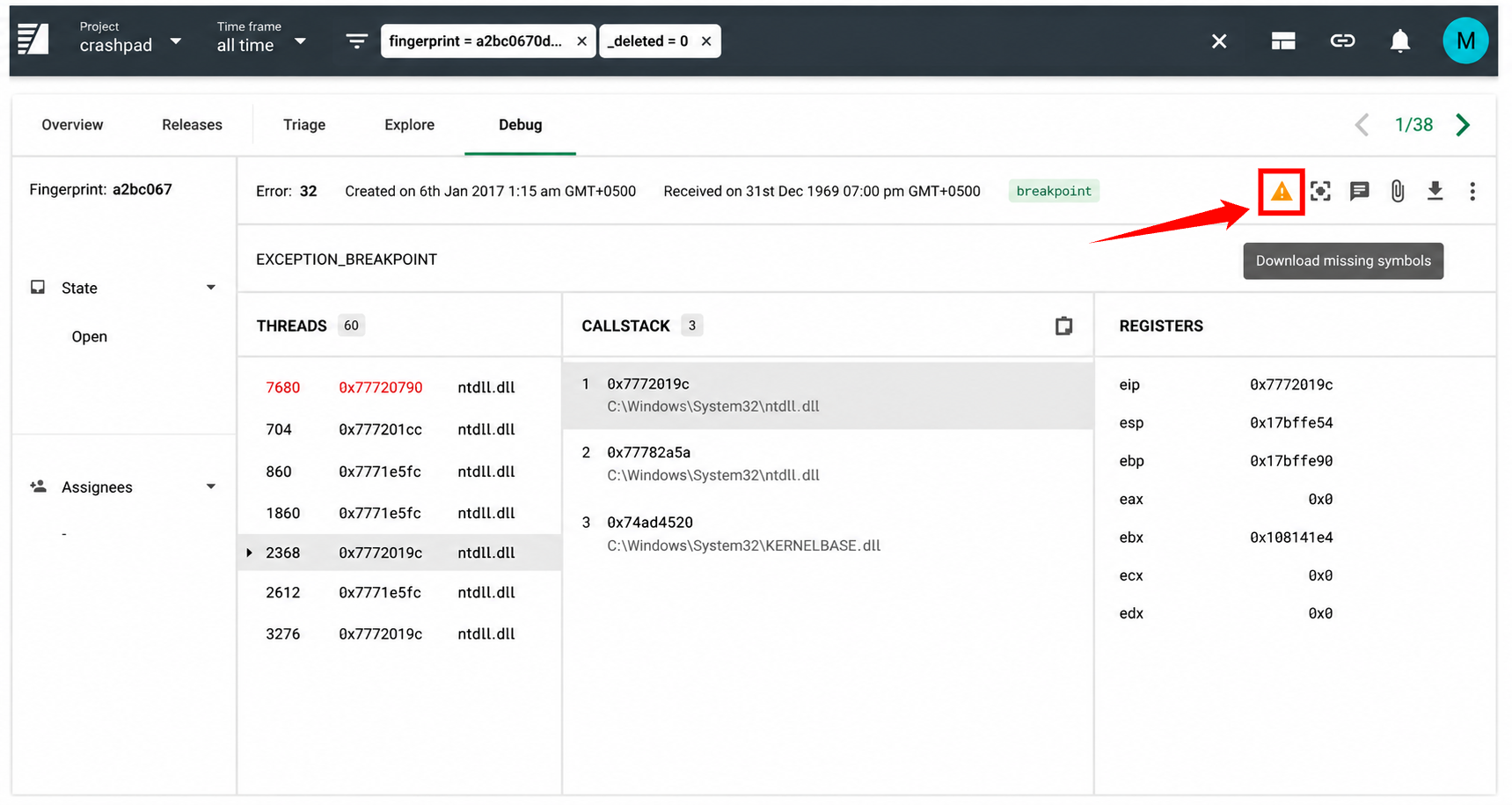
Click Download Missing Symbols to open a confirmation dialog. Confirm the action to allow Error Reporting to download and process the missing symbols. The process may take a few seconds to complete, depending on the number of symbols being processed.
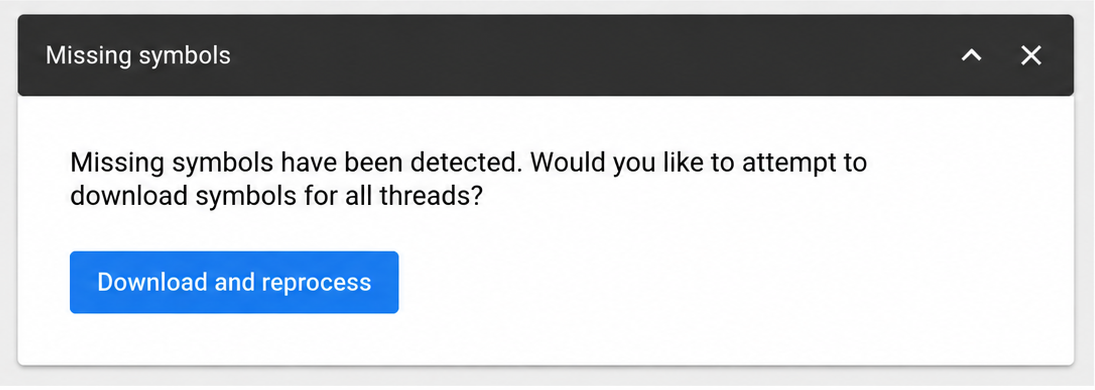
Confirm the action to download and process the missing symbols. The operation may take several seconds to complete.
The required symbol files must already exist on the symbol server or have been uploaded to Error Reporting. If the symbols are unavailable, processing cannot resolve the missing symbol errors.
Resolve Missing Symbols
After the required symbol files have been uploaded to Error Reporting or successfully downloaded from a configured symbol server, reprocess the affected crash reports. During reprocessing, Error Reporting applies the newly available symbols and updates the crash report.
Once processing is complete, the call stack should display fully resolved function names and stack frames instead of raw memory addresses or unresolved symbols.
If the call stack is still not fully symbolicated after reprocessing, verify that the uploaded symbol files match the executable's Debug ID and that the correct symbol files were provided.
If you continue to experience issues or need additional assistance, contact the Error Reporting Support team by opening a support ticket, using the in-app support widget, or emailing support@backtrace.io.
Troubleshooting
Command Line Debugging
If you are blocked on uploading symbols from the command line, try checking verbose output from a tool like curl or similar. Uploading an archive in the web browser may also expose additional information or errors.
Invalid Token
If you receive an "invalid token" error in the response when uploading symbols via HTTP, check to make sure that you're using a symbol access token and not a submission token. To generate a symbol access token, see Generating Symbol Access Tokens.
Reading Custom Symbol Server Logs
It’s important to note that some failures are expected, due to the wide net Backtrace casts (as explained in Symbol server | Feature details). To troubleshoot, search for the known good path on the symbol server (ie foo.pdb/123/foo.pdb). Successful symbol server requests log lines will include “Downloaded path”, and failed requests log lines will include “Download failed” with additional information about the error encountered.