Upload Symbols to Your Project
Upload debug symbols to your Error Reporting project to enable symbolication for crash reports. You can upload symbol files manually through the Error Reporting UI or automate uploads as part of your build pipeline.
Prerequisites
- Before uploading symbols, ensure you have generated a Symbol Access Token if you plan to automate symbol uploads.
- Error Reporting recommends uploading symbol archives for every application build that you expect to receive crash reports for. Supported upload formats include:
- Archive files:
.zip,.tar,.tar.gz - Symbol files:
.sym,.pdb,.so,.dSYM, andELFfiles
- Archive files:
- If you are uploading .pdb files for 64-bit Windows applications, remember to include the corresponding .dll or .exe files as well for more accurate symbolification.
Archive files should be pre-compressed and, where possible, no larger than 10 GB.
Upload Symbols Using the User Interface
Use the Error Reporting UI to upload symbol files or archives to your project manually.
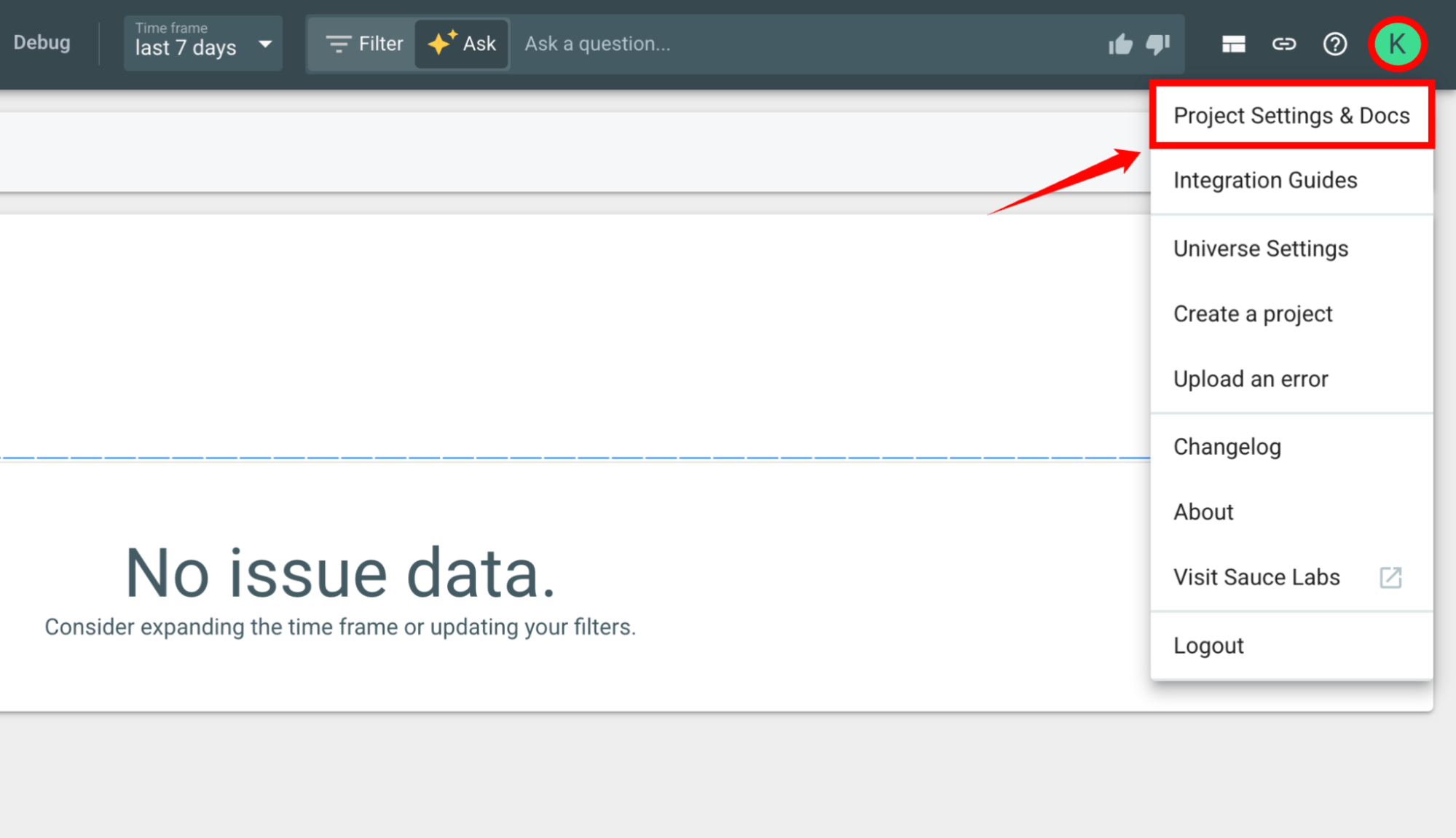
Step 1: Open the Error Reporting project where you want to upload symbols. In the upper-right corner, click your profile icon, and then select Project Settings & Docs.
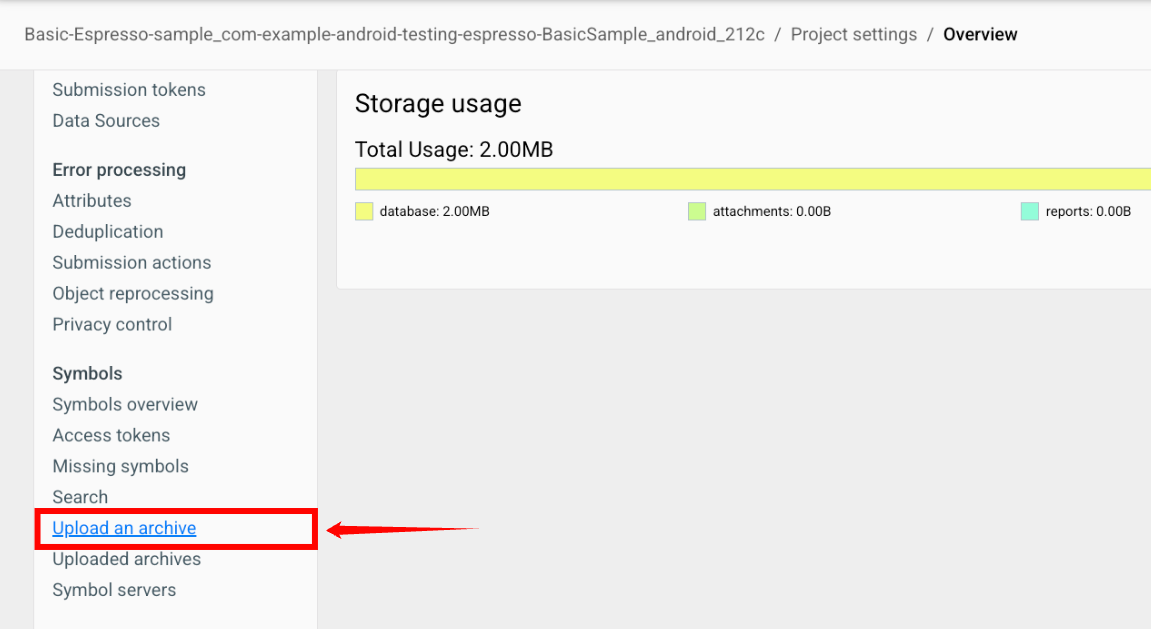
Step 2: In the left navigation pane, expand Symbols, and then click Upload an archive.
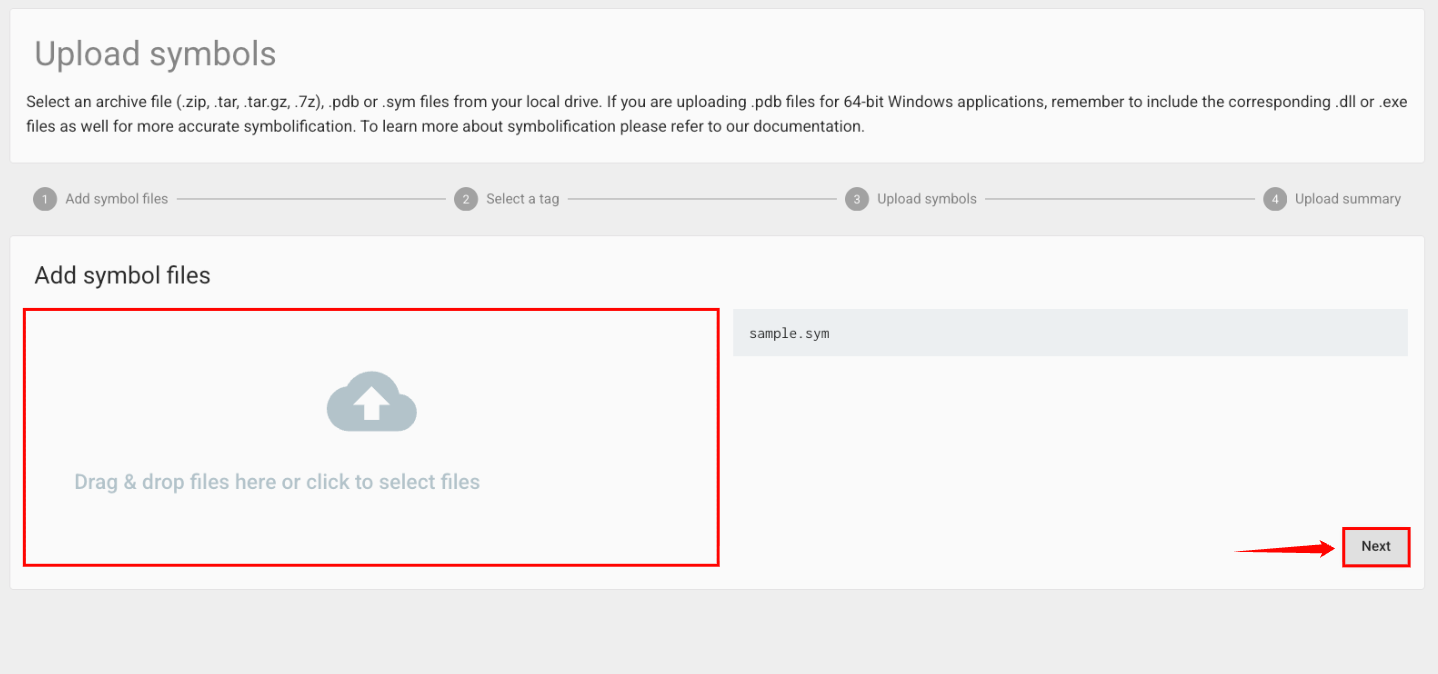
Step 3: On the Upload symbols page, drag and drop your symbol files or archives into the upload area, or select files from your local machine. After adding the files, click Next.
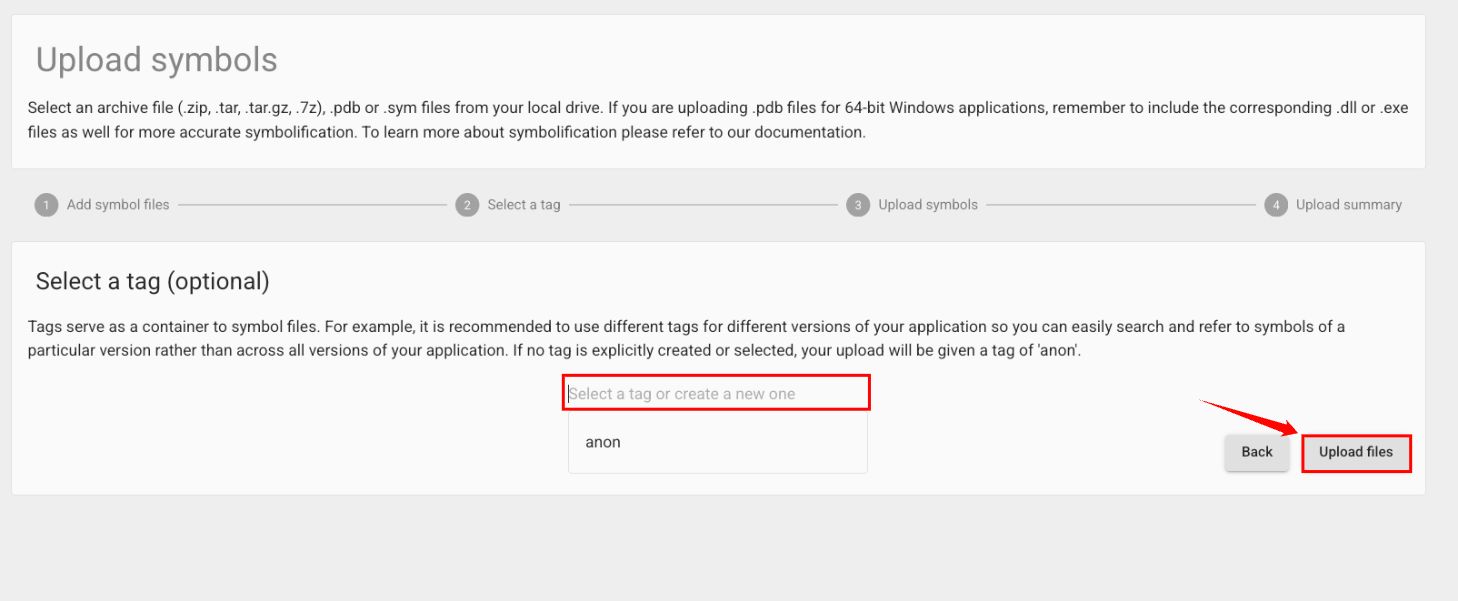
Step 4: On the Select a tag page, choose an existing tag or create a new one to organize uploaded symbols by application version, platform, or release. Then, click Upload files.
If no tag is selected, the uploaded symbols are assigned to the anon tag.
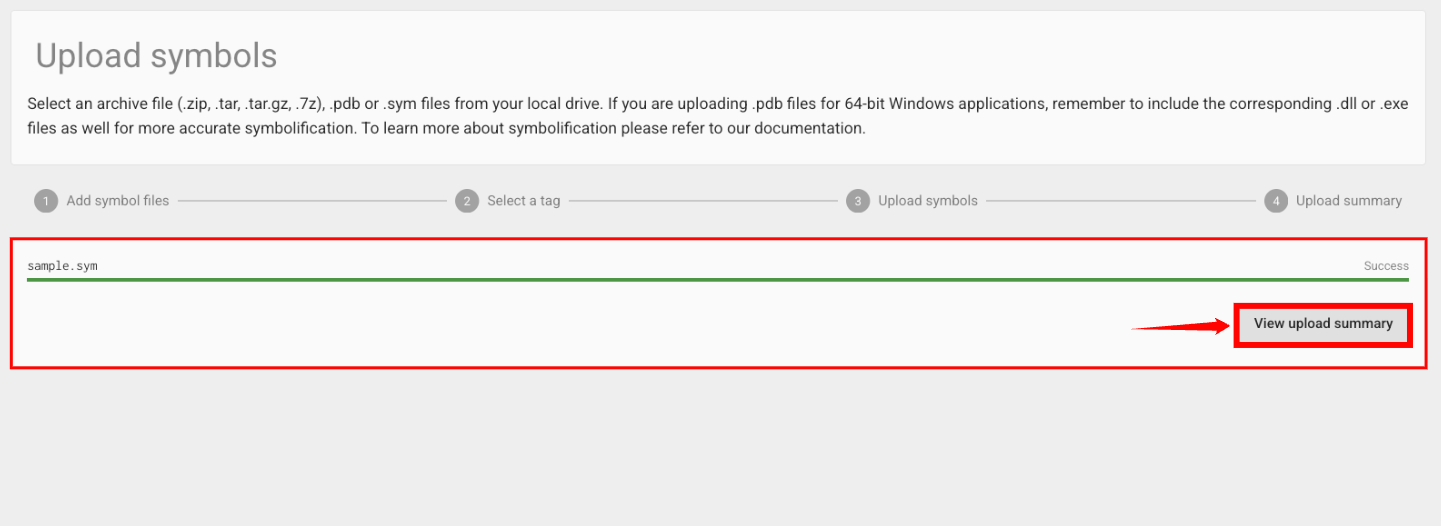
Step 5: Error Reporting uploads the selected symbol files and displays the upload status for each file. After the upload completes successfully, click View upload summary to review the upload results.
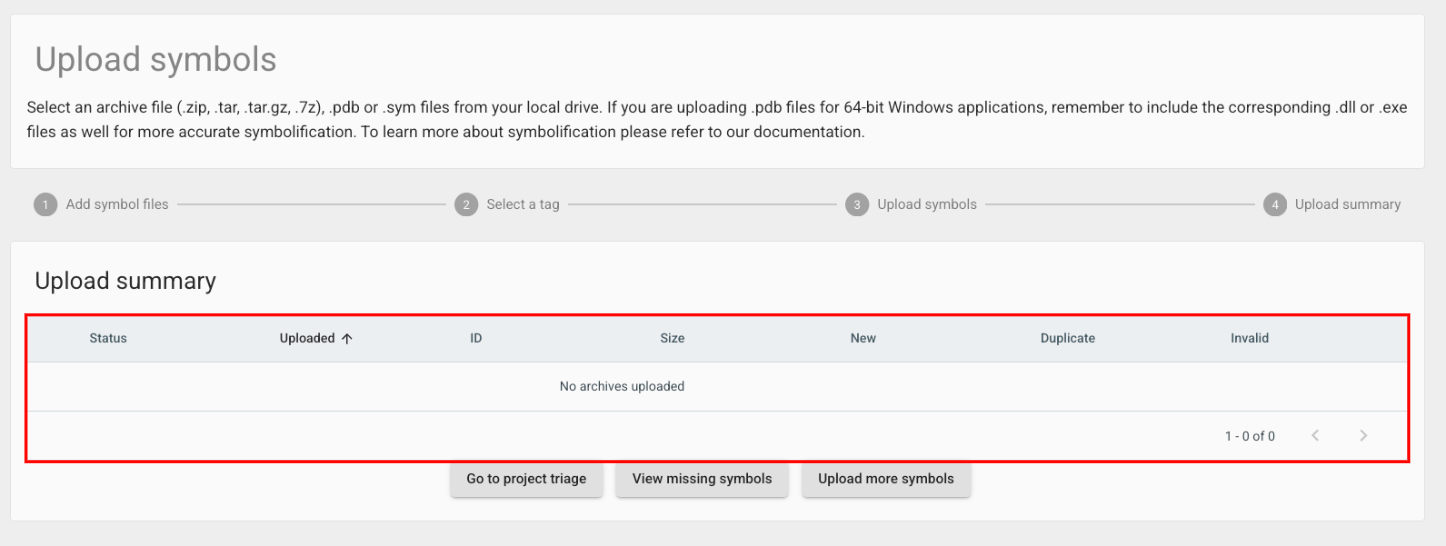
Step 6: On the Upload summary page, review the upload results to verify that the symbol files were uploaded successfully.
You can upload additional symbol files by clicking Upload more symbols, review unresolved symbols by clicking View missing symbols, or return to your project by clicking Go to project triage.
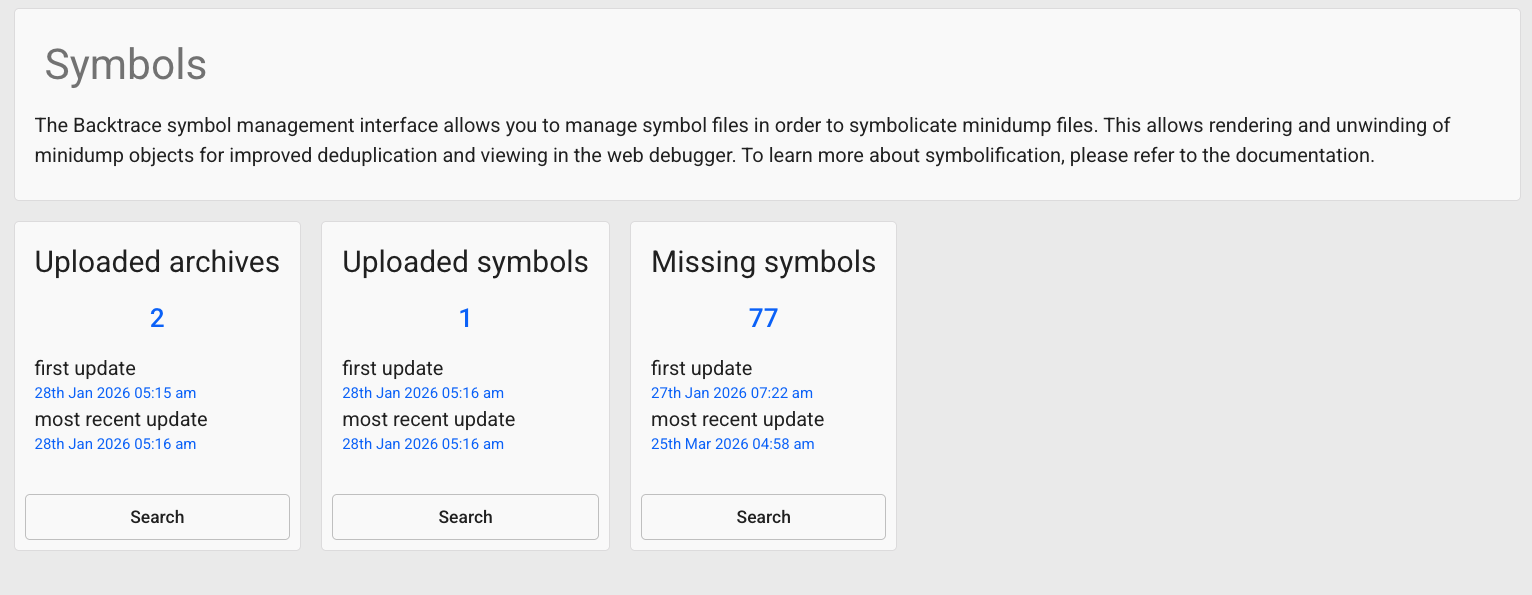
Your symbol files are uploaded to the Error Reporting project and are available for symbolication. You can view uploaded symbols and upload history from the Symbols section in Project Settings & Docs.
Upload Symbols Using the API
Use the Error Reporting HTTP API to automate symbol uploads as part of your build or release pipeline. This method is recommended when you want to upload symbols automatically during your application's build or deployment process.
Upload a Symbol Archive
Send an HTTP POST request to the Error Reporting symbol upload endpoint.
curl --data-binary @symbols.tar \
  -X POST \
  -H "Expect: gzip" \
  "https://submit.backtrace.io/{your-subdomain}/{symbol-access-token}/symbols"
Replace the placeholders with the following values:
| Sr.No | Placeholder | Description |
|---|---|---|
| 1 | {your-subdomain} | Your Error Reporting project subdomain. |
| 2 | {symbol-access-token} | A valid Symbol Access Token used to authenticate the upload. |
| 3 | symbols.tar | The archive containing the symbol files to upload. |
Upload Symbols with a Tag
To associate uploaded symbols with a specific tag, append the tag query parameter to the upload URL.
https://submit.backtrace.io/{your-subdomain}/{symbol-access-token}/symbols?tag=<tag-name>
Replace <tagValue> with the tag you want to assign to the uploaded symbols, such as an application version, platform, or release identifier. If no tag is specified, Error Reporting assigns the uploaded symbols to the default anon tag.