Configuring Release Views
Use the controls at the top of the Releases view to choose which errors to analyze, how releases are identified, and which releases to compare. The charts and comparison table update automatically when you change these settings.
Choose the Error Type
The Error type dropdown filters the metrics on the page to a specific type of error. Each option shows the number of errors reported for that type.
Step 1: Click the Error type dropdown.
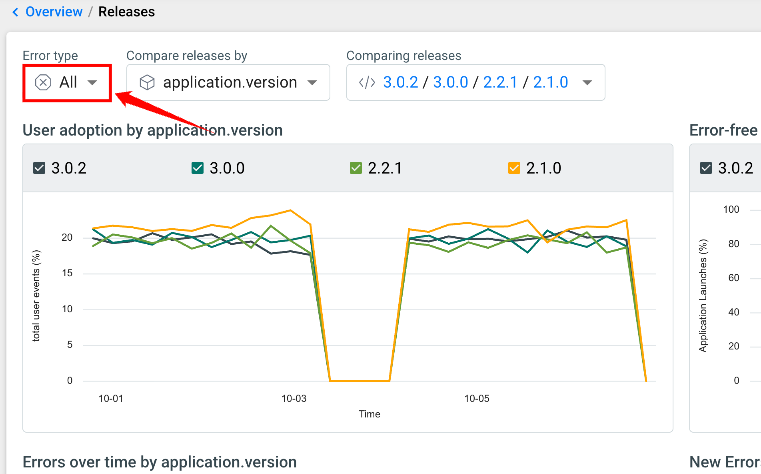
Step 2: Select All, or a single error type such as Unhandled exception, Exception, Crash, Hang, or Low memory.
The available error types depend on the errors reported by your project, so your options may differ. The number next to each option shows the error count for the selected time frame.
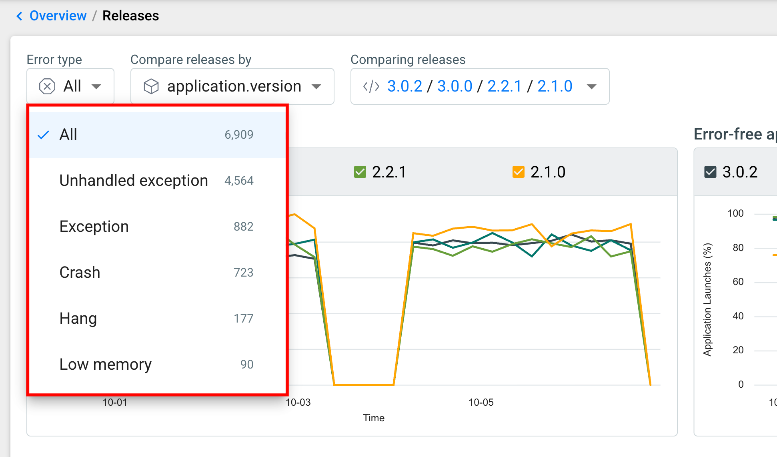
Select Crash or Hang to compare releases by the errors that disrupt users the most.
Set the Version Attribute
The Compare releases by dropdown determines which attribute is used to identify releases. For example, selecting application.version groups the data by application version.
Step 1: Click the Compare releases by dropdown.
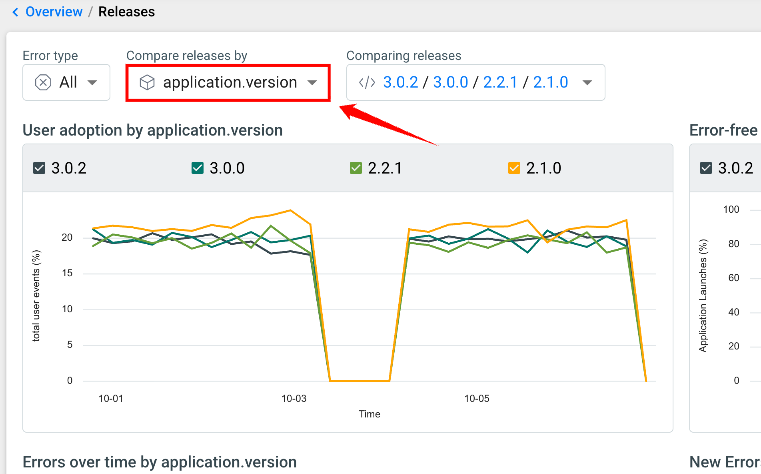
Step 2: Select the attribute that represents a release in your project, such as application.version, application.marketing_version, or backtrace.version.
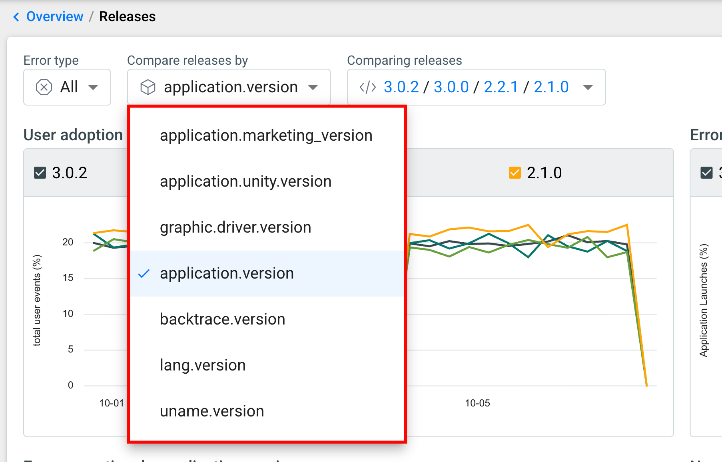
To use a custom attribute, make sure it's properly configured and indexed. Attributes that aren't indexed don't appear in the dropdown.
Select Releases to Compare
The Comparing releases dropdown lists the releases available for the selected attribute. Each release includes its total error count.
You can compare up to four releases at a time.
Step 1: Click the Comparing releases dropdown.
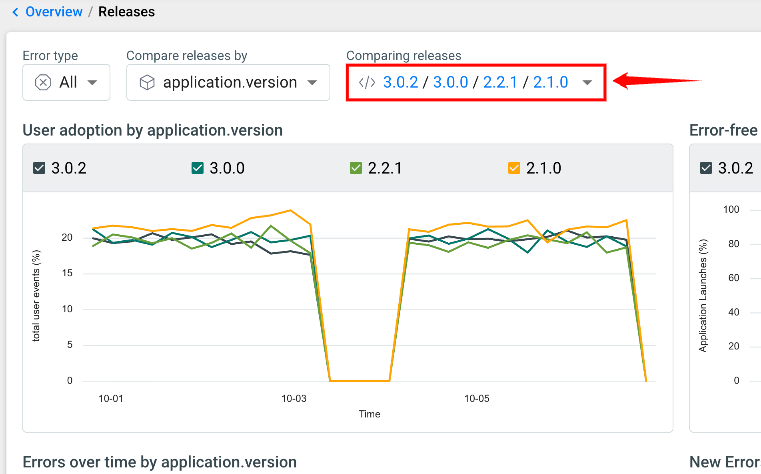
Step 2: Select the checkbox next to each release you want to compare. Clear the checkbox to remove a release from the comparison.
The selected releases appear in the dropdown. The number next to each release shows its error count.
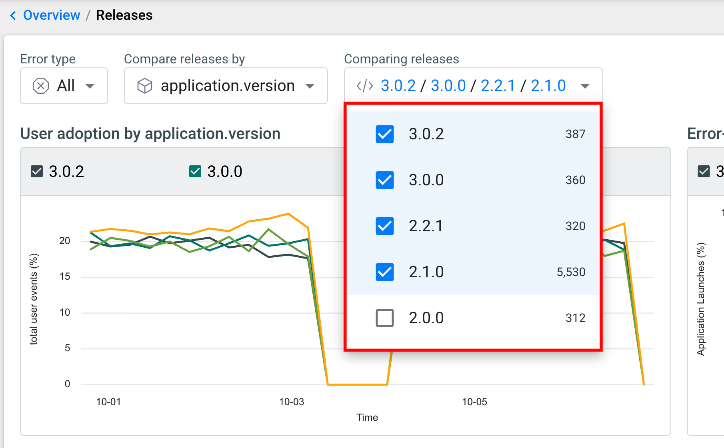
Include at least one earlier release you know was stable, so you have a baseline to compare against.
Filter the View
The Releases view also responds to the project's selected Time frame and the global filter bar. You can combine these filters with the release controls to focus on specific data.
| Goal | How to do it |
|---|---|
| Monitor a release during its launch window | Set Time frame to the most recent couple of days. |
| Compare crashes only | Select Crash in the Error type dropdown. |
| Exclude development builds | If your release attribute follows a pattern that separates development builds from production builds, filter out non-production builds in the global filter bar. |