Installing Apps on Your Device
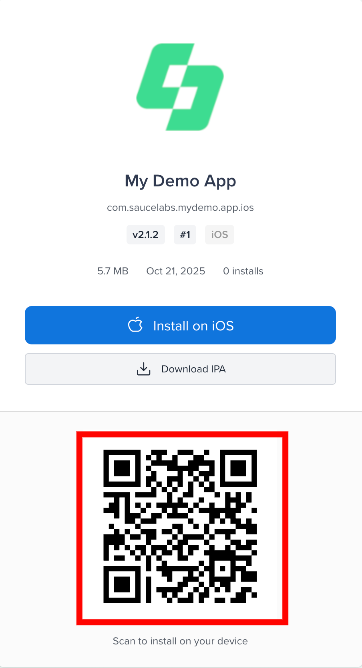
You can install an app on your device using the install link or landing page shared with you. You can also scan the QR code on the landing page to open the installation page on your device.
Install an App on iOS
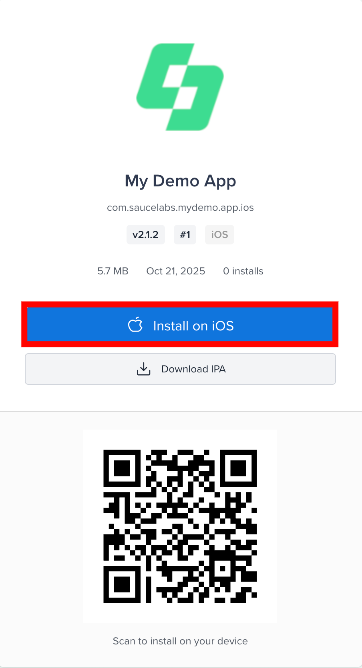
- Open the install link on your iPhone or iPad using Safari.
- Tap Install on iOS on the landing page. To download the
.ipafile instead, tap Download IPA (shown when the app's landing page enables it). - A system prompt will ask you to confirm the installation - tap Install.
- The app will appear on your home screen. You may need to trust the developer certificate before opening it.
iOS Note
iOS ad-hoc and development builds always require you to log in before installing. Enterprise and App Store builds follow the app's landing-page Visibility setting (Open Beta or Closed Beta). Make sure you have an account and are assigned to the app, either directly, through a tester group, or through a build invite.
Install an App on Android
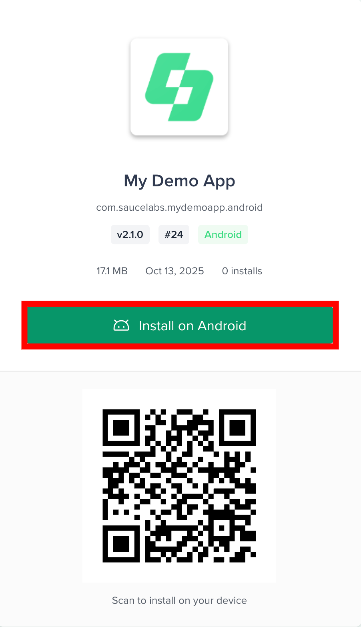
- Open the install link on your Android device.
- Tap Install on Android. If the build is download-only, the button reads Download.
- If prompted, allow installation from unknown sources in your device settings.
- Open the downloaded
.apkfile and follow the installation prompts.
Install an App Using a QR Code
Each landing page includes a QR code. Scan it with your device camera to open the install page directly on your phone.