Uploading Builds
Upload a new iOS or Android build to your project to make it available for testing and distribution. After a build is uploaded and processed, you can share it with testers and team members through the available distribution options.
Supported Build Formats
App Distribution supports the following application packages:
| Platform | File format | Description |
|---|---|---|
| iOS | .ipa | iOS application archive |
| Android | .apk, .aab | Android application package. .aab files are converted to an APK for installation. |
| Any | .zip | Generic archive |
Make sure your build is packaged in one of these supported formats before uploading it. Files can be up to 4 GB.
How to Upload
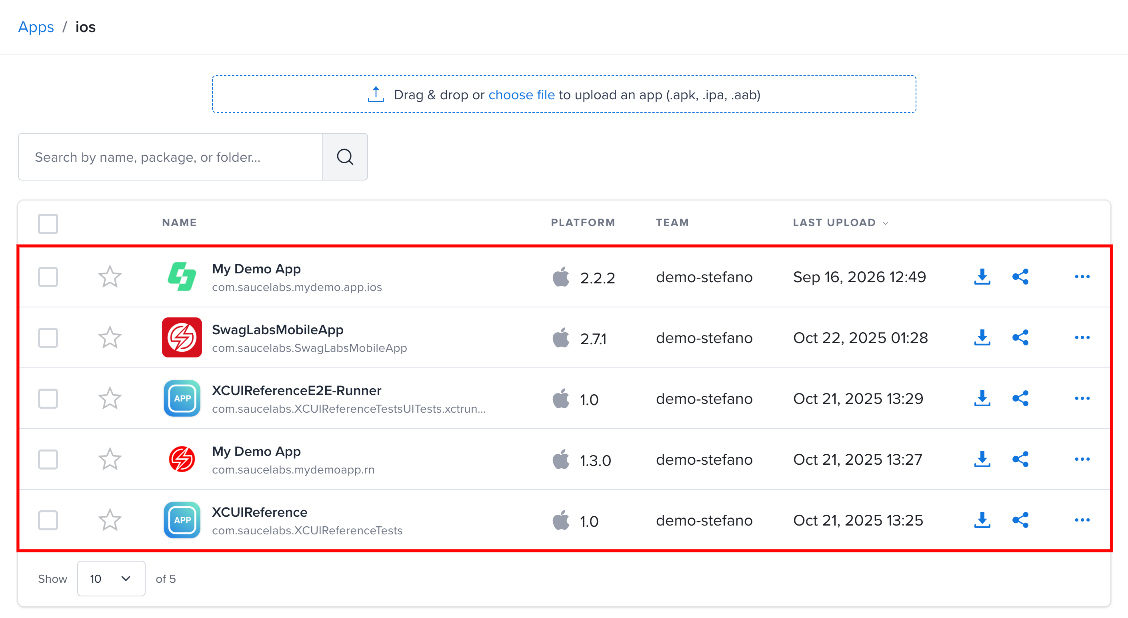
Step 1: Open the project where you want to upload the build.
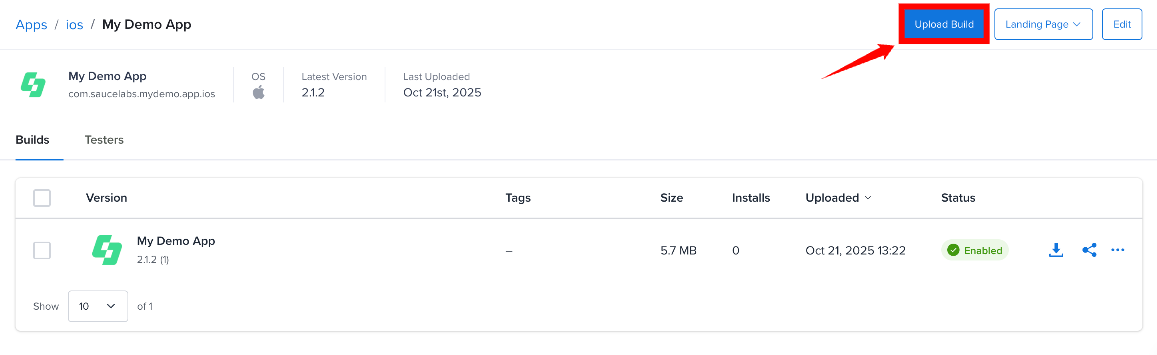
Step 2: Select Upload Build in the top-right corner of the project page.
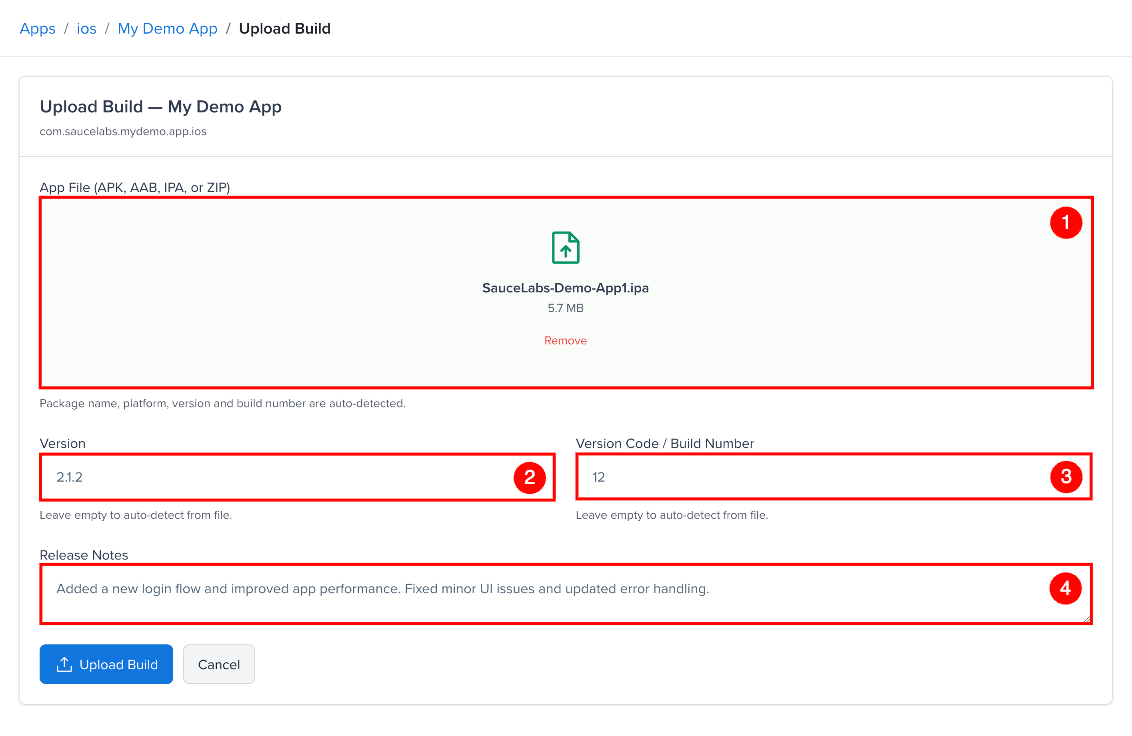
The Upload Build page opens. Enter the build information using the following fields:
| Ref. | Field | Description |
|---|---|---|
| 1 | App File | Upload your application build by dragging and dropping the file into the upload area or selecting browse to select a file. Supported formats are .apk, .aab, .ipa, and .zip. |
| 2 | Version | Enter the app version, or leave the field empty to use the value detected from the build. |
| 3 | Version Code / Build Number | Enter the build number, or leave the field empty to use the value detected from the build. |
| 4 | Release Notes | Describe the changes included in the build. |
| 5 | Also upload to SauceLabs App Storage | When checked, the build is also copied to your Sauce Labs App Storage. Requires the Sauce Labs connection. |
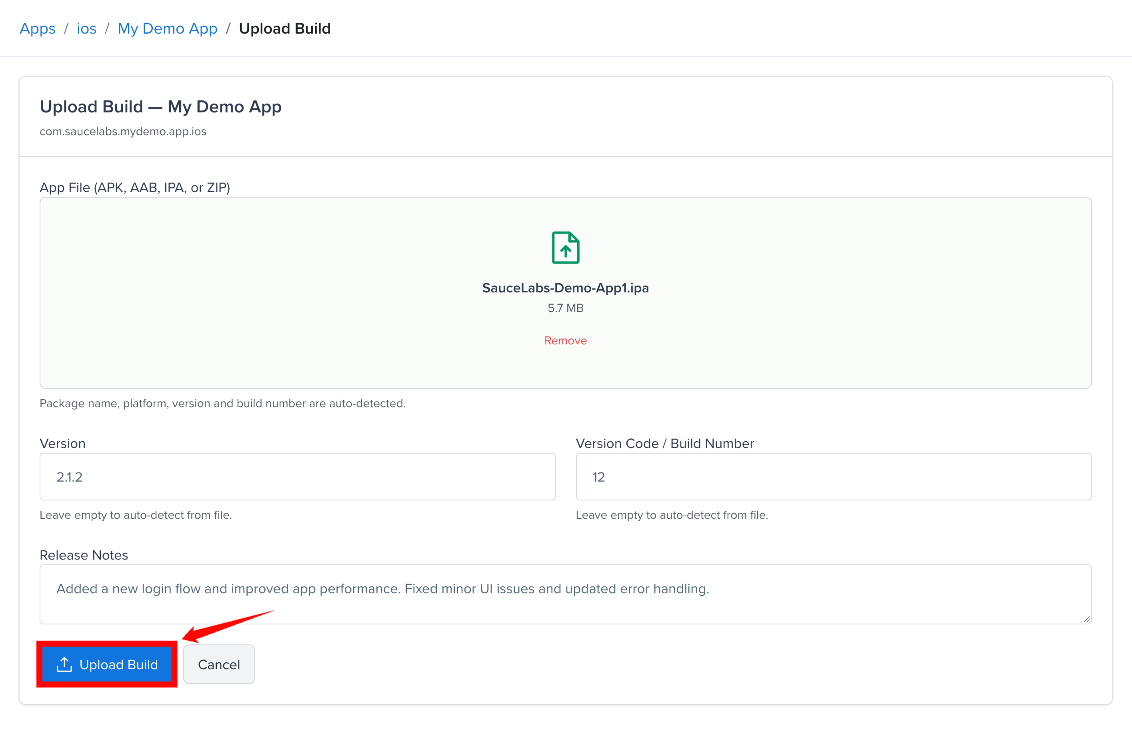
Step 3: Select Upload Build to upload the build. App Distribution processes the uploaded file and extracts information such as the package name, platform, version, and build number.
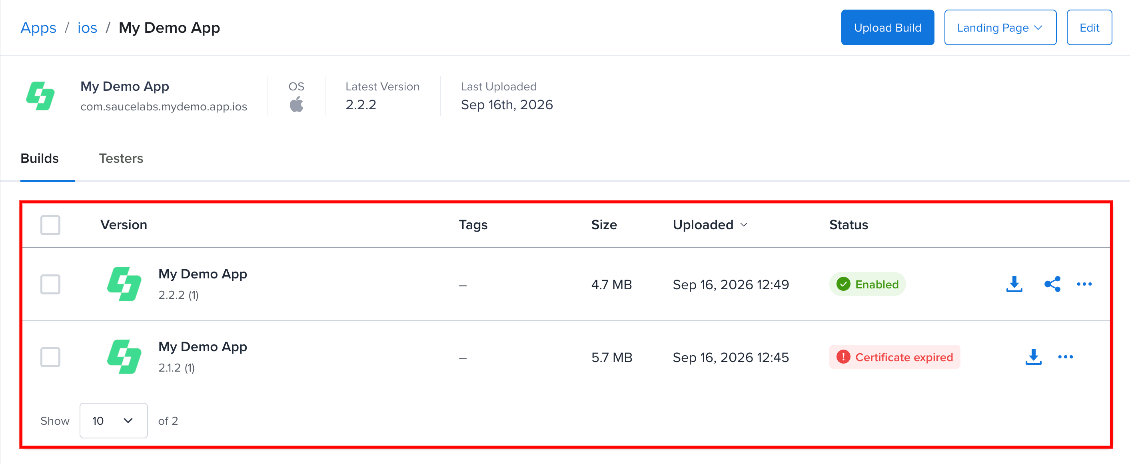
Step 4: After the build is processed, it appears in the project's Builds list, where you can manage and distribute it to testers.
Build Information
App Distribution automatically reads information from the uploaded build and displays it with the build. The extracted information includes:
| Information | Description |
|---|---|
| App Name | The name of the app you upload to. |
| Package Name / Bundle ID | The iOS bundle identifier or Android package name, read from the file on the first upload and stored for the app. |
| Version | The application version, such as 1.2.3. |
| Version Code | The build number provided by the application package. |
| Platform | The platform detected from the uploaded build. |
You do not need to enter this information manually when uploading a build.
API Upload
You can also upload builds programmatically using the App Distribution API. API-based uploads can be useful when you want to include build distribution as part of a CI/CD workflow.
For API upload details, see API Reference.
After Upload
After a build has been uploaded and processed, you can manage it from your project. Depending on its lifecycle state, you can:
- Distribute the build to testers and team members.
- Add or update release information.
- Delete the build.
Deleting a build removes it and its file immediately and permanently. It can't be recovered.
An expired build can't be restored. Re-sign the app with a current provisioning profile and upload it as a new build. For more information about build states and available actions, see Build Lifecycle.