My Profile
Your My Profile page holds your personal account information and settings. Everything on this page applies only to your own account. Organization-wide settings, such as security and data retention, are in Organization Settings.
Access My Profile
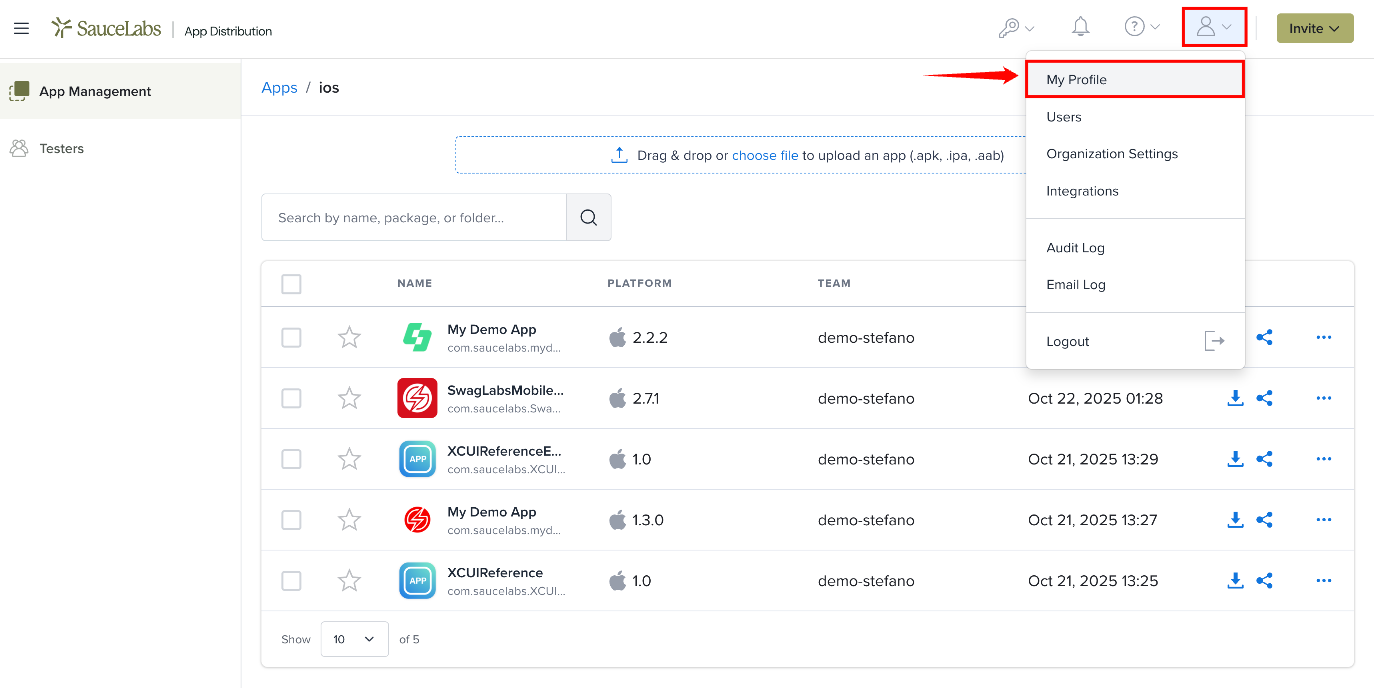
Step 1: Click the Profile icon in the top-right corner and select My Profile from the user menu.
Step 2: The My Profile page opens. Your Role and the date your account was created (Member since) are shown at the top of the page. If you belong to teams, or your organization uses the Sauce Labs connection, those details are shown there as well.
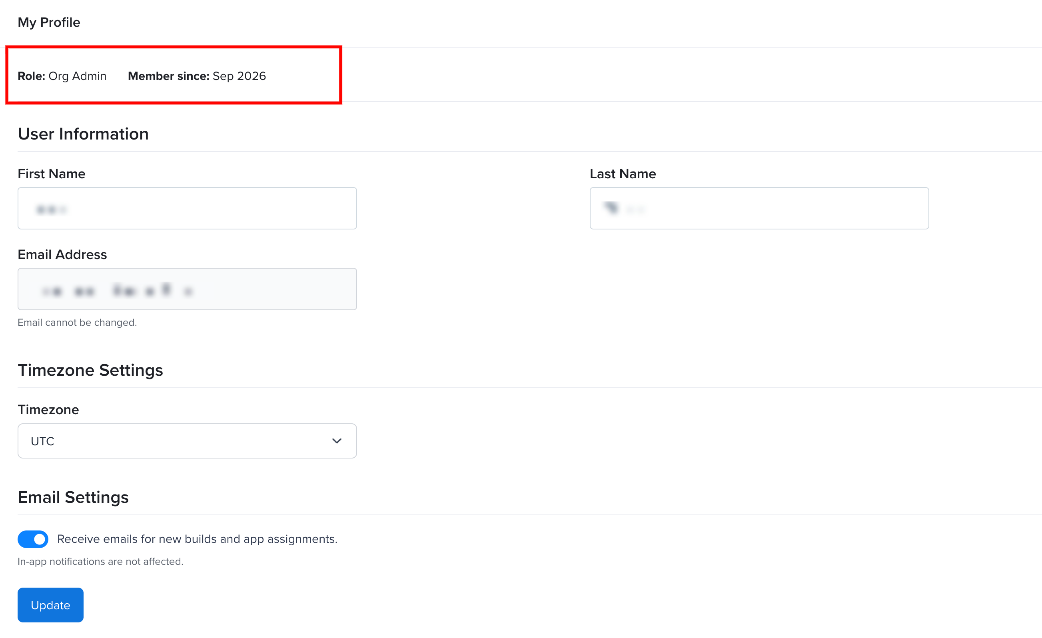
You can't change your own role. Account Owners and Org Admins manage roles. See Members & Roles.
User Information
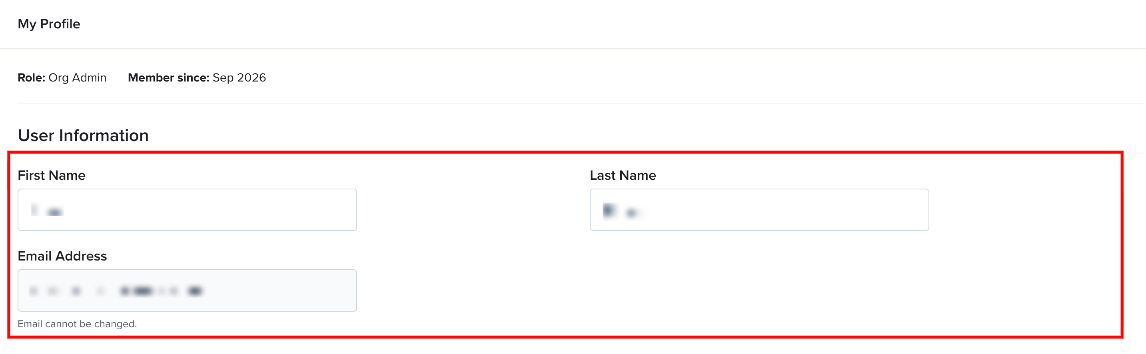
The User Information section shows the name and email address on your account. Your name is how other members see you across the platform, so keep it up to date. Your email address identifies your account: invitations and email notifications are sent to it, and it's the username for HTTP Basic authentication with the API.
| Field | Description |
|---|---|
| First Name | Your first name, displayed across the platform. |
| Last Name | Your last name, displayed across the platform. |
| Email Address | Your account email address. It's shown for reference and can't be changed. |
Timezone Settings
The Timezone setting controls how dates and times are displayed to you across the platform, for example build upload times and audit log entries. It only changes what you see, not the times other users see.
Select Auto-detect to use your browser's timezone, or choose a timezone from the list, such as UTC.

Email Settings
The Email Settings section controls whether Mobile App Distribution emails you about new builds and about apps assigned to you. Use the Receive emails for new builds and app assignments toggle to turn these emails on or off. You can also turn them off with the unsubscribe link in any notification email.
Admins can see your email preference as a bell icon in the Users and Testers tables.
Click Update below Email Settings to save your changes. This saves your User Information, Timezone Settings and Email Settings together.
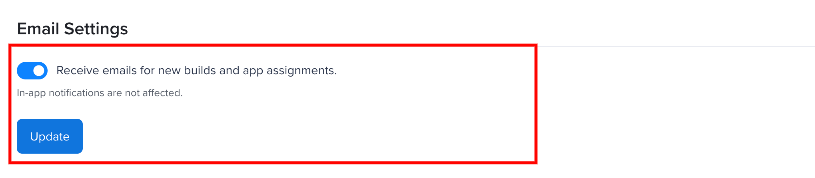
This setting only affects emails. In-app notifications are always on. See Notifications.
Change Password
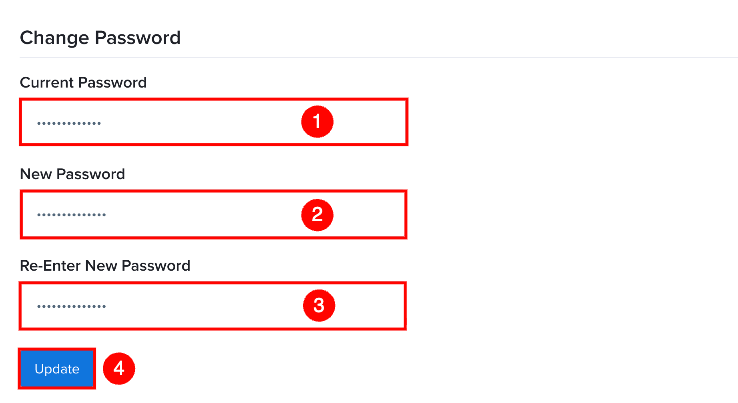
Use the Change Password section to change the password you use to sign in to Mobile App Distribution. This section is saved separately from the rest of the page, with its own Update.
If your organization uses SSO / SAML, you may sign in through your identity provider instead of with a password.
| Sr. No. | Field | Description |
|---|---|---|
| 1 | Current Password | Enter your current account password. |
| 2 | New Password | Enter the new password you want to use. |
| 3 | Re-Enter New Password | Enter the new password again to confirm it. |
| 4 | Update | Saves the new password. |
New passwords must be at least 8 characters and include an uppercase letter, a lowercase letter, a number and a special character, with no spaces.
API Key
Your API key authenticates requests to the Mobile App Distribution API, such as build uploads from a CI/CD pipeline or the Fastlane plugin. It's tied to your account, and it doesn't expire until you regenerate it.
Your API key is available from the API Credentials dropdown in the top navigation bar and the API Key section on the My Profile page. For automation, use a dedicated service account instead of your personal key.
Testers don't have an API key. The API Credentials menu and the API Key section aren't shown to them.
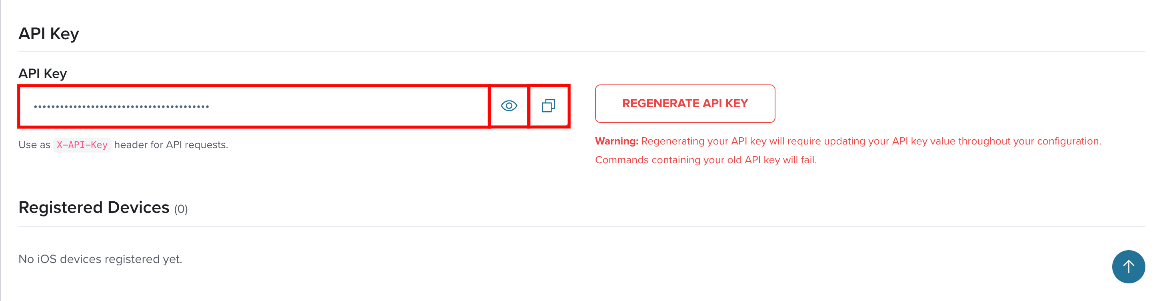
Step 1: Click the eye icon to view your API key, or the copy icon to copy it.
Step 2: Use the API key as the X-API-Key header for API requests. For more information, see the API Reference.
Regenerate Your API Key
Click Regenerate API Key to create a new key. The old key stops working immediately.
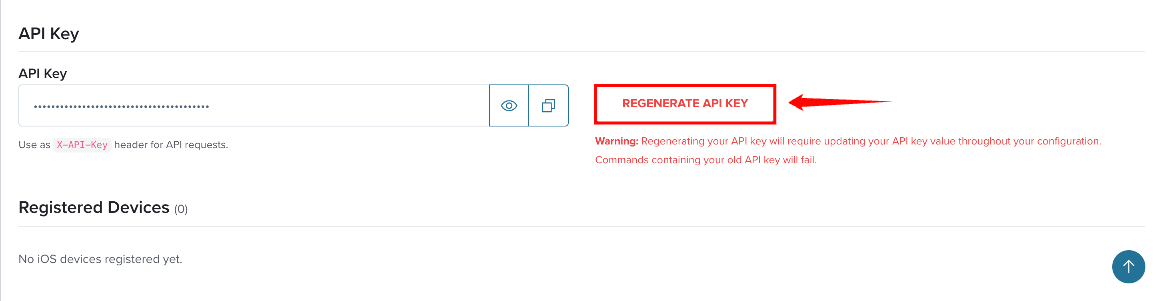
Regenerating your API key requires updating the API key value throughout your configuration. Commands that use your old API key will fail.
Registered Devices
The Registered Devices section lists the iOS devices you've registered and their UDIDs. A UDID is the unique identifier of an iPhone or iPad. Developers use it to add your device to an app's provisioning profile, so builds signed for testing can be installed on it.
Click Register Device to add an iPhone or iPad, or the copy icon to copy a UDID.