Sauce Labs Connection
Connect your Mobile App Distribution organization to your Sauce Labs account to enable automatic team sync, role mapping, user provisioning, and App Storage integration.
Only Account Owners and Org Admins can manage the Sauce Labs connection. Go to Profile menu → Integrations → SauceLabs.
Setting Up the Connection
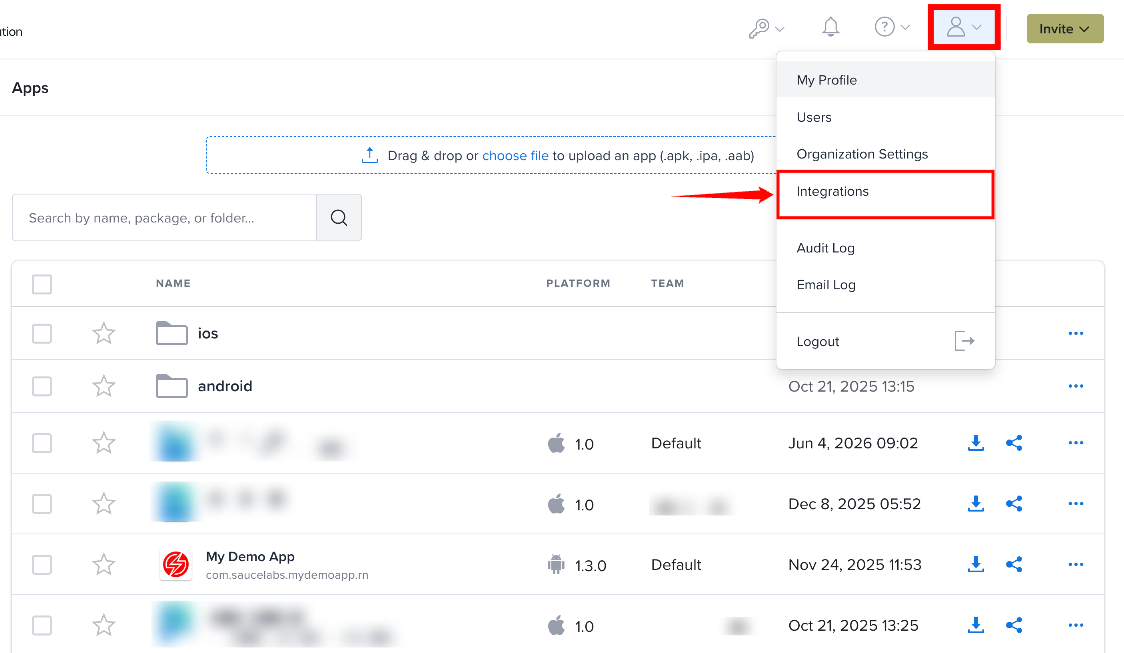
Step 1: Click the Profile icon in the top-right corner and select Integrations from the user menu.
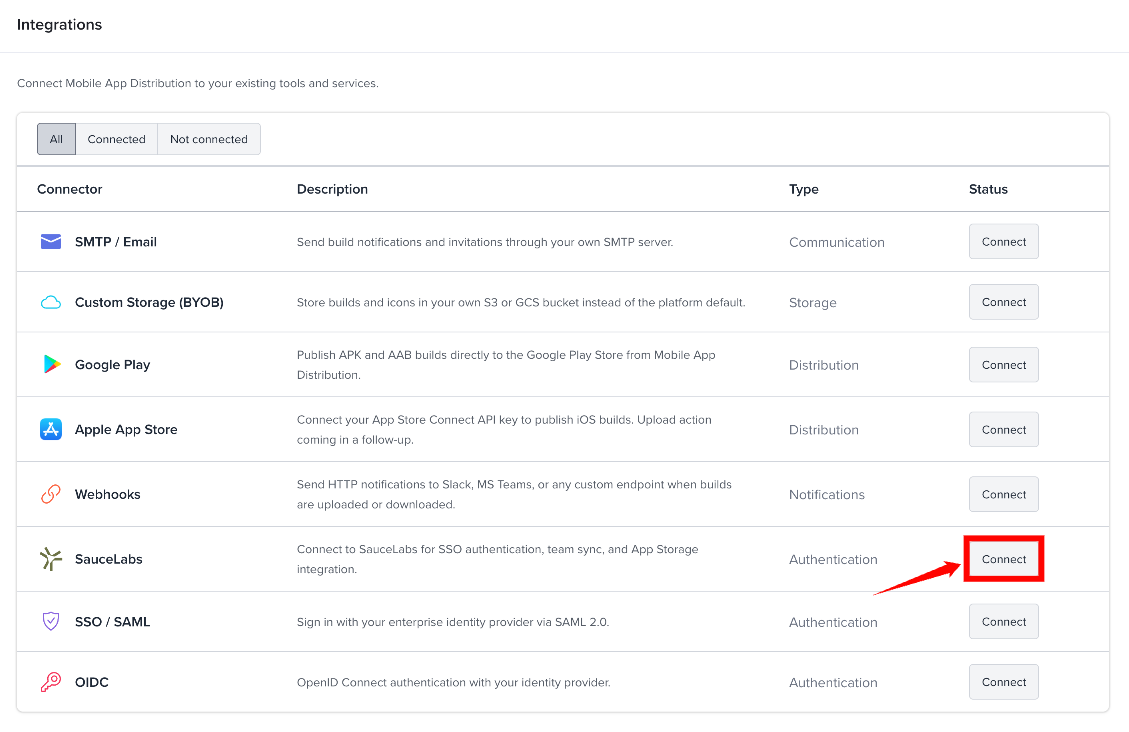
Step 2: On the Integrations page, find SauceLabs and click Connect.
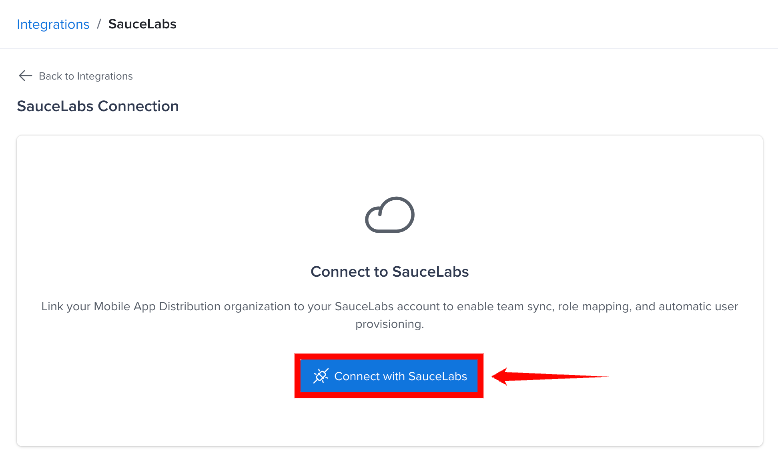
Step 3: On the SauceLabs Connection page, click Connect with SauceLabs.
Step 4: Sign in to your Sauce Labs account when prompted.
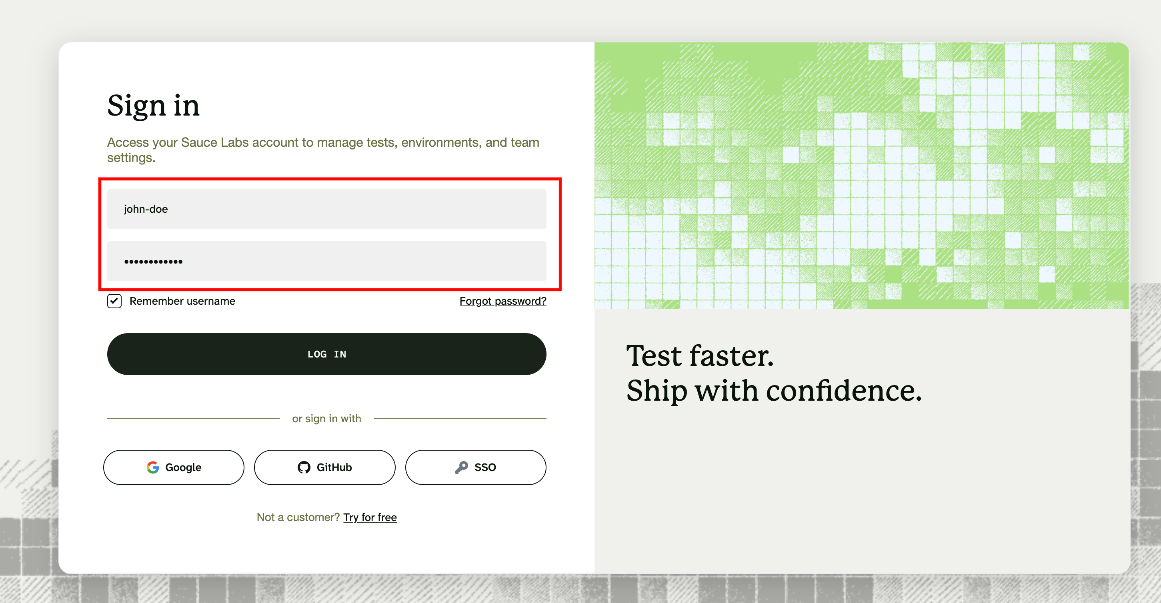
After authentication, your Mobile App Distribution organization is connected to your Sauce Labs organization.
What Happens When Connected
Once the connection is established, the following features are enabled:
| Feature | Description |
|---|---|
| Team Sync | Teams from your SauceLabs organization are automatically created in Mobile App Distribution. Users are added to their SauceLabs teams on every login. |
| Role Mapping | SauceLabs roles are mapped to Mobile App Distribution roles on login. Org Admins in SauceLabs become Org Admins in Mobile App Distribution. Team members become Members. |
| Auto-Provisioning | New SauceLabs users get a Mobile App Distribution account automatically when they log in via SauceLabs SSO for the first time. |
| App Storage | Builds can be copied to SauceLabs App Storage using the uploading user's credentials. Copying is opt-in per upload. |
Copying Builds to App Storage
Copying a build to SauceLabs App Storage is opt-in, not automatic. To copy a build, check Also upload to SauceLabs App Storage when uploading it, or send sync_to_saucelabs=1 through the API.
You must have signed in with Sauce Labs at least once, so that your Sauce Labs credentials are stored. If they aren't, the copy is skipped silently.
Role Mapping
Sauce Labs roles are mapped to Mobile App Distribution roles as follows:
| SauceLabs Role | Mobile App Distribution Role |
|---|---|
| Organization Admin | Org Admin, plus Team Admin of their synced teams |
| Team Admin | Member, plus Team Admin of their synced teams |
| Everyone else | Member |
While Sync roles is on, an existing Tester role is overwritten with Member. The Account Owner role in Mobile App Distribution is not changed by role synchronization.
Team Sync Behavior
When team synchronization is active:
- On every SauceLabs login, the user's team memberships are synced.
- New SauceLabs teams are automatically created in Mobile App Distribution.
- On each sign-in, the user is removed from every team whose name isn't in their Sauce Labs team list, including teams created in App Distribution.
- If a user has no remaining SauceLabs teams, their Mobile App Distribution account is blocked (they cannot log in).
- If they are re-added to a team in SauceLabs, their account is unblocked on next login.
- Blocking and unblocking happen only when Sync teams is on.
Sync Settings
After connecting, you can turn these options on or off on the SauceLabs settings page. They take effect only after you click Save Settings.
- Sync teams - Enable/disable automatic team creation and membership sync.
- Sync roles - Enable/disable role mapping on login.
- Auto-provision - Enable/disable automatic account creation for new SauceLabs users.
Navigation Changes
While connected, the Users menu item opens Sauce Labs team management, and Invite User is hidden. Teams are still managed in App Distribution.
Connecting also adds Mobile Devices to the sidebar, and Run on SauceLabs to the build actions.
Disconnecting
You can disconnect from SauceLabs at any time from the settings page. Disconnecting stops team/role sync and auto-provisioning, but does not remove existing users or teams from Mobile App Distribution.