Integrating iOS SDK
Beta release
The Sauce Mobile Beta SDK is in beta. The current release candidates are 2.2.0-rc for iOS and Android and 3.0.0-rc for React Native.
- Final: the artifact names and the API.
- Can still change before general availability: the version numbers, the iOS package URL, and this documentation.
Share feedback with your Sauce Labs representative.
Integrating the Sauce Mobile Beta SDK into your app helps you better understand how your app performs on real devices. It tells you when and how people are using your app, and provides you with any metrics you may need to optimize your user experience and code. You get to:
- Track app use.
- Record screen video and other metrics.
- Understand user flow, using checkpoints.
- Grab NSLogs from client and report to server.
- Collect in-app feedback from your testers.
The SDK does not install a crash handler. Crash reporting is provided by Backtrace (Sauce Labs Error Reporting), and the two SDKs are designed to run in the same app. Initialize Backtrace first, then start the SDK with beginWithoutCrashHandler. See Using Sauce Mobile Beta with Backtrace.
Adding the SDK
The SDK for iOS is distributed with Swift Package Manager. The current release candidate is 2.2.0-rc and requires iOS 11 or later.
Swift Package Manager
The CocoaPods pod SauceMobileBeta is not published yet. Use Swift Package Manager to add the SDK.
Screenshots were taken with Xcode 13.1. The steps are the same in current Xcode versions.
| Item | Value |
|---|---|
| Package URL | https://github.com/testfairy/testfairy-ios-sdk-swift-package |
| Package product | SauceMobileBeta |
| Module to import | TestFairy |
| Dependency Rule | Exact Version 2.2.0-rc |
- Select your project from the Xcode navigator to open your project's configuration.
- Make sure your project is selected from the Project and Target list.
- Click the Package Dependencies toolbar item.
- Click the '+' icon to add a package.
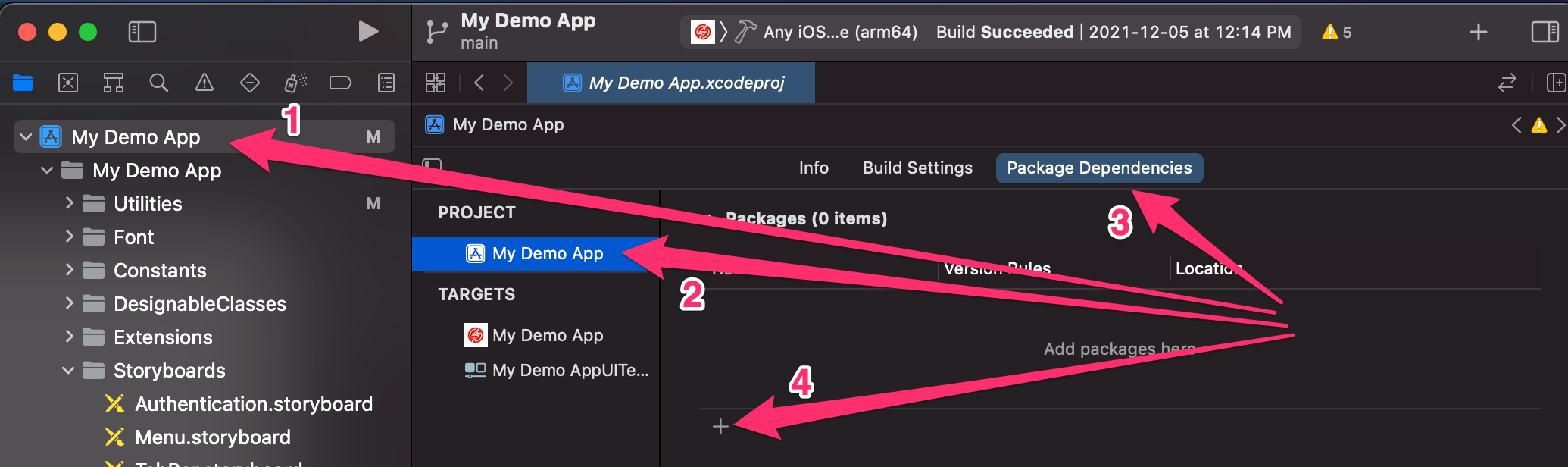
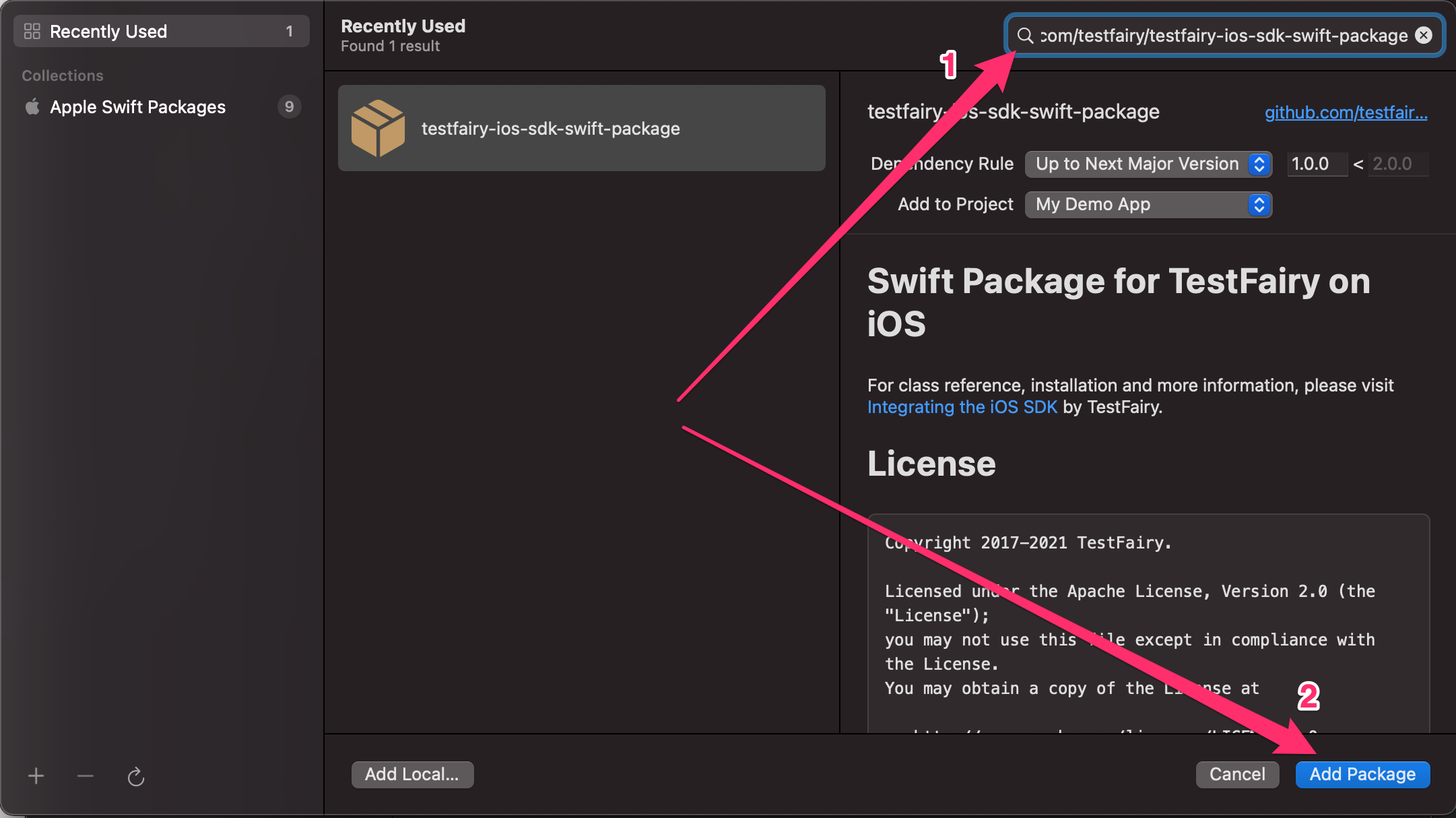
- In the newly opened dialog, enter the Sauce Mobile Beta package URL
https://github.com/testfairy/testfairy-ios-sdk-swift-packagein the top right search bar. - Set the Dependency Rule to Exact Version and enter
2.2.0-rc. - Click Add Package.
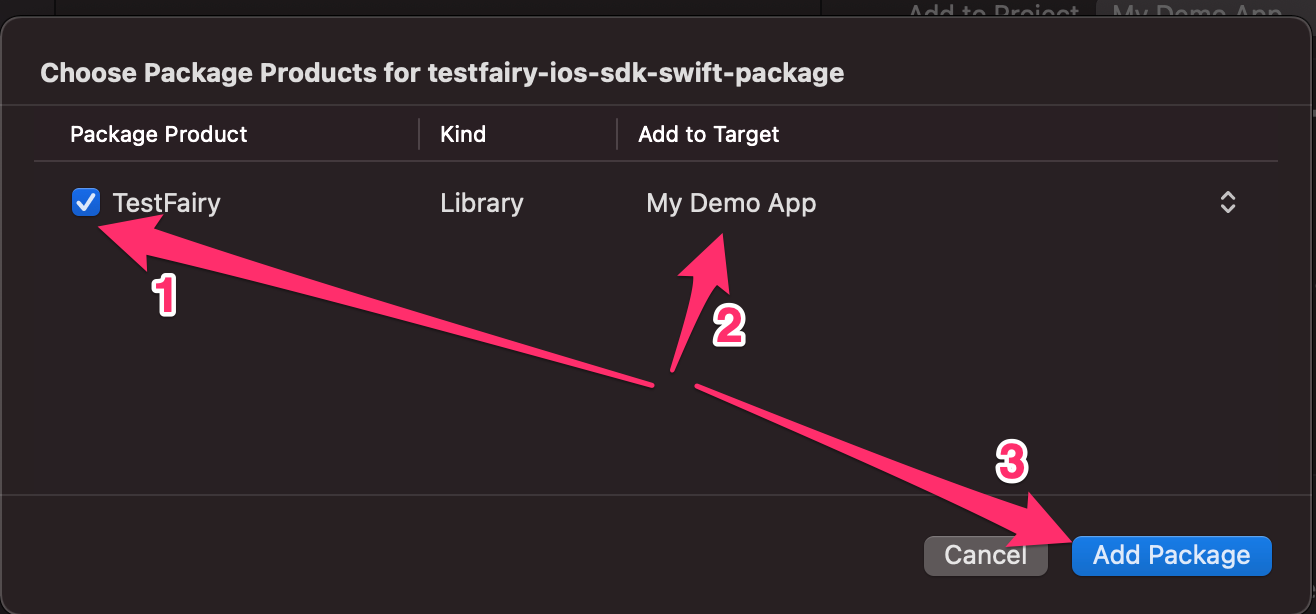
- After the package has been downloaded, in the newly opened dialog, make sure the
SauceMobileBetaproduct is selected in the "Package Product" column. - Make sure the right target is selected in the "Add to target" column.
- Click Add Package.
2.2.0-rc is a semantic-version pre-release. The default "Up to Next Major Version" rule (from: "2.2.0") skips pre-releases, so the package would not resolve. Pin the exact version until the general availability release. The product name is SauceMobileBeta and the module name is TestFairy. The package URL may move to a Sauce Labs-owned repository before general availability.
If you declare dependencies in a Package.swift manifest instead:
dependencies: [
    .package(url: "https://github.com/testfairy/testfairy-ios-sdk-swift-package.git", exact: "2.2.0-rc")
],
targets: [
    .target(name: "MyApp", dependencies: [
        .product(name: "SauceMobileBeta", package: "testfairy-ios-sdk-swift-package")
    ])
]
Initializing the SDK
Start the SDK with beginWithoutCrashHandler. It starts a session without installing a crash handler and forces the TFSDKEnableCrashReporterKey begin option to NO, even if you pass YES. begin also starts a session without a crash handler. Use beginWithoutCrashHandler to make the intent explicit. When Backtrace is part of the app, initialize Backtrace before this call. See Using Sauce Mobile Beta with Backtrace for the full initialization order and the shared sauce.correlation_id attribute.
Replace <sauce-mobile-beta-token> with your app token. Once logged in, your app token is available from your account preferences.
- Objective-C
- Swift
-
Open your AppDelegate.m file.
-
Add this code to your app:
#import "TestFairy.h"

- (BOOL)application:(UIApplication *)application didFinishLaunchingWithOptions:(NSDictionary *)launchOptions {

    // Initialize Backtrace first when it is part of the app.

    [TestFairy beginWithoutCrashHandler:@"<sauce-mobile-beta-token>"];

    // the rest of the didFinishLaunchingWithOptions method
    // ...
    return YES;
}
-
Import the SDK
With Swift Package Manager, import the module directly in every Swift file that uses the SDK. The package product is
SauceMobileBetaand the module name isTestFairy:
import TestFairy
- Right-click on your project and select New File.
- Select Header File.h
- Save as Bridging.h in your project
- Click on Bridging.h to open it in editor
- Add the following line to the code:
#import "TestFairy.h"
If the header is not found, try the framework-style import:
#import "TestFairy/TestFairy.h"
- Click on your project
- Select Build Settings tab
- Select the "All" filter to find Swift Compiler - General: Objective-C Bridging Header
- Edit Swift Compiler - General: Objective-C Bridging Header (double-click to edit).
- Drag "Bridging.h" from the source tree onto the edit box opened
-
Open your AppDelegate.swift file.
-
Add this code to your app:
import UIKit
import TestFairy

func application(_ application: UIApplication, didFinishLaunchingWithOptions launchOptions: [UIApplication.LaunchOptionsKey: Any]?) -> Bool {
    // Initialize Backtrace first when it is part of the app.

    TestFairy.beginWithoutCrashHandler("<sauce-mobile-beta-token>")

    // the rest of the didFinishLaunchingWithOptions method
    // ...
    return true
}
Using PencilKit for Better Feedback
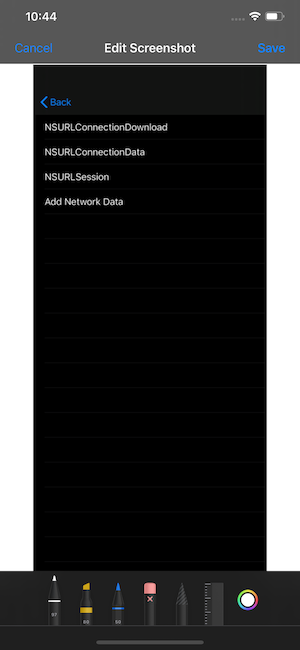
You can give your users a better set of tools to markup any screenshots provided during feedback by adding PencilKit to your project. Add the PencilKit.framework to your project.
This requires iOS 13 and Xcode 11.
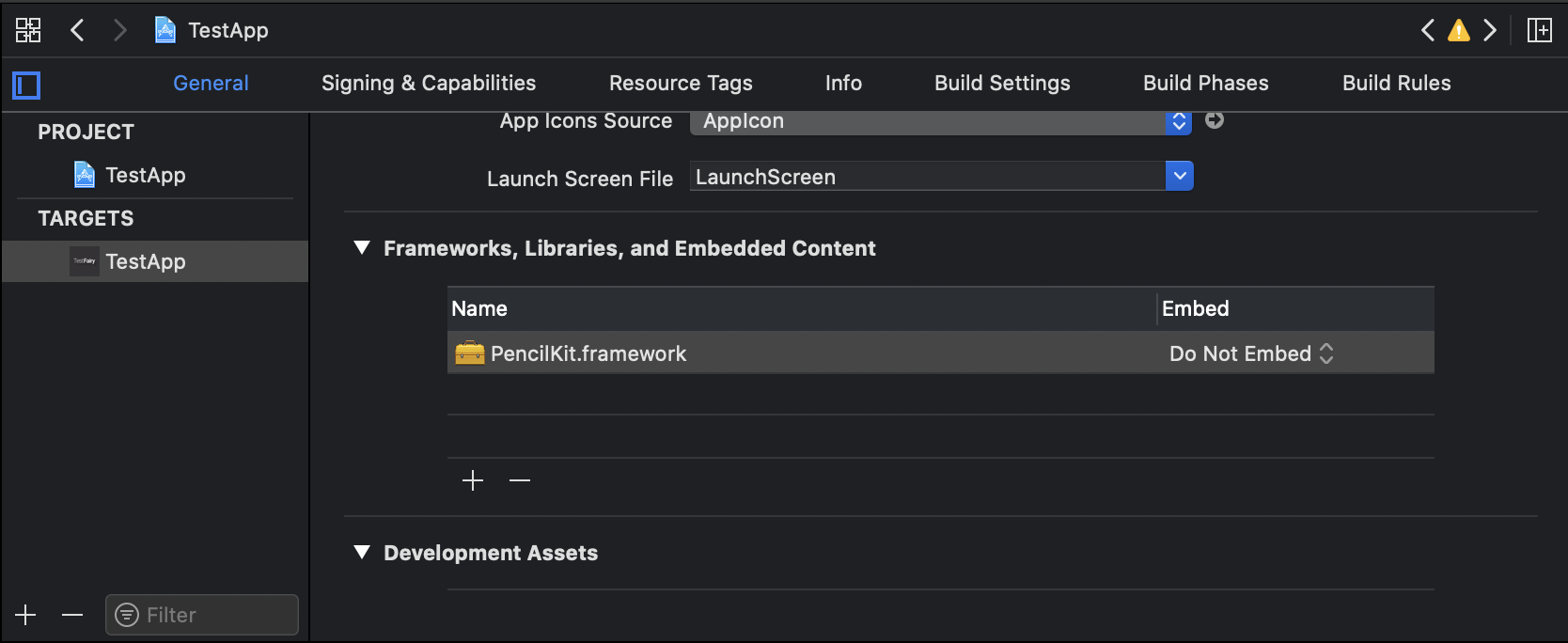
If a screenshot is attached to the feedback, your users can edit the screenshot by tapping on it and using PencilKit to mark it up.