Build Lifecycle
A build moves through different states from the time it is uploaded until it is deleted. Understanding these states helps you know whether a build is available for testers and what action is required when it is no longer installable.
Build States
The following states describe the availability of a build:
| State | Visible to Testers | Description |
|---|---|---|
| Enabled | Yes | The default state after a successful upload. Testers can view and install the build. |
| Disabled | Listed, not installable | Distribution is paused by an admin. Testers still see the build in the list with a Disabled badge, but the install buttons are hidden. |
| Certificate expired | Listed, not installable | The build's iOS provisioning profile has expired. Testers still see the build in the list with a Certificate expired badge, but the install buttons are hidden. Read from the profile at upload — not a manual toggle. |
Deleting a build removes it immediately; it no longer appears in any state.
State Diagram
A build can move between states depending on its configuration and expiration:
- A newly uploaded build starts in Enabled if it has a valid configuration.
- An admin can change an Enabled build to Disabled to pause distribution.
- A disabled build can be changed back to Enabled when distribution should resume.
- An iOS build can automatically move to Certificate expired when its provisioning profile expires.
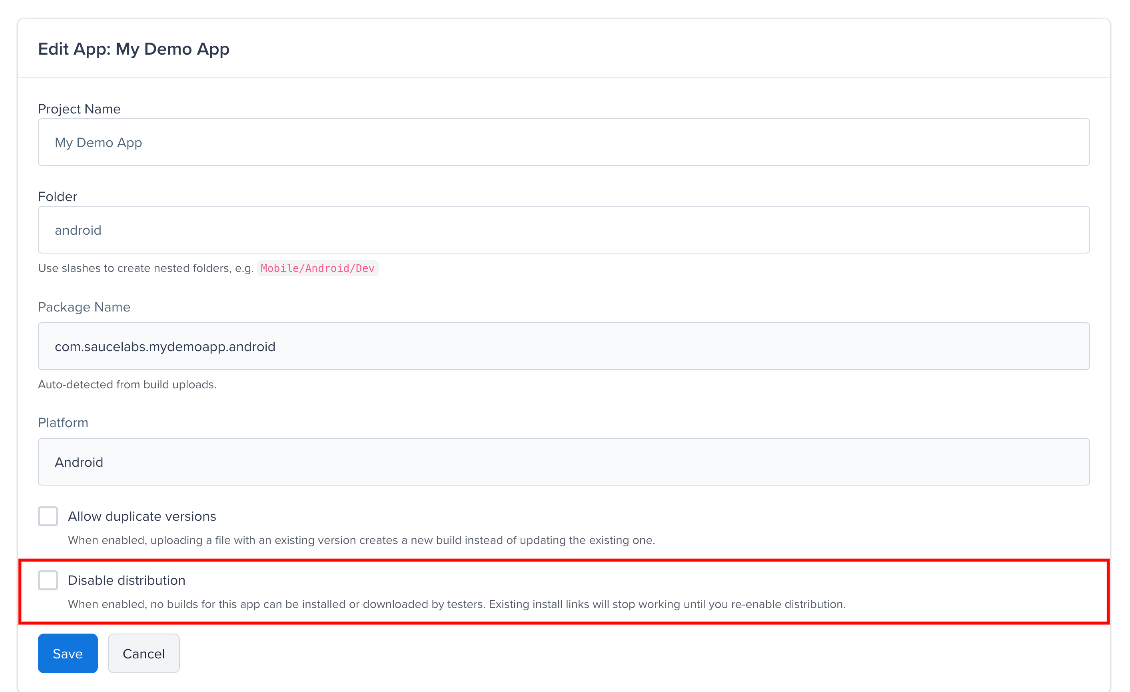
An iOS build uploaded with an already-expired profile starts in Certificate expired. The app-level Disable distribution checkbox overrides everything above - while it is on, no build in the app is installable regardless of its state.
Deleting and Disabling Builds
Account Owners and Organization Admins can manage individual builds from the project's build list.
Step 1: Open the project, locate the build you want to manage, and click the ⋯ (more actions) icon on the build's row.
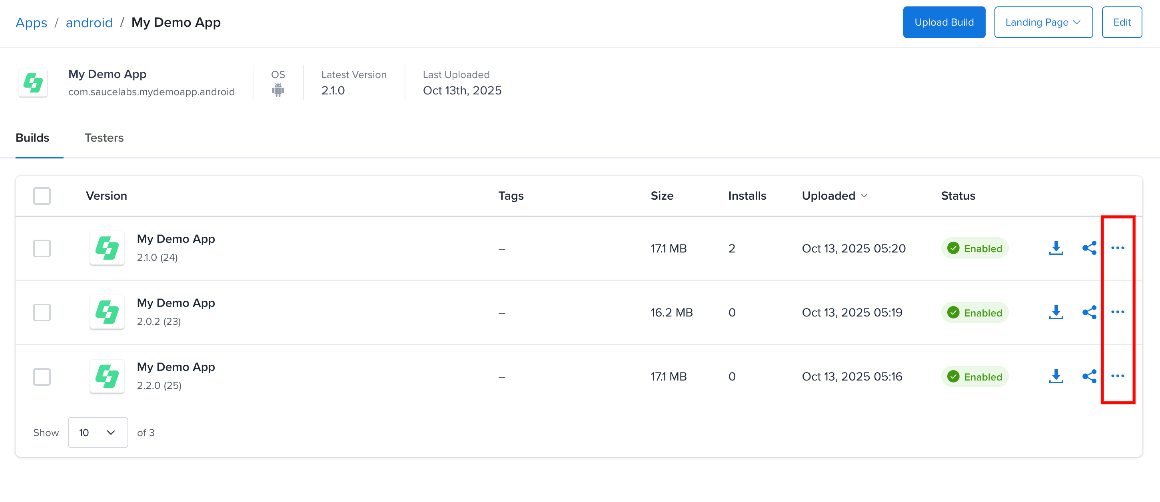
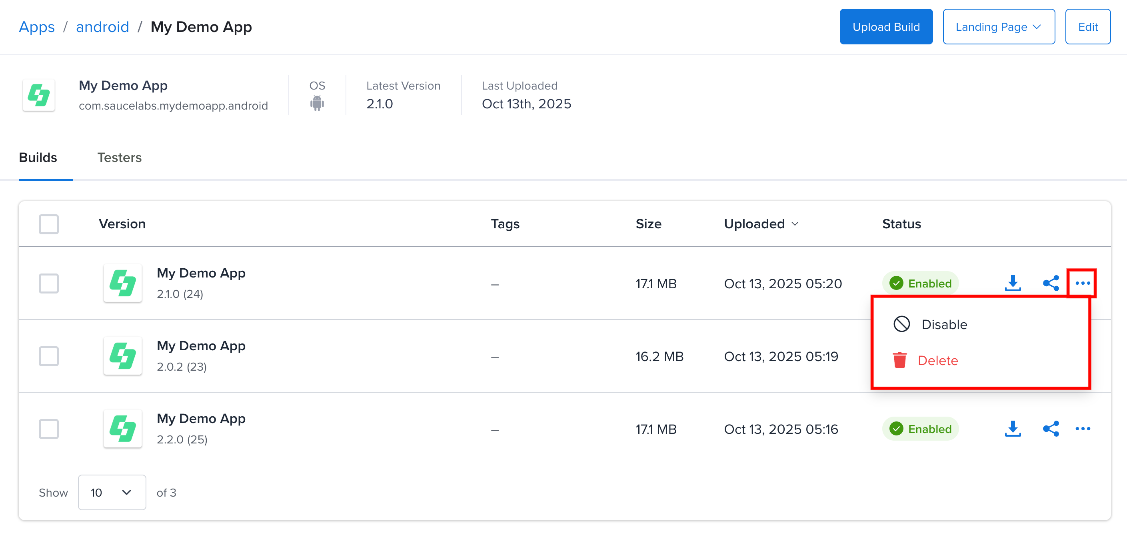
Step 2: Select one of the following options:
- Delete: permanently removes the build. Its file and database record are deleted immediately; the build disappears from all views and this cannot be undone.
- Disable: pauses distribution for a single build. Testers can no longer install it until it is enabled again. Toggle Enable to resume distribution.
To pause distribution for all builds of an app at once, open the app, click Edit, and check Disable distribution on the Edit App page. Click Save.
Deleting a build is immediate and permanent - the file and its record are removed right away and cannot be recovered. To pause distribution temporarily instead, use Disable.
Deleting Several Builds
On the Builds tab, select the checkboxes of the builds you want to remove, then click Delete.
Certificate Expiration (iOS)
iOS ad-hoc and enterprise builds embed a provisioning profile with a fixed expiration date. MAD reads that date when the build is uploaded:
- After the profile's date passes, the build is automatically blocked from installation - no admin action is needed.
- A warning is shown on the build for the 14 days leading up to expiration.
- The state clears when you upload a build signed with a current profile. If you upload the same version number and duplicate versions are off, the existing build is updated with the new file and expiry date.