Landing Pages
A landing page provides a single page where testers can view your app information and install a specific build. You can customize the landing page settings, control who can access it, and choose which build is available for installation.
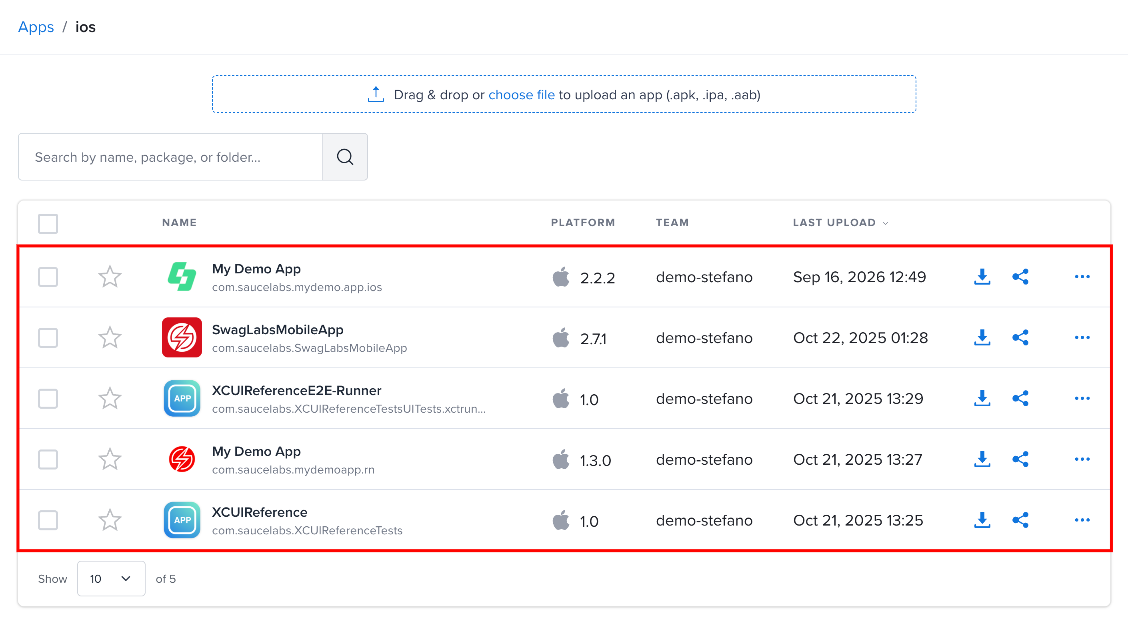
Step 1: Open the project for which you want to configure the landing page.
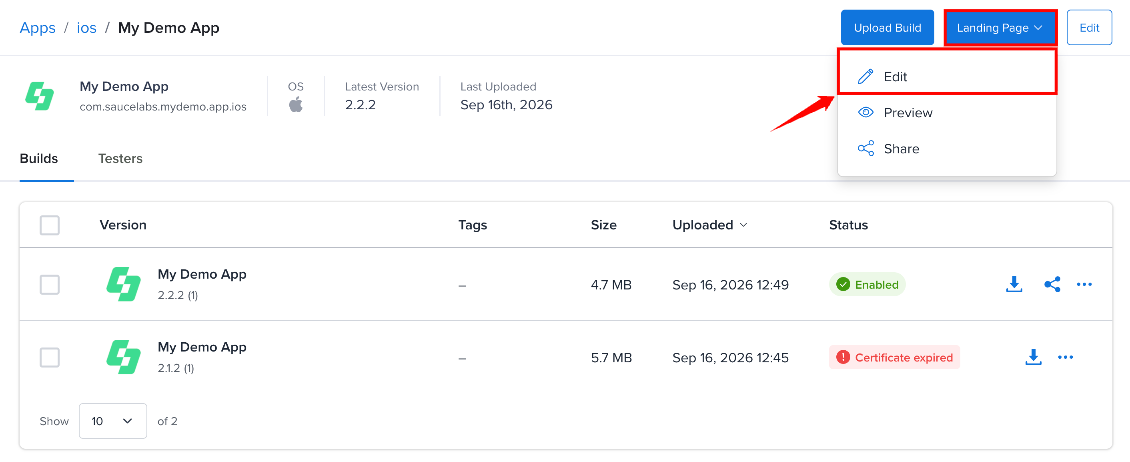
Step 2: Select the Landing Page dropdown in the top-right corner and select Edit. The Landing Page Settings page opens.
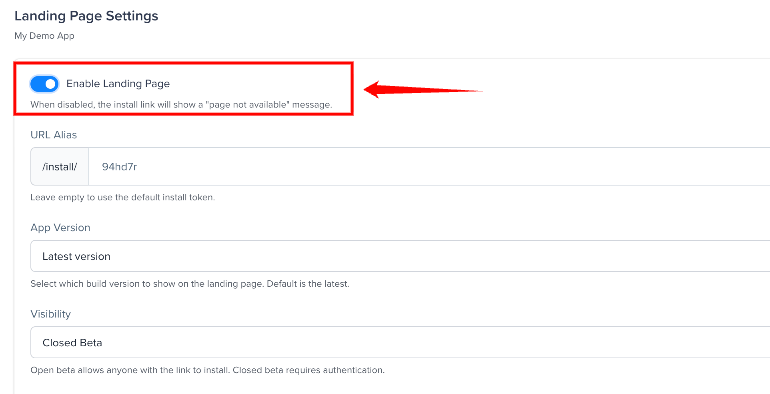
Step 3: Make sure Enable Landing Page is turned on. –When enabled, the landing page is available through its install link. If you disable it, the install link displays a page-not-available message.
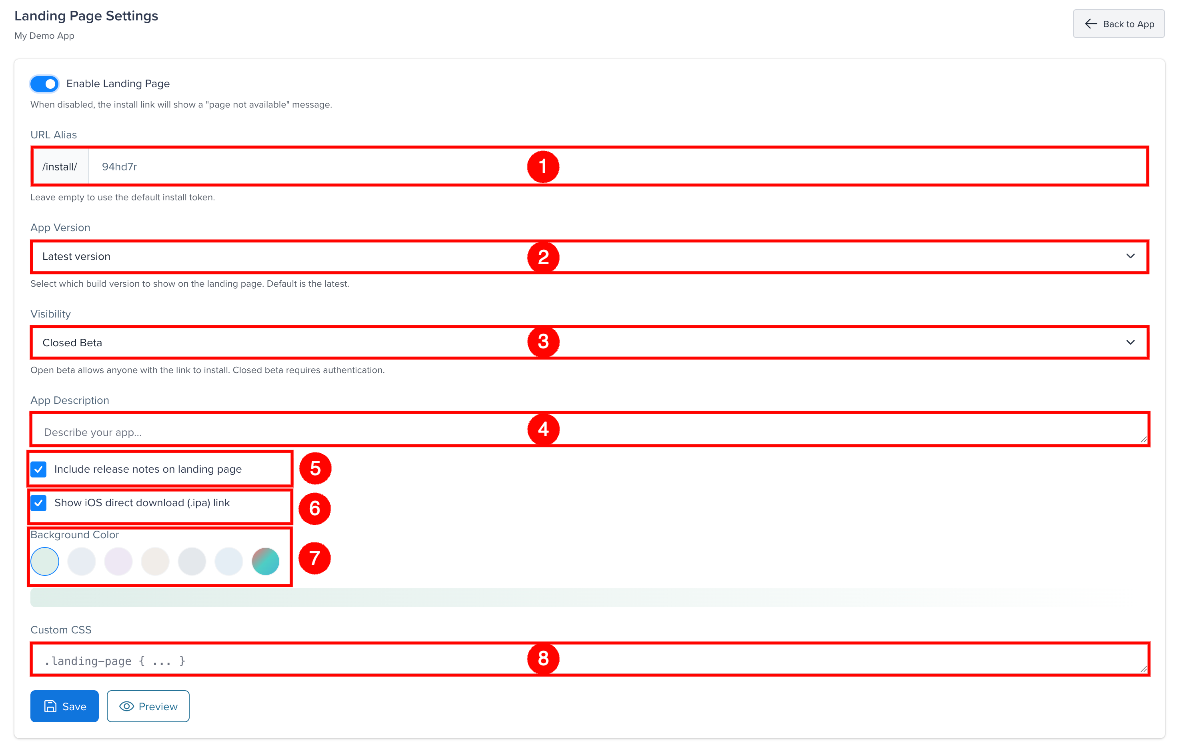
Step 4: Configure the landing page settings:
| Ref. | Setting | Description |
|---|---|---|
| 1 | URL Alias | Enter a custom alias for the landing page URL (e.g., /install/my-app instead of a random token). Leave it empty to use the default install token. 6–63 characters; letters, numbers, dots, hyphens and underscores only; must be unique across apps. |
| 2 | App Version | Select the app version that you want to display on the landing page. The default option is Latest version. |
| 3 | Visibility | Select Open Beta to allow anyone with the install link to access the page, or Closed Beta to require authentication. iOS ad-hoc and development builds are always closed beta, and the organization's Require login before download setting forces closed beta for all apps. |
| 4 | App Description | Enter a description of your app. The description is displayed on the landing page. |
| 5 | Include release notes on landing page | Select this option to display the release notes for the selected build on the landing page. On by default. |
| 6 | Show iOS direct download (.ipa) link | Select this option to display a direct download link for the iOS .ipa file on the landing page. On by default. |
| 7 | Background Color | Choose one of six presets, or pick a custom color for the landing page. |
| 8 | Custom CSS | Enter custom CSS to customize the appearance of the landing page. |
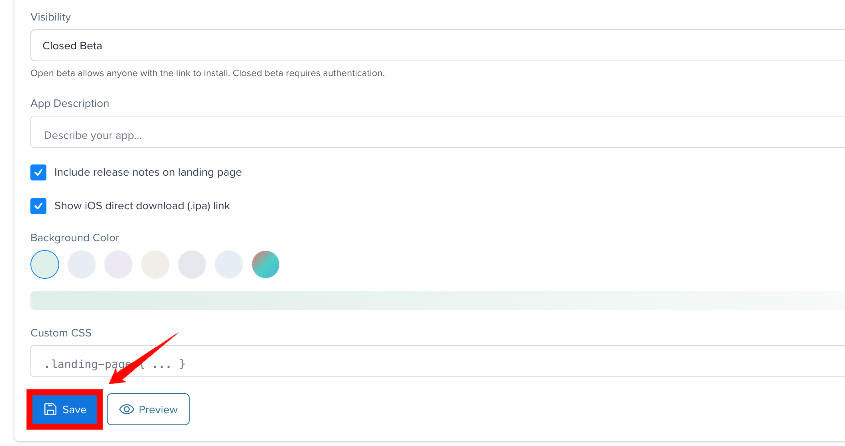
Step 5: Click Save to apply your settings.
Custom CSS Examples
Use the Custom CSS field to style the landing page. The CSS is injected into a <style> tag on the page. Some examples:
Change the background color:
.landing-bg-cover { background: #1a1a2e !important; }
Style the install card:
.card { border-radius: 16px; border: 2px solid #e94560; }
Change the button color:
.btn-primary, .btn-success { background-color: #e94560 !important; border-color: #e94560 !important; }
The Android install button uses .btn-success; iOS and generic buttons use .btn-primary.
Preview
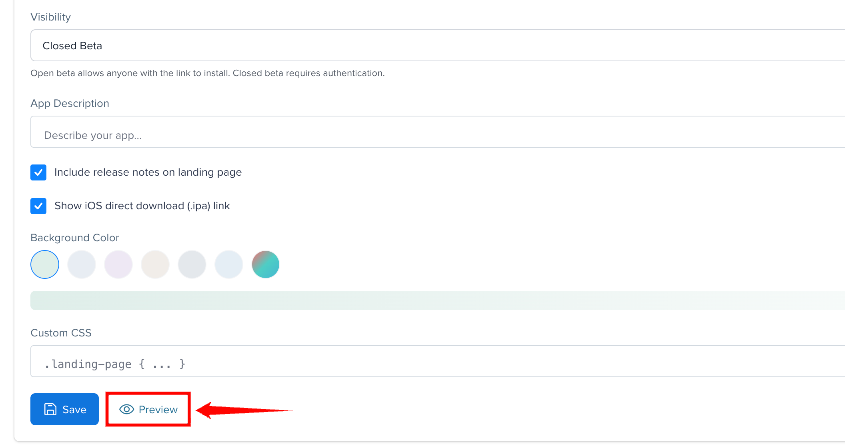
Use the Preview button on the edit page to see how your landing page looks before sharing it with testers.