Members & Roles
Each user in your organization is assigned an organization role when they are invited. The role determines the level of access the user has to organization-wide and team-level capabilities.
Users can also be assigned to one or more teams. Team membership is particularly important for Members, because it determines which team resources and projects they can access.
Role Hierarchy
When you invite a user to your organization, you assign an organization role that determines what they can access and manage. Each role inherits all permissions of the roles below it.
| Role | Can Do |
|---|---|
| Account Owner | Full access, including organization settings, SSO, OIDC, integrations, and the audit log. Org Admins have the same access. |
| Org Admin | Create and manage teams, invite and manage organization members, and all capabilities below. |
| Team Admin | Invite members to their team, and all capabilities below. This is a per-team role. It can be assigned by admins, or by another Team Admin when adding a member to their team. |
| Member | Create projects, upload builds, create tester groups, and invite testers within their team. |
| Tester | View and install apps assigned to them directly or through their tester groups. Can be shared across multiple teams. |
Members vs. Testers
Members and testers are managed separately in App Distribution because they have different purposes.
- Members: Members are users who work with the platform. Depending on their role and team access, they can manage projects, builds, tester groups, and testers.
- Testers: Testers are users who receive and install app builds. They are managed from the Testers section and can be added to tester groups.
A tester can belong to tester groups across different teams. Their app access is determined by the apps and builds assigned to those groups.
Invite a Member
Invite users to your organization and assign their organization role and team access.
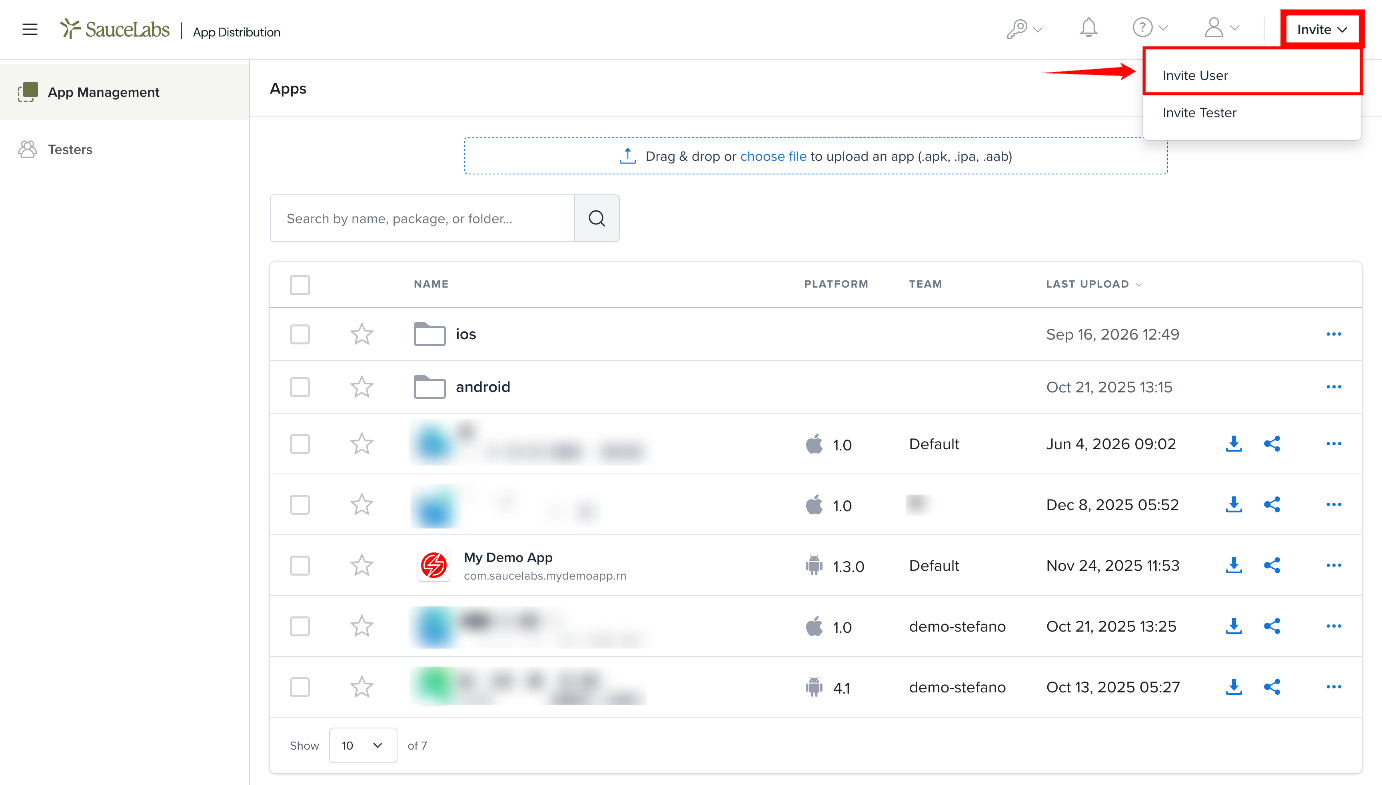
Step 1: Click Invite in the top-right corner, and then select Invite User. The Invite User page opens.
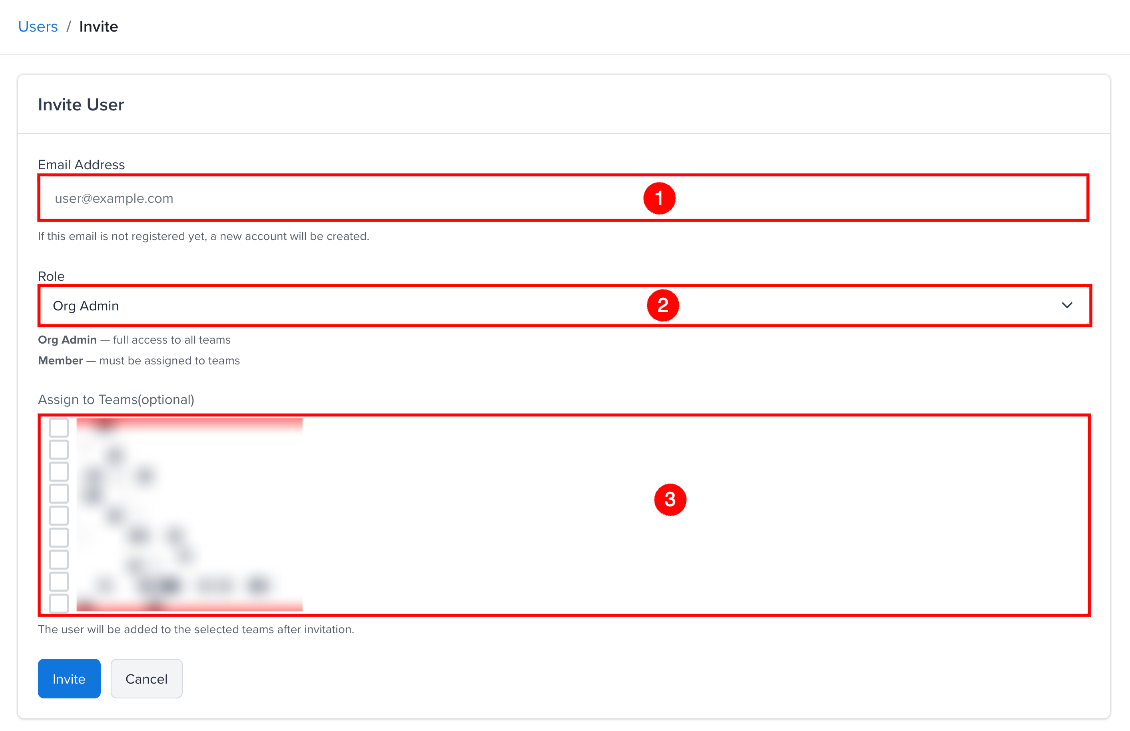
Step 2: The Invite User page includes the following fields:
| Sr. No. | Field | Description |
|---|---|---|
| 1 | Email Address | Enter the email address of the user you want to invite. If the email is not registered, a new account is created. |
| 2 | Role | Select a role from the dropdown list. You can select Org Admin or Member. |
| 3 | Assign to Teams | (Optional) Select one or more teams to assign the user to. |
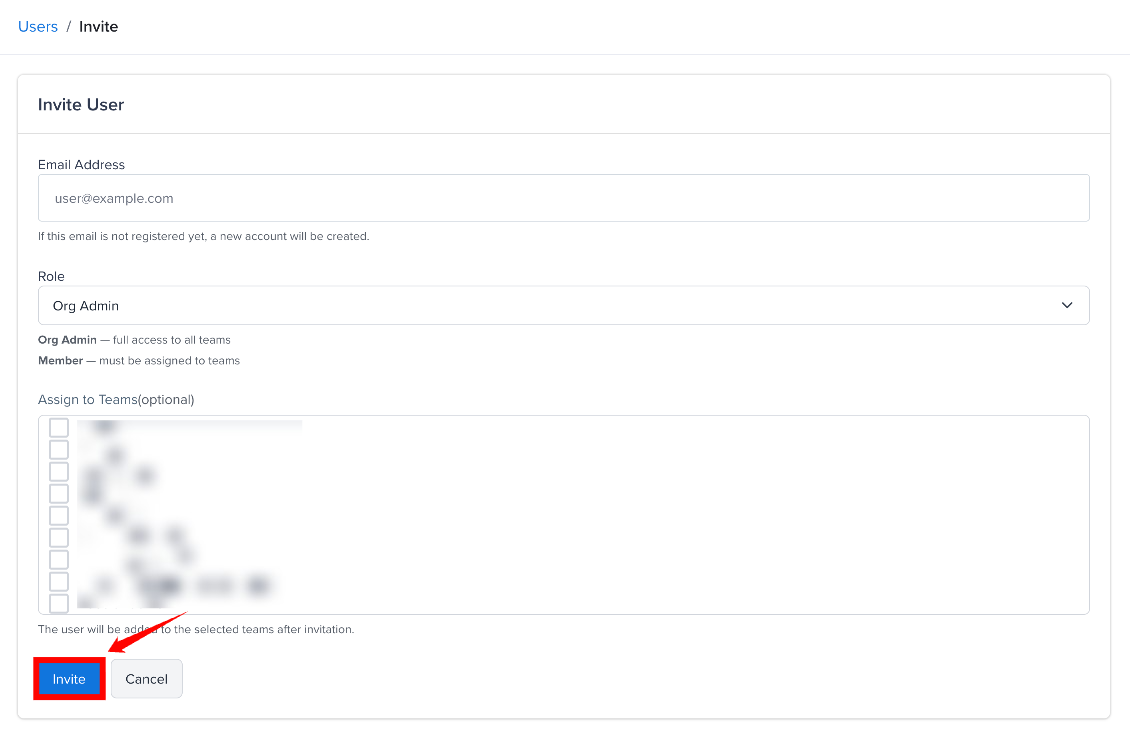
Step 3: After you have entered the required details, click Invite. The invited user receives an email invitation to join your organization.
Team Admins don't see the Role field; users they invite are always Members of their teams. Team Admins use the Invite User button on the Users page.
You can't invite someone who is already an admin or member in another organization (testers are fine). If your organization uses the Sauce Labs connection, invite users in Sauce Labs instead.
Team Membership
Members can belong to one or more teams. They can only see and work with apps in their teams. Account Owners and Org Admins have access to all teams.
Manage Team Roles
Team-level permissions can be managed separately from the user's organization role.
A Team Admin can add members to their team and set their team role. Only Org Admins and Account Owners can remove team members or change team roles.
Email Notification Preferences
Each user can opt in or out of email notifications for build uploads and app assignments. The email preference status is shown as a bell icon in the Users and Testers tables.
Users manage their own preference from My Profile, or via the unsubscribe link in notification emails. See Notifications for details.