Webhooks
Webhooks let you receive real-time HTTP notifications when events happen in your organization - like a new build being uploaded, a build being downloaded, or a new iOS device being registered.
Only Account Owners and Org Admins can manage webhooks. Go to Profile menu → Integrations → Webhooks.
Supported Events
| Event | Description |
|---|---|
upload | A new build is uploaded to an app. |
download | A build is downloaded by a tester or team member. |
new-udid | A device UDID was registered, either through the enrollment profile or added by an admin. This event ignores the Apps filter. |
Creating a Webhook
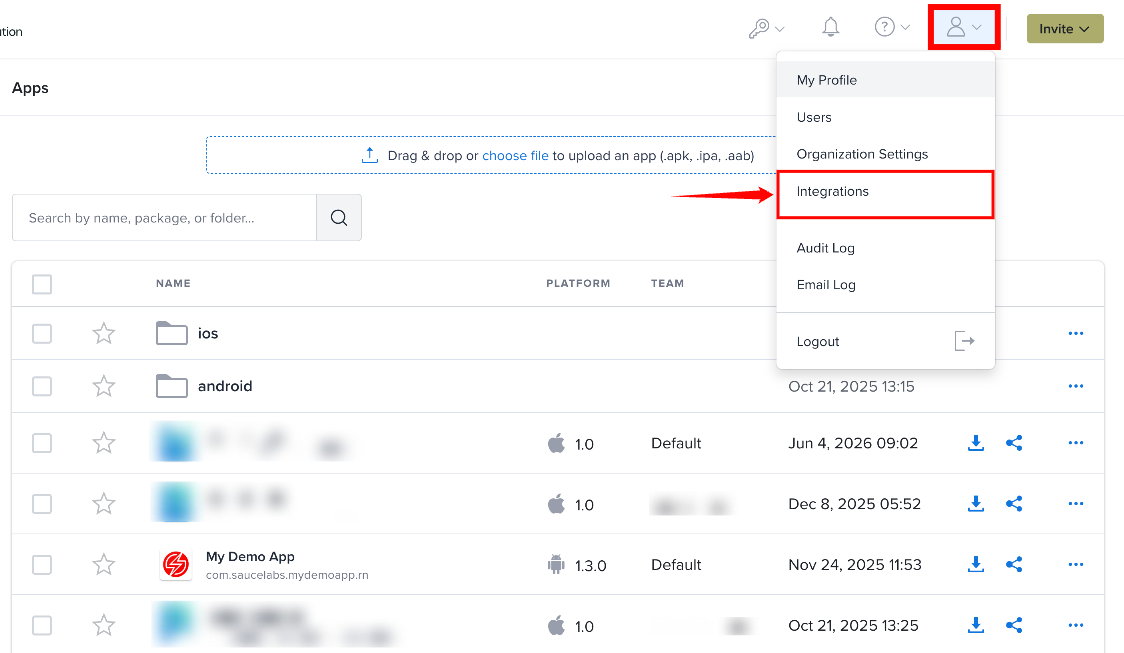
Step 1: Click the Profile icon in the top-right corner and select Integrations from the user menu.
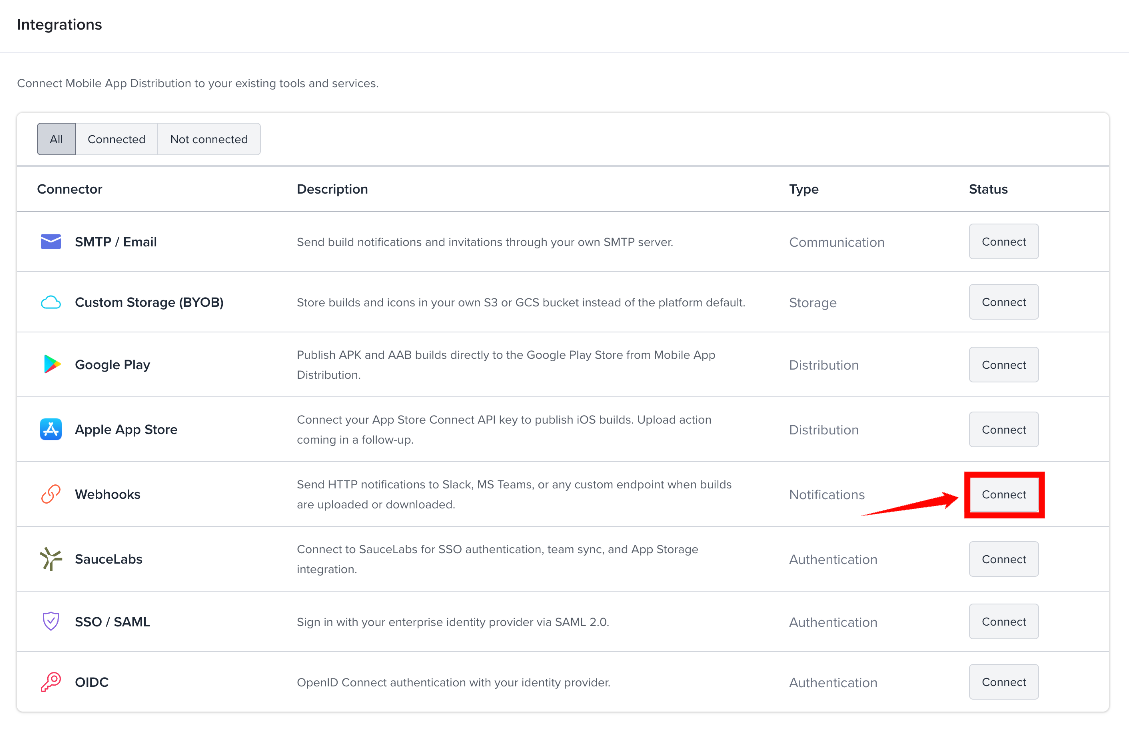
Step 2: On the Integrations page, click Webhooks (or Connect, if you don't have any webhooks yet).
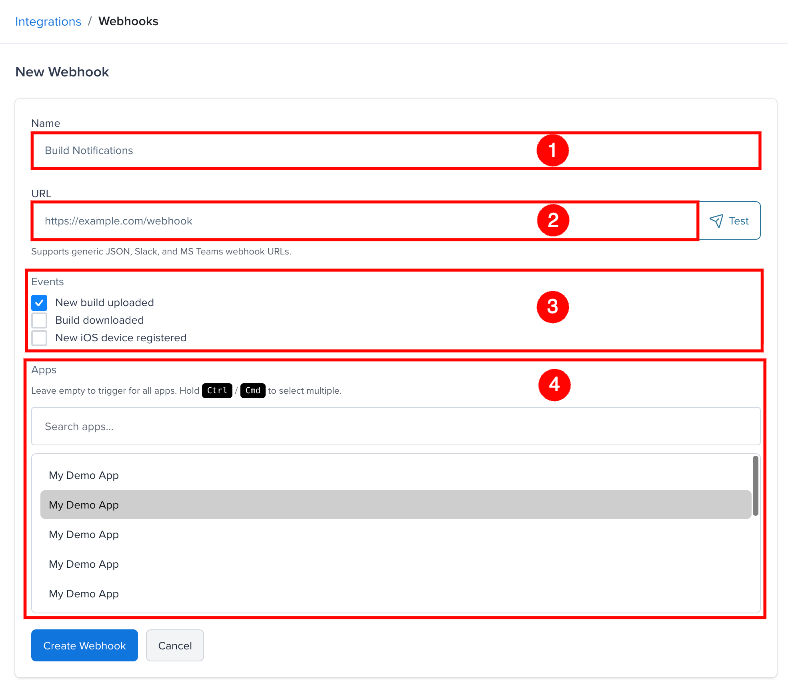
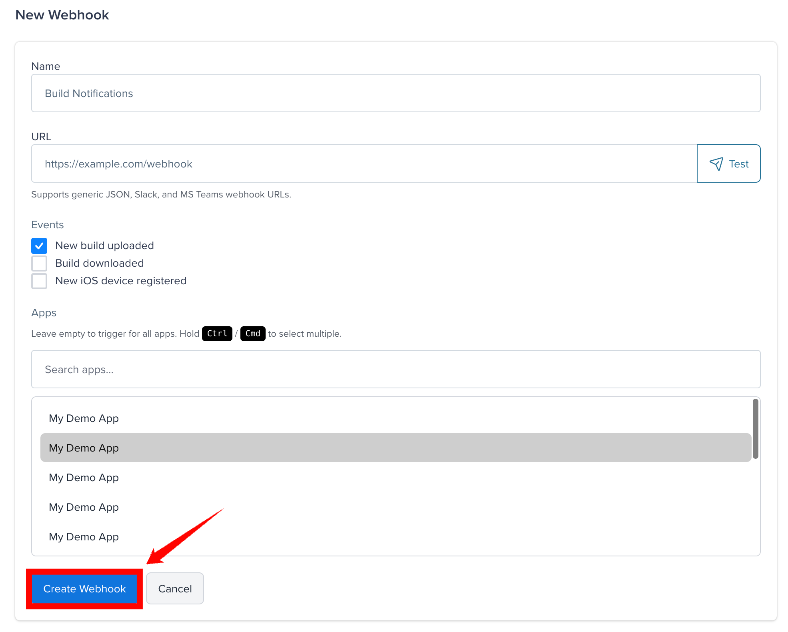
Step 3: On the Webhooks page, click New Webhook. Configure the webhook using the fields below.
| Sr. No. | Field | Description |
|---|---|---|
| 1 | Name | Enter a name to identify the webhook. |
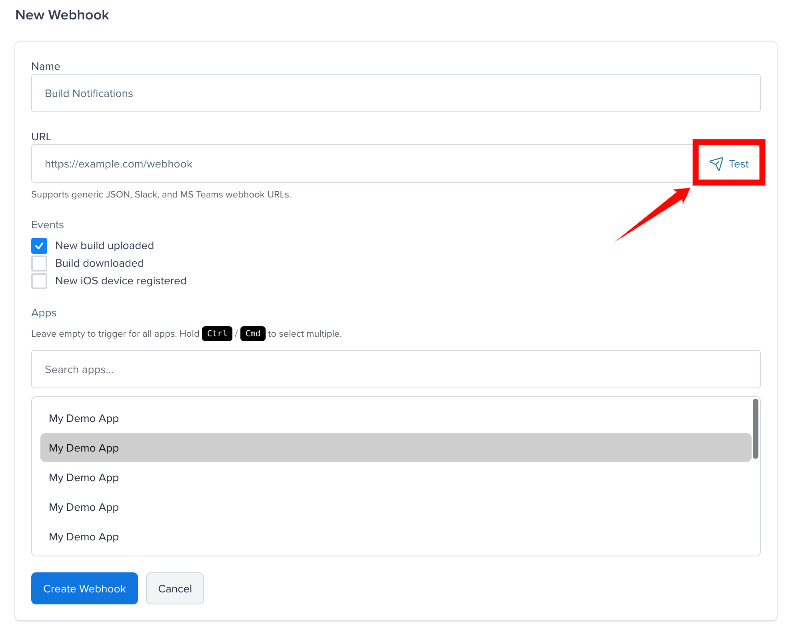
| 2 | URL | Enter the destination URL where webhook notifications should be sent. Click Test to verify the URL. |
| 3 | Events | Select the events that should trigger the webhook: New build uploaded, Build downloaded, or New iOS device registered. |
| 4 | Apps | Select the apps for which the webhook should send notifications. Leave empty to trigger the webhook for all apps. |
Step 4: Click Create Webhook to save the webhook.
Testing
Use the Test button next to the URL field to send a sample payload to your endpoint. This lets you verify connectivity before saving.
The test payload looks like this:
{
  "event": "test",
  "message": "This is a test webhook from Mobile App Distribution",
  "appName": "My App",
  "version": "1.2.3",
  "build": "42"
}
Payload Format
Webhooks are sent as POST requests with a JSON body. The payload includes event-specific fields:
upload event
{
  "event": "upload",
  "timestamp": "2026-03-26 14:30:00",
  "appName": "My App",
  "version": "1.2.3",
  "build": "42",
  "platform": "ios",
  "buildId": 123,
  "filesize": 15728640,
  "buildUrl": "https://your-org.testfairy.com/projects/61545",
  "landingPageUrl": "https://your-org.testfairy.com/install/8f3c2a1b9d4e3b2c",
  "landingPageBuildUrl": "https://your-org.testfairy.com/install/9d4e3b2c8f3c2a1b",
  "appUrl": "https://your-org.testfairy.com/install/9d4e3b2c8f3c2a1b/download",
  "changeLog": "Fixed login crash on startup."
}
download event
{
  "event": "download",
  "timestamp": "2026-03-26 14:30:00",
  "appName": "My App",
  "version": "1.2.3",
  "build": "42",
  "platform": "android",
  "buildId": 123,
  "testerEmail": "tester@example.com",
  "ipAddress": "1.2.3.4"
}
testerEmail is null for anonymous downloads.
new-udid event
{
  "event": "new-udid",
  "timestamp": "2026-03-26 14:30:00",
  "udid": "00008030-00123456789ABCDE",
  "device": "iPhone16,1",
  "email": "tester@example.com",
  "platform": "ios"
}
device is the model identifier, for example iPhone16,1.
Slack & MS Teams
Webhook URLs are automatically detected and formatted for:
- Slack - URLs containing
hooks.slack.comreceive a Slack-formatted message with atextfield. - Microsoft Teams - URLs containing
outlook.office.comorwebhook.office.comreceive a MessageCard-formatted payload. - Other URLs - Receive the raw JSON payload with
Content-Type: application/json.
Setting Up Slack Notifications
To receive Mobile App Distribution notifications in a Slack channel:
- Go to api.slack.com/apps and click Create New App → From scratch.
- Name the app (e.g.
Mobile App Distribution Notifications) and select your Slack workspace. - Go to Incoming Webhooks in the left sidebar and toggle it On.
- Click Add New Webhook to Workspace, pick the channel you want notifications in, and click Allow.
- Copy the Webhook URL (starts with
https://hooks.slack.com/services/...). - In Mobile App Distribution, go to Webhooks → New Webhook, paste the URL, select your events, and save.
- Click Test to verify - you should see a test message in your Slack channel.
App Filtering
By default, a webhook fires for events across all apps in your organization. You can restrict it to specific apps by selecting them during webhook creation or editing. The new-udid event ignores this filter and always fires.
Delivery
Requests are sent once, with no retries and a 10-second timeout. There is no signature header on the request.
Webhooks can also be managed with the REST API at /api/v3/webhooks. See the API Reference.
Enabling / Disabling
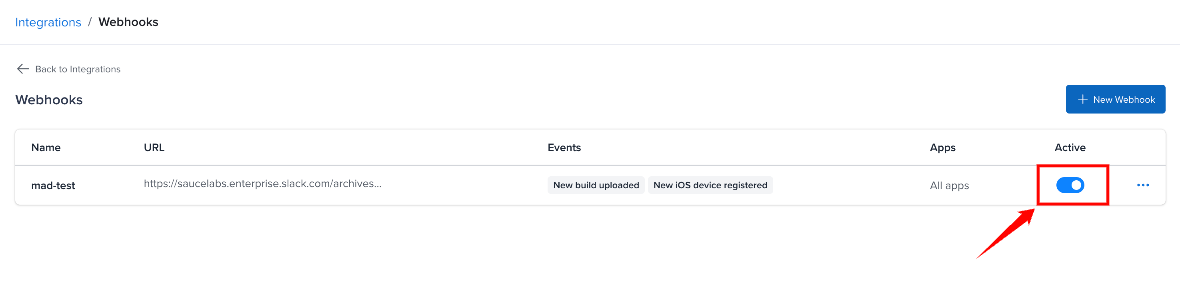
Use the toggle switch on the webhooks list to temporarily suspend a webhook without deleting it. Suspended webhooks will not fire for any events.