Custom Storage (Bring Your Own Bucket)
Store your organization's build files and app icons in your own cloud storage bucket instead of the platform default. This gives you full control over where your data lives, for compliance, data sovereignty, or integration with your existing infrastructure.
Only Account Owners and Org Admins can configure storage settings. Go to Profile menu → Integrations → Custom Storage (BYOB).
How It Works
When your organization configures a custom storage bucket:
- New uploads (builds and icons) are stored in your bucket instead of the platform default.
- Downloads generate time-limited presigned URLs pointing to your bucket.
- Existing files uploaded before the configuration remain on the platform default storage.
- Each build tracks which bucket it was uploaded to, so downloads always resolve to the correct location.
Supported Providers
| Provider | Driver | Notes |
|---|---|---|
| Amazon S3 | s3 | Native support. Set region and leave endpoint blank. |
| S3-Compatible (MinIO, Wasabi, DigitalOcean Spaces) | s3 | Set the custom endpoint URL. Uses the S3 API protocol. |
| Google Cloud Storage | gcs | Uses the S3-compatible XML API. Set endpoint to https://storage.googleapis.com and use HMAC credentials. |
Prerequisites
- A cloud storage bucket (e.g., an S3 bucket in your AWS account)
- An IAM user or service account with access to the bucket
- Access key and secret key for that user
Required IAM Permissions
The IAM user needs the following permissions on your bucket. Note that both the bucket ARN and the objects ARN must be included:
{
    "Statement": [
        {
            "Effect": "Allow",
            "Action": [
                "s3:GetObject",
                "s3:PutObject",
                "s3:DeleteObject"
            ],
            "Resource": "arn:aws:s3:::your-bucket-name/*"
        },
        {
            "Effect": "Allow",
            "Action": [
                "s3:ListBucket",
                "s3:GetBucketLocation"
            ],
            "Resource": "arn:aws:s3:::your-bucket-name"
        }
    ]
}
Only including arn:aws:s3:::bucket-name/* (objects) without arn:aws:s3:::bucket-name (bucket). The connection test requires s3:ListBucket on the bucket itself (without /*), while uploads/downloads require permissions on the objects (with /*).
Setting Up
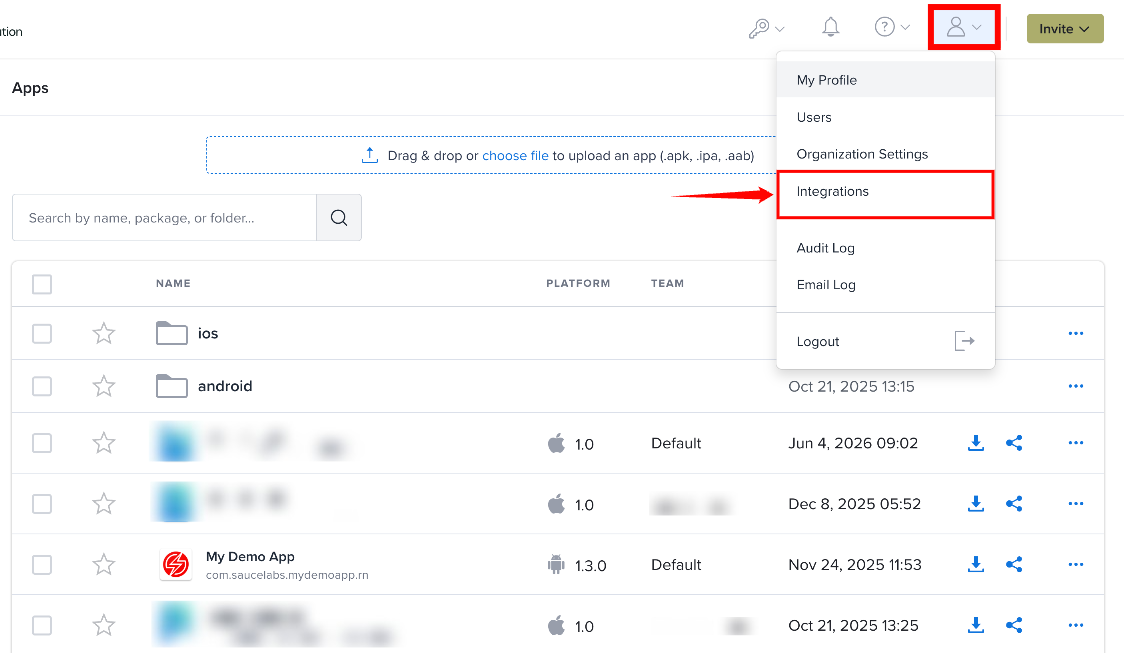
Step 1: Click the Profile icon in the top-right corner and select Integrations from the user menu.
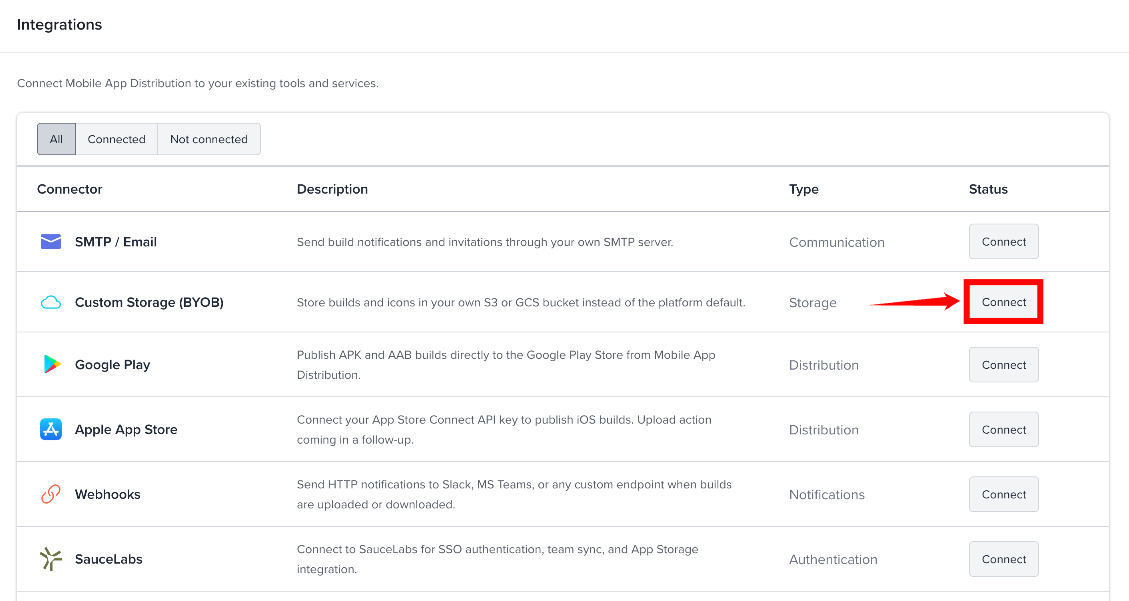
Step 2: On the Integrations page, find Custom Storage (BYOB) under Storage and select Connect.
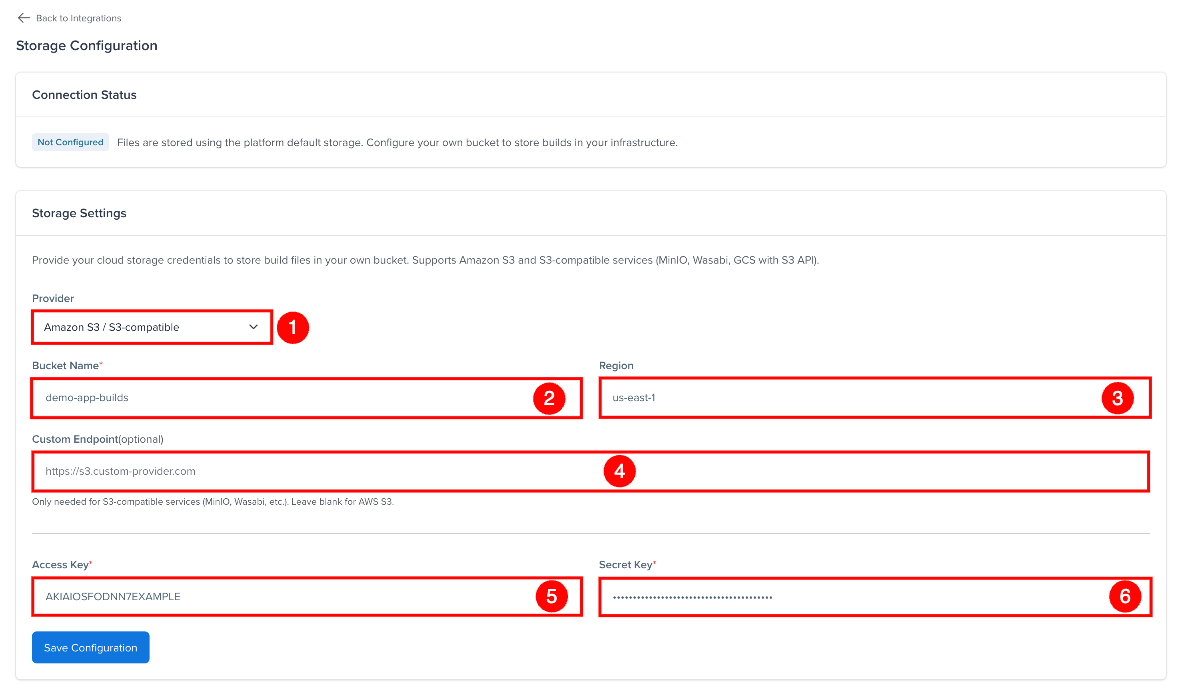
Step 3: On the Storage Configuration page fill in the connection details:
| Ref. | Field | Description | Example |
|---|---|---|---|
| 1 | Provider | Cloud storage provider | Amazon S3 |
| 2 | Bucket Name | Your storage bucket name | my-company-builds |
| 3 | Region | Bucket region. Optional; defaults to us-east-1. | us-east-1, eu-central-1 |
| 4 | Custom Endpoint | Only for S3-compatible services. Leave blank for AWS S3. | https://s3.wasabisys.com |
| 5 | Access Key | IAM access key ID | AKIAIOSFODNN7EXAMPLE |
| 6 | Secret Key | IAM secret access key - encrypted at rest, never displayed after saving | wJalrXUtnFEMI/K7MDENG/bPxRfiCYEXAMPLEKEY |
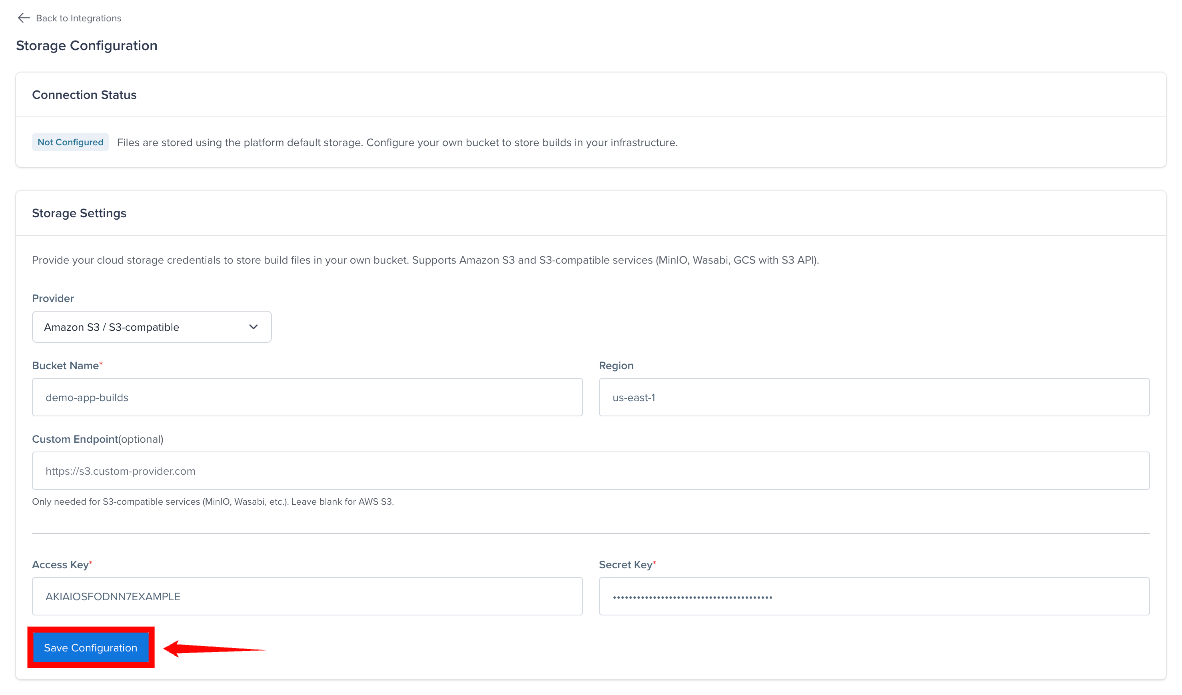
Step 4: Select Save Configuration to save your custom storage settings.
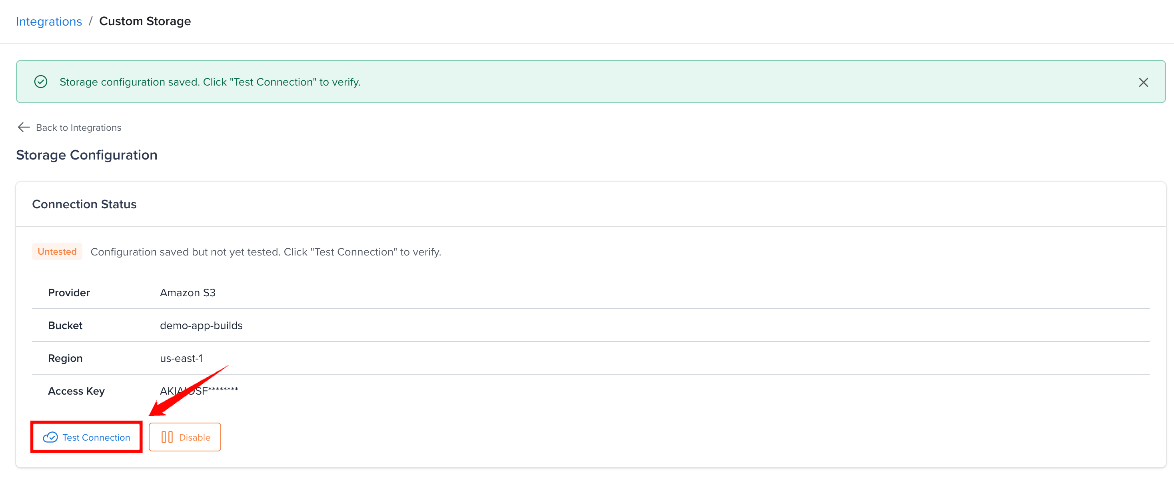
Step 5: Click Test Connection to verify Mobile App Distribution can access your bucket.
Connection Status
| Status | Meaning |
|---|---|
| Not Configured | Custom storage has not been configured. Files are stored using the platform's default storage. |
| Untested | The custom storage configuration has been saved but has not yet been verified. |
| Connected | The custom storage configuration has been verified and the bucket is accessible. |
| Failed | The custom storage connection could not be verified. Check the storage credentials, bucket name, region, and required permissions. |
| Disabled | Custom storage is disabled. New uploads use the platform's default storage, while existing files stored in your custom bucket remain accessible. |
Storage Resolution
The platform determines where to store and retrieve files using the following logic:
For uploads (new builds)
- If the organization has an enabled custom storage config → upload to the org's bucket
- Otherwise → upload to the platform default bucket
For downloads (existing builds)
- If the build has a linked storage config (even if disabled) → use that config's credentials to generate the download URL
- Otherwise → use the platform default bucket
This means disabling your custom storage does not break existing downloads. Each build remembers which bucket it was uploaded to, and the system uses the saved credentials to serve the file — even after the config is disabled.
Disabling vs. Removing
| Action | Effect on New Uploads | Effect on Existing Files |
|---|---|---|
| Disable | Go to platform default | Still accessible from your bucket (credentials preserved) |
| Re-enable | Resume uploading to your bucket | No change |
| Remove | Go to platform default | Only possible when no builds still use the bucket |
You can remove the configuration only when no builds use the bucket. Otherwise disable it instead: existing builds keep downloading from the bucket, and new uploads go to the default storage.
File Path Structure
Files are stored using the same relative path structure in both platform default and custom buckets:
releases/{orgId}/{projectId}/{filename}-{uniqueId}.{ext}
icons/{orgId}/{projectId}/{randomHex}.png
Only relative paths are stored in the database - never full URLs. This means you can switch buckets or providers without modifying any existing data.
Security
- Secret keys are encrypted at rest using libsodium (XSalsa20-Poly1305).
- Credentials are never stored in plain text, never logged, and never displayed in the UI after saving.
- Build download URLs are time-limited presigned URLs that expire after 60 minutes - they cannot be shared permanently.
- Saving, disabling, enabling and removing the storage configuration are recorded in the Audit Log.
Troubleshooting
| Error | Cause | Fix |
|---|---|---|
403 Forbidden | IAM user lacks permissions, or the bucket ARN is missing from the policy | Check the access key, secret and bucket policy. s3:ListBucket on the bucket itself is required. Add both arn:aws:s3:::bucket and arn:aws:s3:::bucket/* to the IAM policy. |
404 Not Found | Bucket name or region is incorrect, or the bucket doesn't exist | Check the bucket name and region |
Connection timed out | Wrong region, wrong endpoint, or network restriction | Verify the region matches the bucket's actual region. Check VPC/firewall rules. |
The connection test uses HeadBucket, which returns no error body, so failures surface as generic 403 or 404 responses.