Apple App Store Integration
Connect Mobile App Distribution to your App Store Connect account using an API key, then publish iOS builds to App Store Connect directly from Mobile App Distribution.
Only Account Owners and Org Admins can configure the Apple App Store integration.
Prerequisites
- An App Store Connect account with the role Admin or Account Holder (only these can create API keys)
- The app(s) you want to publish must already exist in App Store Connect with a known bundle ID
Apple allows you to download the .p8 private key only once. Download and securely store the file when you create the API key.
Generate an App Store Connect API Key
- Open App Store Connect → Users and Access → Integrations → App Store Connect API.
- Click + to generate a new key. Give it a name (e.g. "Mobile App Distribution Publish") and choose the App Manager role (or higher) so it can upload builds.
- Click Generate.
- Download the .p8 file immediately. Apple only allows downloading it once.
- Note the Key ID shown in the table.
- Note the Issuer ID shown at the top of the page (a UUID).
Connecting Mobile App Distribution
After you have the API key details, add them to Mobile App Distribution.
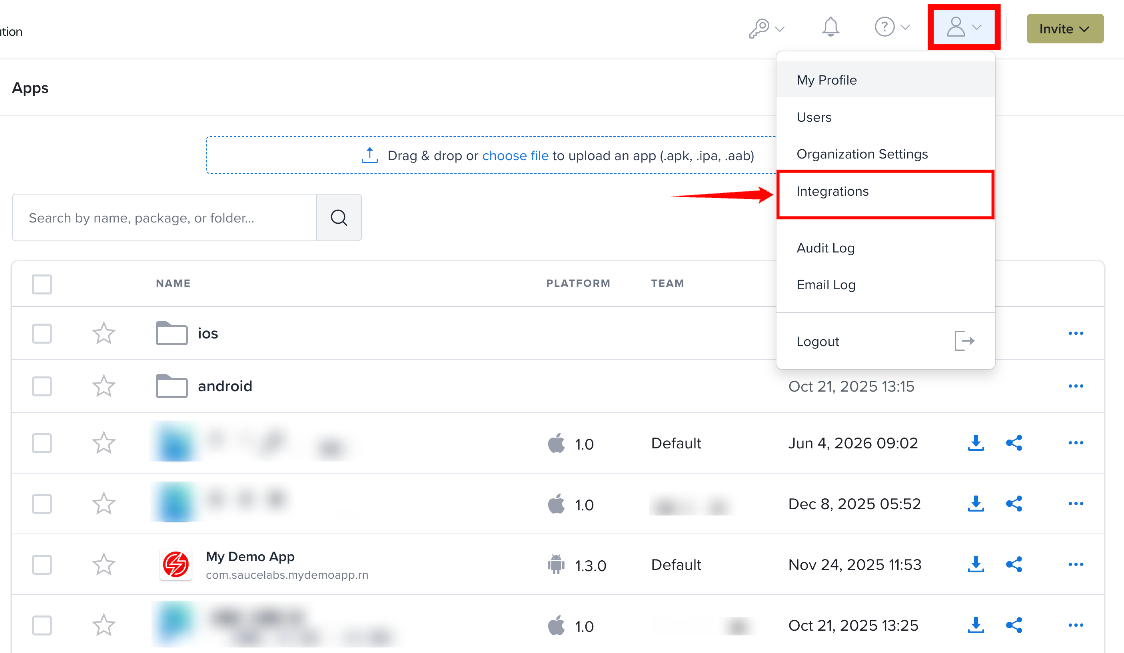
Step 1: Click the Profile icon in the top-right corner and select Integrations from the user menu.
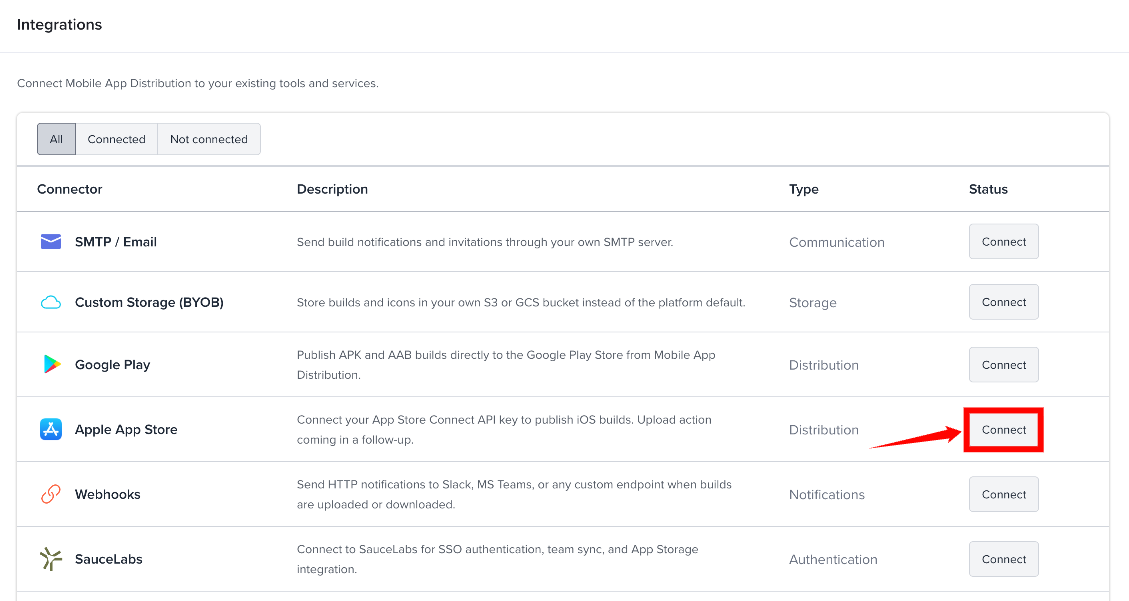
Step 2: On the Integrations page, find Apple App Store under Distribution and select Connect. The Apple App Store Integration page opens.
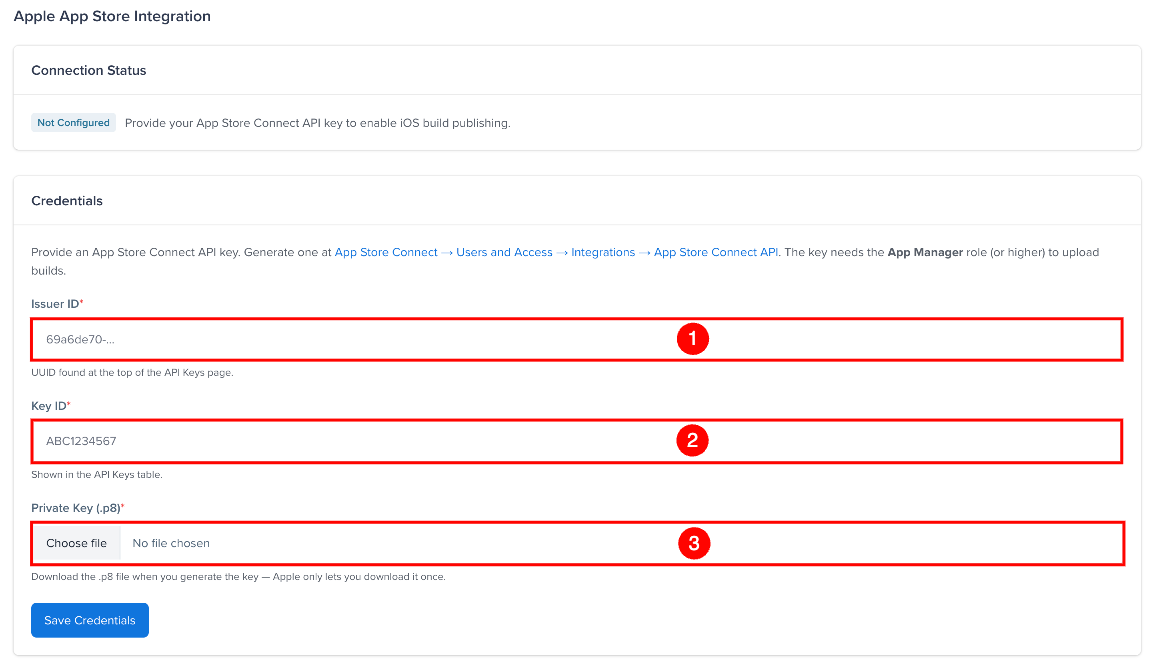
Step 3: Under Credentials, enter the following information:
| Sr. No. | Field | Description |
|---|---|---|
| 1 | Issuer ID | Enter the UUID associated with your App Store Connect account. |
| 2 | Key ID | Enter the ID of the App Store Connect API key. |
| 3 | Private Key (.p8) | Upload the .p8 private key file that you downloaded when you created the API key. |
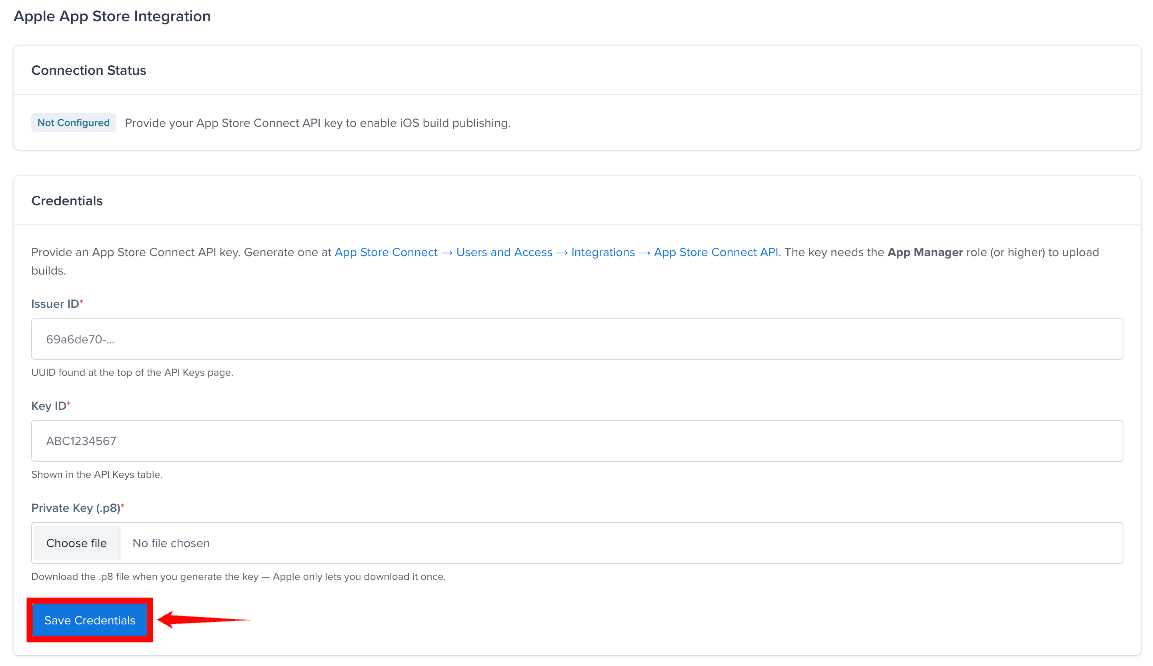
Step 4: Click Save. Mobile App Distribution generates a JWT and calls App Store Connect to check the credentials before saving them. If the check fails, nothing is saved. On success, the status shows Connected.
Connection Statuses
The Connection Status section shows the current state of the integration.
| Sr. No. | Status | Meaning |
|---|---|---|
| 1 | Not Configured | App Store Connect credentials have not been configured. |
| 2 | Connected | The saved credentials have been successfully verified. |
| 3 | Failed | The connection test could not verify the credentials. Check the API key details and try again. |
Once credentials are saved, you can:
- Test Connection - re-check the saved credentials against App Store Connect.
- Update Credentials - replace the Issuer ID, Key ID or
.p8file. - Remove Configuration - delete the stored credentials.
Security
- The
.p8private key is encrypted at rest using libsodium. - The key is never displayed or downloadable from the UI after upload.
- JWTs signed for App Store Connect API expire after 20 minutes (Apple's max).
- All credential changes are recorded in the Audit Log.
Troubleshooting
| Error | Fix |
|---|---|
Invalid .p8 file: missing PEM header | Make sure you uploaded the .p8 file Apple gave you, not a converted/re-encoded version. |
Authentication failed: Apple rejected the credentials | Check that the Issuer ID, Key ID, and .p8 file all belong to the same key. They are shown together on the App Store Connect API Keys page. |
Authorization failed: this API key does not have permission | Promote the key's role to App Manager or higher in App Store Connect. |
Network error contacting App Store Connect | Outbound HTTPS to api.appstoreconnect.apple.com must be allowed. Check firewall / egress rules. |
Publish a Build
Once the credentials are saved, Account Owners and Org Admins can publish an iOS build to App Store Connect:
Step 1: Open the app and find the .ipa build you want to publish.
Step 2: Click the ⋯ (more actions) icon on the build's row and select Publish to App Store.
Step 3: Upload the build's AppStoreInfo.plist file and confirm.
Publishing runs in the background. Check the Audit Log for the result.