Google Play Integration
Publish APK and AAB builds directly from Mobile App Distribution to your Google Play Console, no need to upload them manually through the web console. Configure once at the organization level and use the Publish to Google Play action on any Android build.
Only Account Owners and Org Admins can configure the Google Play integration.
Prerequisites
- A Google Play Console account with the app already created (matching your project's package name)
- A service account in Google Cloud with access to the Play Console
- A JSON key file for that service account
Setting Up the Service Account
- Go to Google Cloud Console and create or select a project.
- Enable the Google Play Android Developer API.
- Go to IAM & Admin → Service Accounts and create a new service account.
- For the new service account, go to the Keys tab and click Add Key → Create new key. Choose JSON and download the file.
- Open the Google Play Console → Users and permissions.
- Click Invite new users and add the service account's email (looks like
name@project.iam.gserviceaccount.com). - Grant the Admin or Release Manager role with permission to upload APKs and manage releases.
Connecting Mobile App Distribution
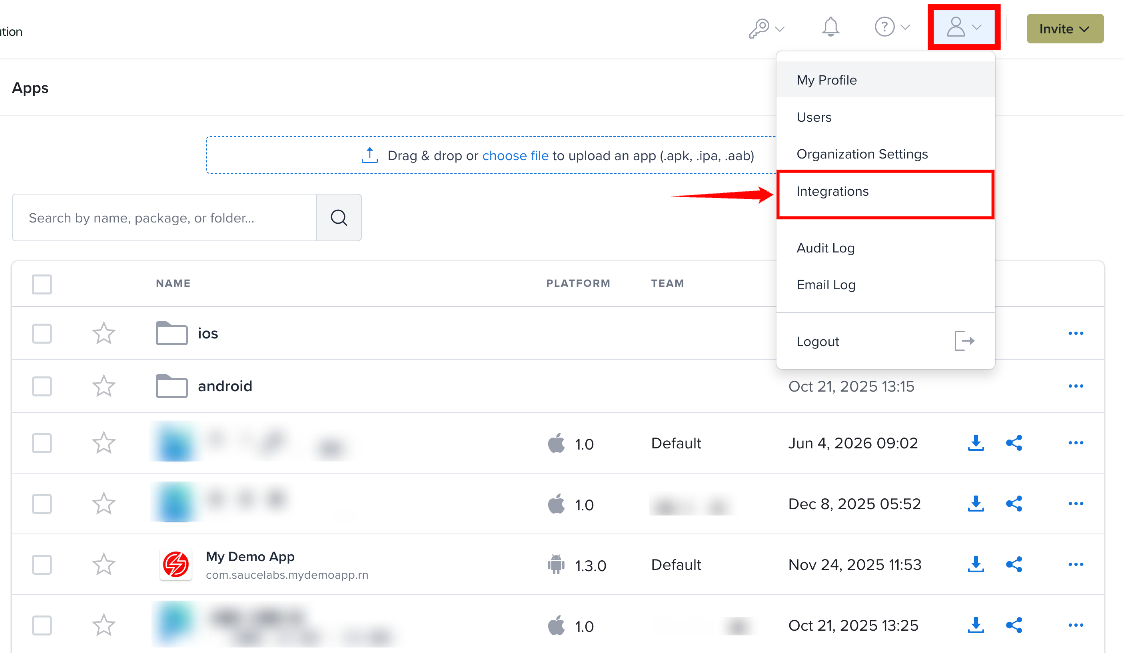
Step 1: Click the Profile icon in the top-right corner and select Integrations from the user menu.
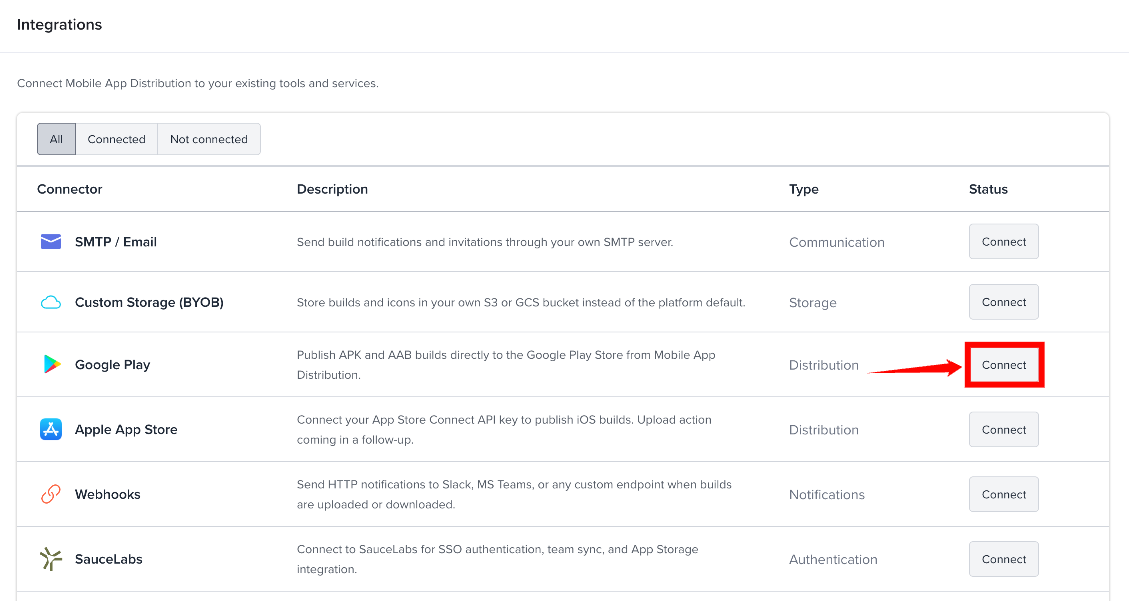
Step 2: On the Integrations page, find Google Play under Distribution and click Connect.
Step 3: Under Credentials, upload your Google Play service account JSON file using Choose file.
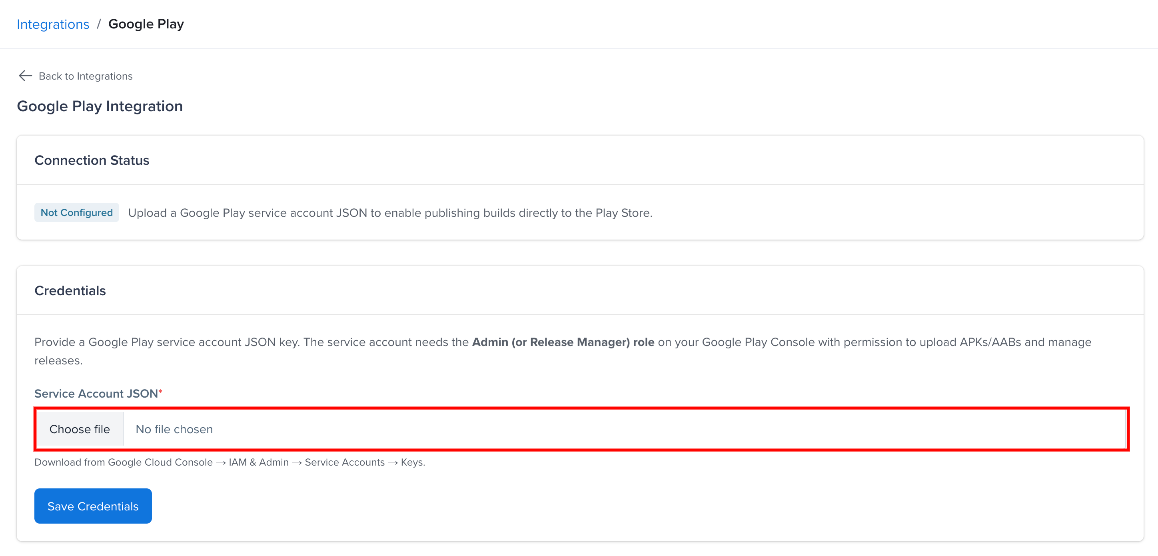
The service account must have the Admin or Release Manager role in Google Play Console with permission to upload APKs/AABs and manage releases.
You can download the service account JSON key from Google Cloud Console → IAM & Admin → Service Accounts → Keys.
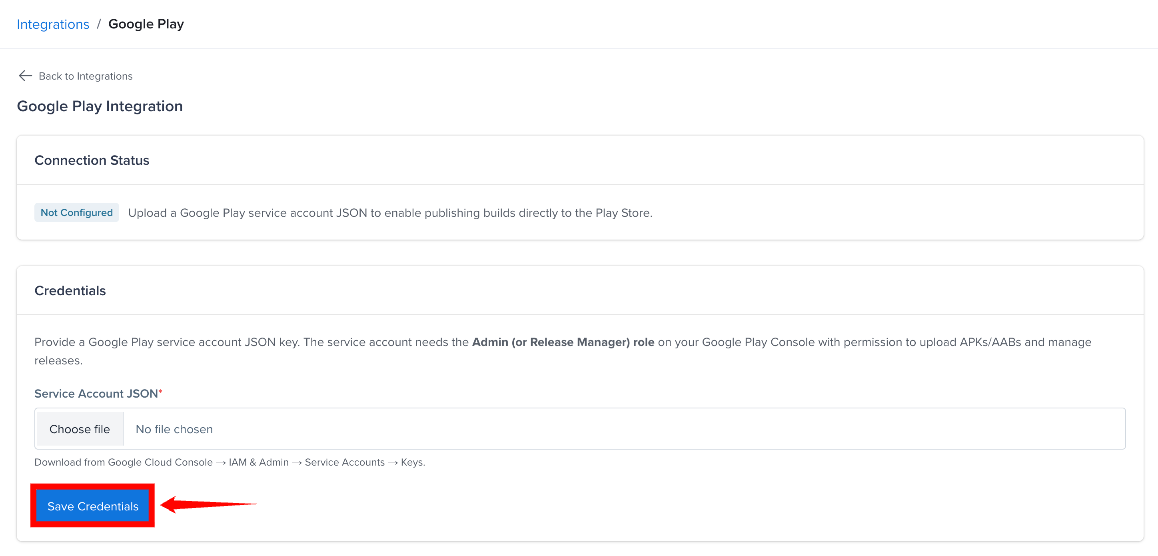
Step 4: Click Save. The JSON key is checked before saving. After the credentials are saved, the integration can be used to publish Android builds to Google Play.
The Connection Status shows Connected once the key has been verified, or Failed if it could not be. You can re-check a saved key with Test Connection, or swap it with Replace Credentials.
Publishing a Build
After configuring the integration, Account Owners and Org Admins can publish an Android build directly from Mobile App Distribution. Only .apk and .aab builds can be published.
- Open an Android app and find the build you want to publish (must be APK or AAB).
- Click the ⋯ (more actions) icon on the build row and choose Publish to Google Play.
- Pick a track and a status, then click Publish.
- The publish runs in the background, Mobile App Distribution downloads the file from storage, uploads it to Google Play, and assigns it to the chosen track.
- Check the Audit Log for the result. Failed publishes are retried up to 3 times and logged as
google_play_publish_failed.
The build's release notes are sent as en-US release notes (first 500 characters). If the build was uploaded as an .aab, the original bundle is published.
Tracks
The publishing flow allows you to select a Google Play track for the build.
| Sr. No. | Track | Audience |
|---|---|---|
| 1 | Internal | Up to 100 internal testers. |
| 2 | Alpha | Closed testing for invited groups. |
| 3 | Beta | Open or closed beta testing for a broader audience. |
| 4 | Production | Makes the app available to Google Play users. |
Statuses
You can also select a release status when publishing the build.
| Sr. No. | Status | Meaning |
|---|---|---|
| 1 | Draft | The release has been created but not published. It remains available in Google Play Console for review. |
| 2 | In Progress | The release is currently being rolled out. |
| 3 | Halted | The rollout has been paused. |
| 4 | Completed | The release has been fully rolled out. |
Security
- Service account credentials are encrypted at rest using libsodium.
- Credentials are never displayed in the UI after upload.
- All publish actions are logged in the Audit Log.
Troubleshooting
| Error | Fix |
|---|---|
Package not found | The app must already exist in your Google Play Console. Service accounts cannot create new apps - only manage existing ones. |
The caller does not have permission | Re-check that the service account is invited in Play Console → Users and permissions with sufficient role. |
Version code already exists | Increment your build's versionCode in build.gradle before uploading. |
Invalid credentials | The file isn't a valid service-account JSON key. Download a fresh key from Google Cloud Console. |
Authentication failed | The key was revoked or disabled. Generate a new key in Google Cloud Console. |