Organization Settings
Organization Settings contains your organization's basic information, security settings, subscription details, and team overview. Changes on this page apply to everyone in your organization, including members and testers. Personal settings, such as your own timezone and API key, are on My Profile.
Other organization-wide settings have their own pages, also available from the user menu:
- SSO / SAML and OIDC Authentication for sign-in and API authentication
- Integrations, such as the Sauce Labs connection, SMTP, webhooks and app stores
- Audit Log for a record of actions in your organization
Only Account Owners and Org Admins can access Organization Settings.
Access Organization Settings
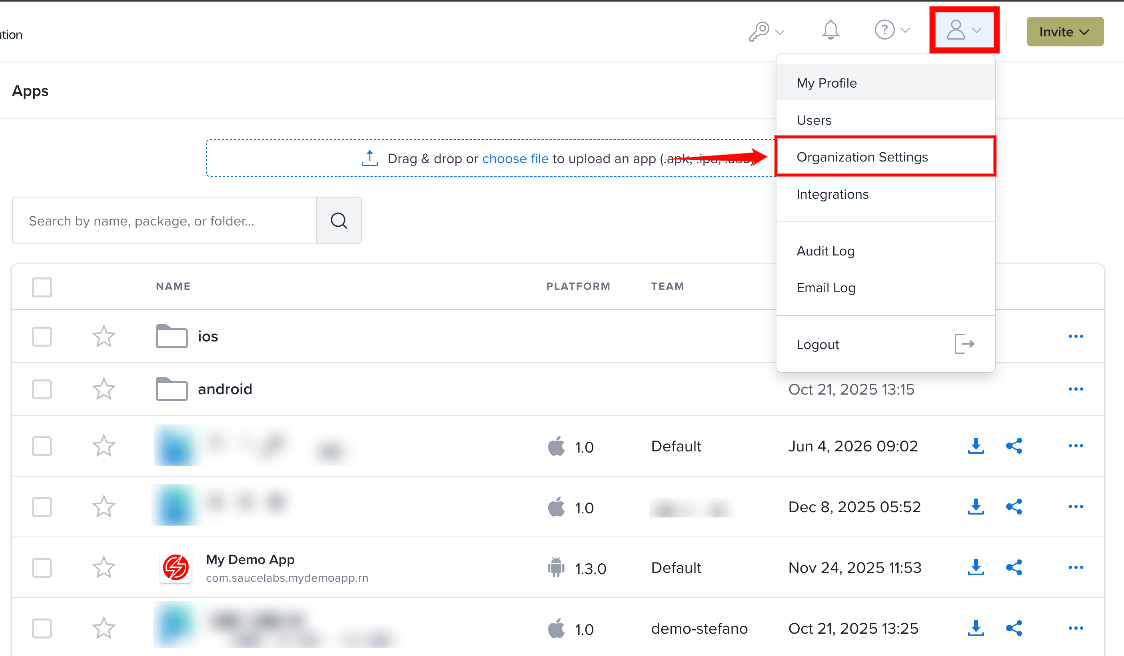
Step 1: Click the Profile icon in the top-right corner and select Organization Settings from the user menu. The Organization Settings page opens.
Subscription Plan
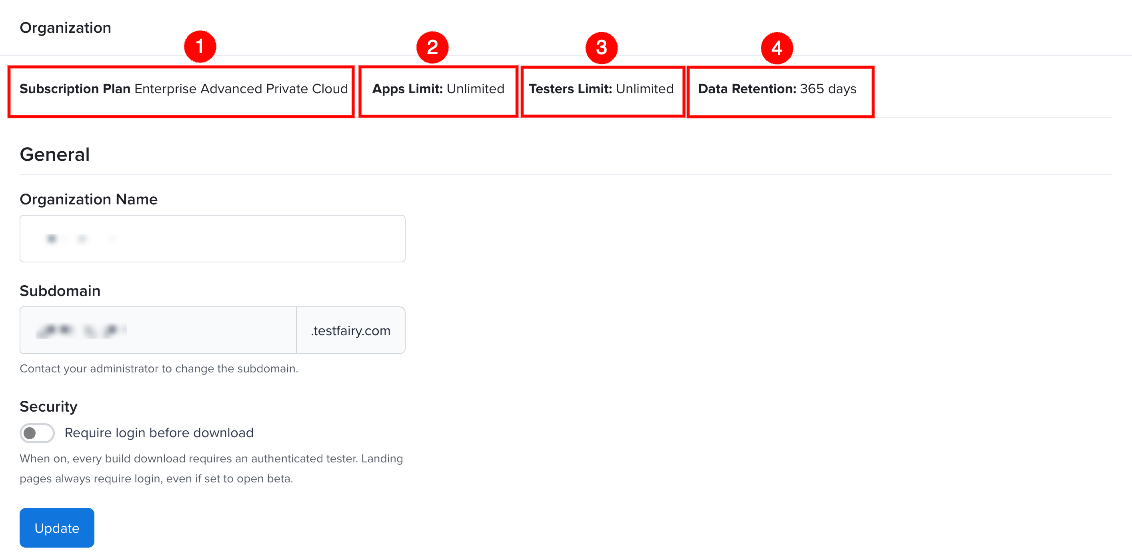
The subscription details are displayed at the top of the page. They show what your organization's plan includes, and they're read-only: you can't change them on this page.
| Sr. No. | Field | Description |
|---|---|---|
| 1 | Subscription Plan | Displays your organization's current subscription plan. |
| 2 | Apps Limit | Displays the maximum number of apps or projects allowed by your plan. |
| 3 | Testers Limit | Displays the maximum number of testers allowed by your plan. |
| 4 | Data Retention | Displays how long builds and related data are retained. |
If no plan is assigned, the page shows No plan assigned. Limits can show Unlimited.
General
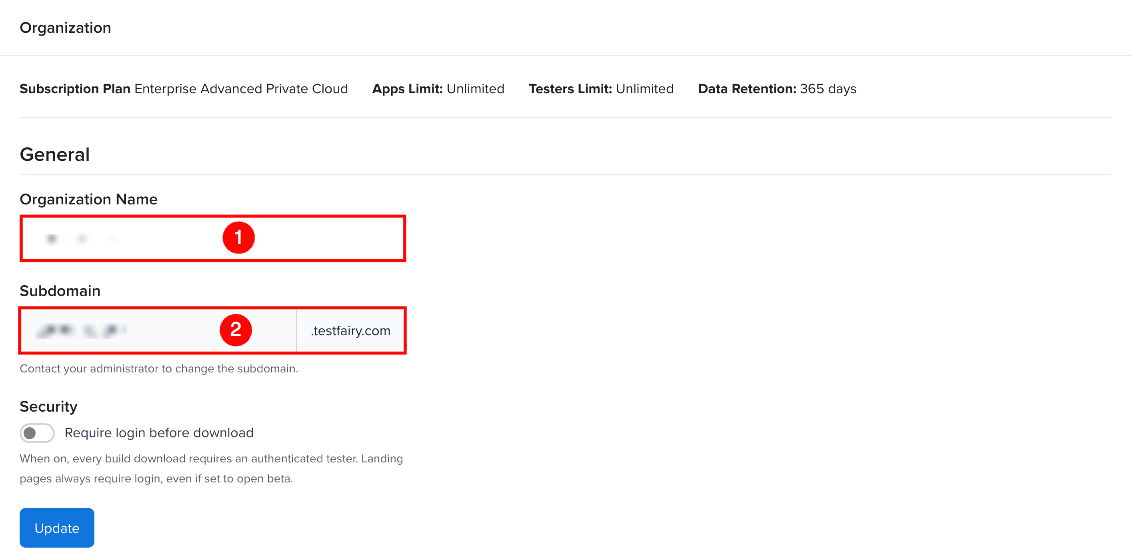
The General section contains your organization's name and subdomain. The organization name is how your organization is identified across the platform.
Your subdomain is part of every URL for your organization, including landing page and install links, the API base URL (for example, https://your-org.testfairy.com/api/v3/), and the service provider URLs you give your identity provider when you set up SSO / SAML. It's also available as the {organization_subdomain} variable in email templates.
| Sr. No. | Field | Description |
|---|---|---|
| 1 | Organization Name | The display name of your organization across the platform. |
| 2 | Subdomain | Your organization's unique subdomain, such as your-org.testfairy.com. This field is read-only. Contact your administrator to change it. |
Security
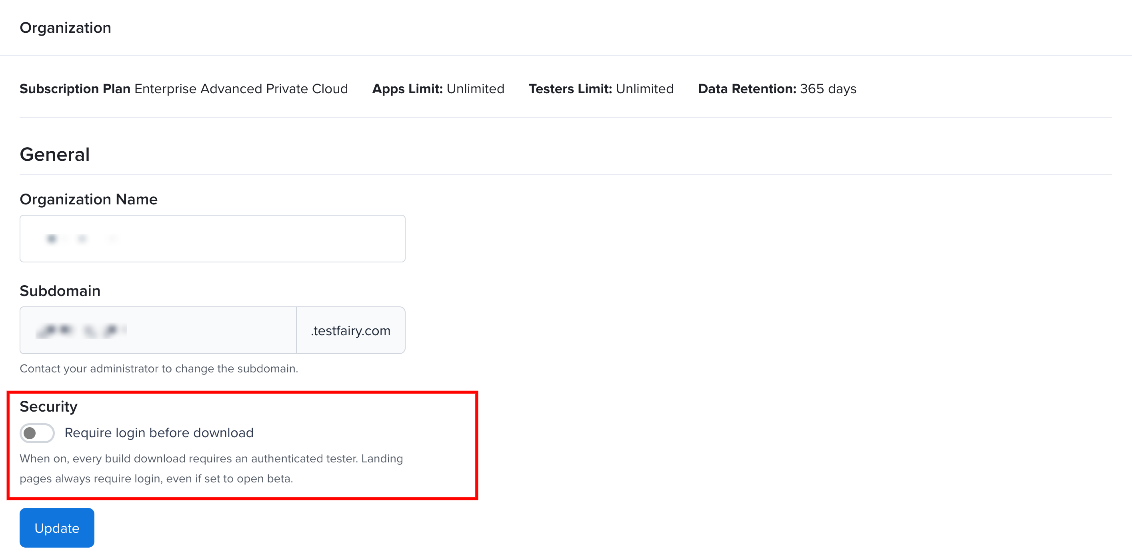
The Security section includes the Require login before download setting. When enabled, testers must log in before they can download a build. Landing pages also require login, even when the project is configured to open beta.
Turning this on makes every app in your organization closed beta, and the Visibility option on each project's landing page is locked. Use it when no build should ever be reachable through a public link.
Click Update to save your changes. Organization Name is required.
Organization Team Overview
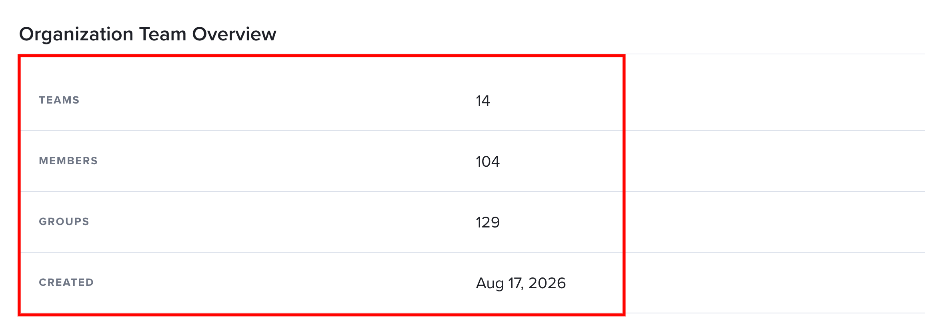
The Organization Team Overview section provides a summary of your organization's teams and members. It's a read-only snapshot. To make changes, go to Managing Teams, Members & Roles or Tester Groups.
| Sr. No. | Field | Description |
|---|---|---|
| 1 | Teams | Displays the total number of teams in the organization. |
| 2 | Members | Displays the total number of people in the organization, including testers. |
| 3 | Groups | Displays the total number of tester groups in the organization. |
| 4 | Created | Displays the date when the organization was created. |
SDK Settings
Organizations with SDK data enabled also see an SDK Settings section. It holds the values your app needs to report SDK data, such as sessions, crashes and feedback, to Mobile App Distribution.
| Field | Description |
|---|---|
| App Token | The token your app uses to report SDK data. Use Regenerate to issue a new one. |
| Server Endpoint | The endpoint the SDK reports to. |
| Setup snippets | Code snippets for adding the SDK to your app. |
| Crash and feedback emails | Toggles that control whether crash and feedback emails are sent. |
| Monthly session quota | The number of SDK sessions included each month. |